
Overview
The Marq integration with Flipsnack allows you to take your designs created in Marq and publish them directly as interactive flipbooks in Flipsnack. This creates an easy workflow between design and distribution, without the need for manual uploads or file handling.
💡 Benefits of publishing Marq designs through Flipsnack
- Direct publishing: Send your Marq designs to Flipsnack without manual file downloads
- Faster workflow: Reduce steps between design and publishing
- Enhanced interactivity: Add links, videos, and buttons in Flipsnack
- Advanced sharing options: Use trackable links, embeds, and visibility settings
- Consistent branding: Apply player customization and branding in Flipsnack
While both Marq and Flipsnack can be used to create visual content, this integration helps you move your finished designs into Flipsnack, where you can enhance them with interactivity, branding, and sharing options.
By combining Marq’s design capabilities with Flipsnack’s publishing and customization features, you can create engaging, trackable, and easy-to-share flipbooks in just a few steps.
How the Marq–Flipsnack integration works
The integration follows a simple one-way workflow:
- Create your design in Marq
- Export it directly to Flipsnack
- Continue editing and customizing your flipbook in Flipsnack
- Publish and share your flipbook
Your design is exported as a PDF and automatically opened in Flipsnack, where you can continue the publishing process.
Requirements
- A Marq account: go to Marq
Step-by-step: Publish your Marq design to Flipsnack
1. Open your design in Marq
Make sure your design is finished and ready to be published.
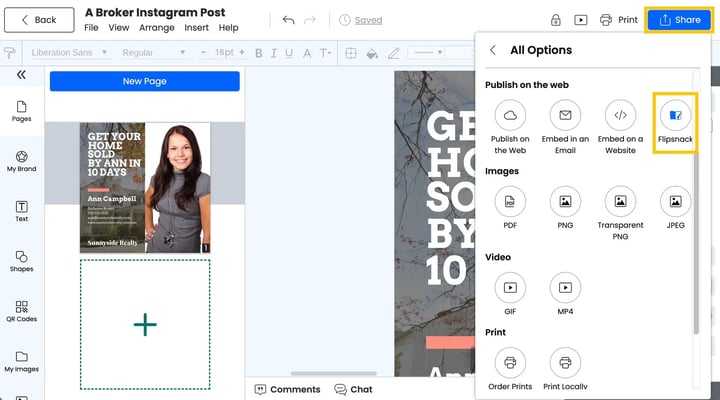
2. Click Share in Marq
In the top-right corner of the Marq editor, click the Share button.
3. Select Flipsnack as a publishing option
- Go to Publish on the web
- Select Flipsnack from the available options
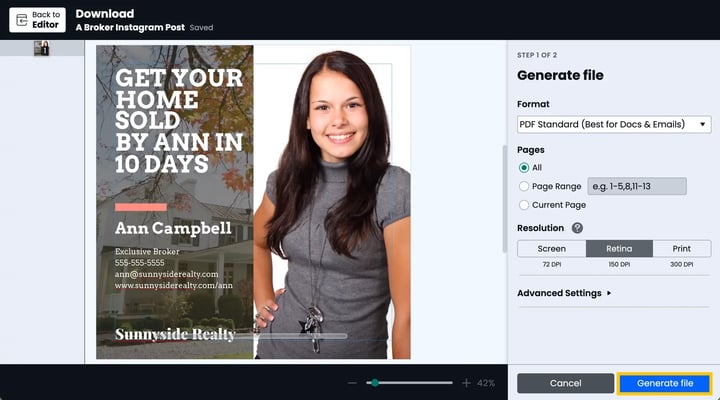
4. Generate your file
- Choose your preferred export settings (format, pages, resolution)
- Click Generate file
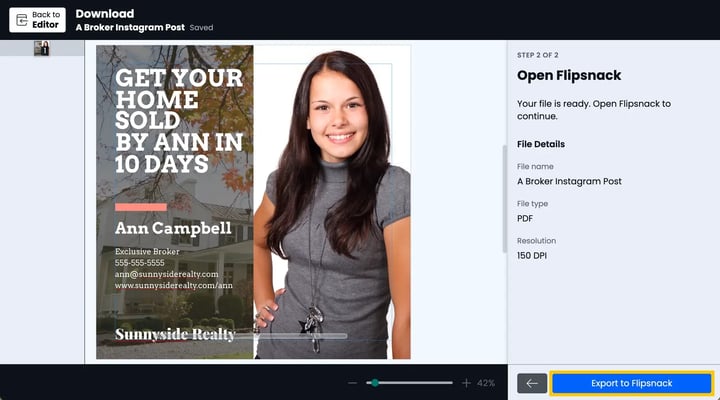
5. Export to Flipsnack
After the file is generated, click Export to Flipsnack.
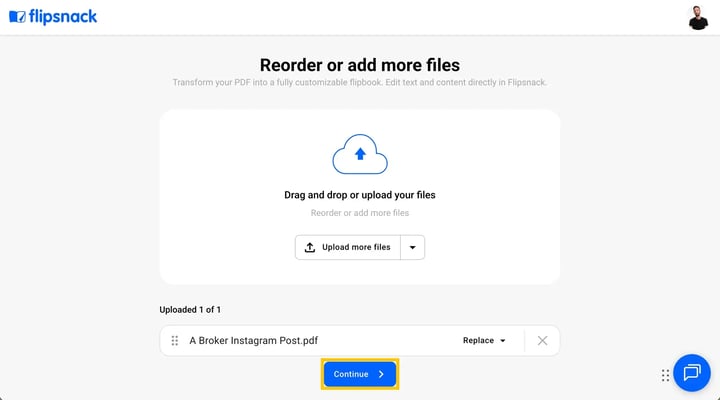
6. Continue in Flipsnack
Flipsnack will open automatically with your file ready to upload.
- Review your file
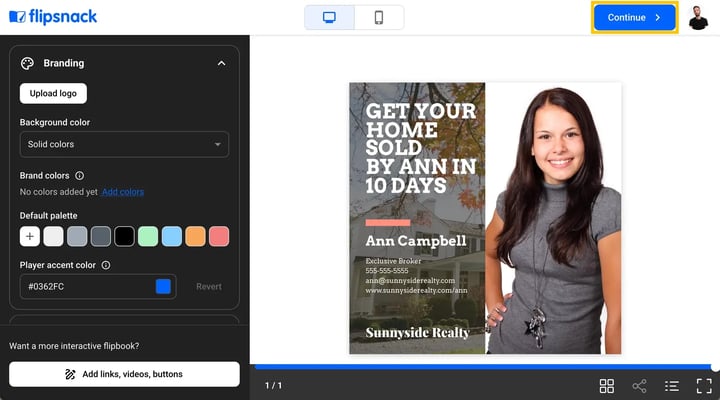
- Click Continue to proceed
7. Customize your flipbook
You will be redirected to the Customize page, where you can:
- Add branding (logo, colors)
- Adjust the flipbook player
- Add interactivity in the Design Studio (links, videos, buttons)
- Enable integrations and tracking
8. Publish your flipbook
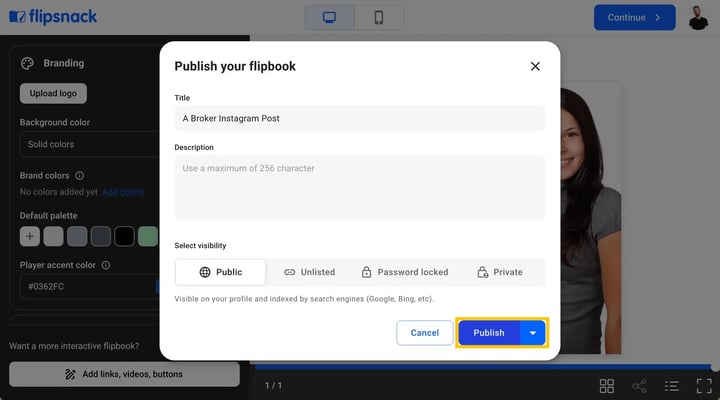
- Click Continue
- Choose your visibility settings (Public, Unlisted, Password protected, Private)
- Click Publish
Edit and update your design
If you need to make changes to a design already published in Flipsnack, you have two primary options depending on where the edits need to occur.
Option 1: Edit directly in Flipsnack
For minor adjustments or adding interactive elements, use Flipsnack’s internal tools.
- From the Content dashboard, locate your flipbook.
- Click Edit to enter the Design Studio.
- Add or modify links, buttons, and videos.
Note: This method does not change the underlying design (text or images) imported from Marq.
Option 2: Update the Marq design (Replace PDF)
If you need to change the layout, text, or images in Marq, you must manually update the existing flipbook in Flipsnack to maintain the same shareable link.
- In Marq: Open your design, make the necessary edits, and download it as a PDF.
- In Flipsnack: Go to Content and find the existing publication.
- Click the three dots icon (More options) and select Replace PDF.
- Upload the updated PDF downloaded from Marq.
- Click Save.
Additional tips / FAQs
- Can I edit my design after exporting from Marq? Yes. Once imported into Flipsnack, you can enhance your flipbook with interactive elements and customization options.
- What file format is used for the transfer? Your design is exported as a PDF and uploaded into Flipsnack.
- Do I need to download the file manually? No. The integration sends the file directly to Flipsnack.
Common use-cases
- Marketing materials: Design brochures in Marq and publish interactive versions in Flipsnack
- Sales presentations: Turn static decks into trackable flipbooks
- Real estate listings: Create property visuals in Marq and share them as flipbooks
- Internal documents: Share company materials with controlled access
Next steps
- Customize your flipbook player
- Add links, videos, and interactions
- Sharing options explained
- Converting a PDF file into a flipbook
Need expert support?
Our team is here to help. Connect with our team experts or message us via the live chat for personalized assistance.