
Overview
Tracking how readers engage with your flipbooks helps you understand content performance and qualify leads based on real interaction. With the Flipsnack–HubSpot integration, you can automatically track flipbook reading progress as a HubSpot custom event.
💡 Benefits of tracking reading progress with HubSpot events
- Automatic custom event creation: No manual event setup required in HubSpot
- Reading progress visibility: Track progress from 0% to 100% in defined increments
- Better lead qualification: Score and segment contacts based on real engagement
- Workflow-ready data: Use reading progress to trigger HubSpot automations
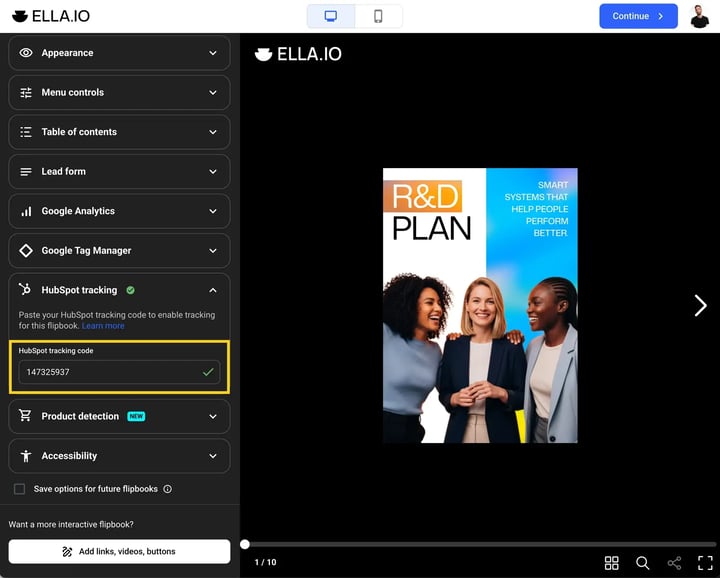
The custom event is created automatically by the integration. You only need to add your HubSpot tracking ID to the flipbook. Once enabled, HubSpot records how far each identified contact progresses through the flipbook.
This setup is ideal for lead generation and marketing automation, allowing you to build lists, adjust lead scores, and trigger workflows based on actual reading behavior.
Common use-cases
- Lead scoring: Increase scores for contacts who reach 50% or 100% reading progress
- Sales enablement: Identify which prospects fully reviewed sales materials
- Marketing automation: Trigger follow-up emails based on content consumption
- Content optimization: Compare engagement across different flipbooks
How the HubSpot flipbook reading progress event works
Once the tracking code is installed and a contact is identified, Flipsnack sends a custom event to HubSpot each time the reader reaches a new progress milestone.
The event includes:
- Timestamp: When the reading progress was reached
- Reading percentage: 0%, 25%, 50%, and 100%
You can use this event:
- As a custom event filter in lists
- In lead scoring rules
- To trigger workflows
- In the contact timeline to see how an individual interacted with your flipbook
Requirements
- Plan: Enterprise: contact sales
- HubSpot plan: Marketing Hub Enterprise: go to HubSpot
- Integration: HubSpot connected to Flipsnack: connect HubSpot
Step-by-step instructions
Note: The HubSpot integration is connected once per workspace, while the portal ID is configured per flipbook. This allows teams to reuse the integration while linking different flipbooks to different HubSpot portals.
1. Connect Flipsnack and HubSpot
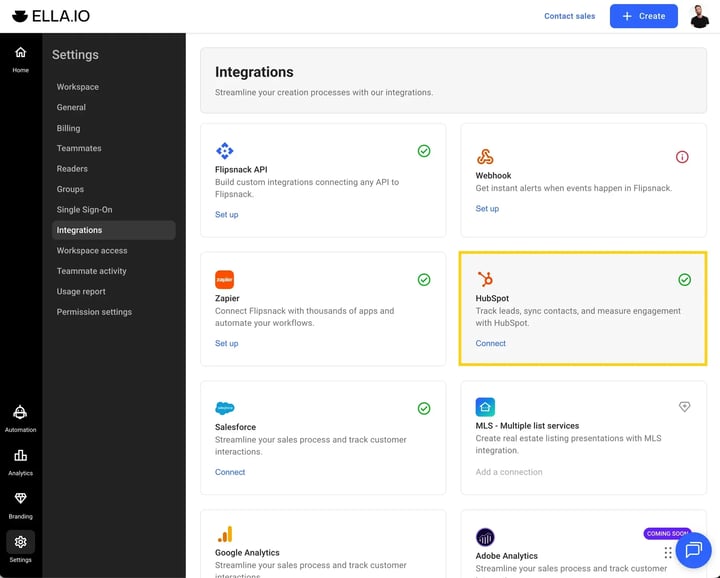
Before adding any tracking IDs, you need to connect your HubSpot account to Flipsnack. This connection automatically creates the flipbook reading progress custom event in HubSpot.
You can do this in one of two ways:
- Go to Integrations from your Flipsnack account settings and connect HubSpot
- Or open any flipbook, go to Customize, and connect HubSpot from the HubSpot tracking section
Once connected, Flipsnack automatically sets up the custom event in HubSpot. No manual event configuration is required.
2. Configure tracking settings in HubSpot
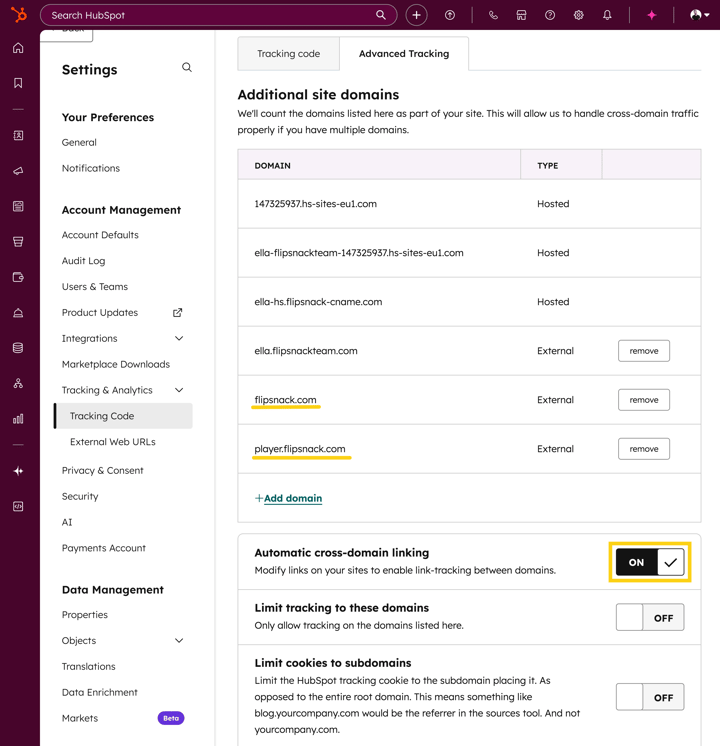
Before copying the portal ID into Flipsnack, make sure your HubSpot tracking settings are configured correctly.
- In HubSpot, go to Settings.
- Open Tracking & Analytics.
- Make sure your tracking code is active.
-
In the Advanced tracking section:
-
Add the Flipsnack domain or your custom domain
- Enable automatic cross-domain linking
-
These settings ensure HubSpot can correctly recognize visitors and associate events across domains.
3. Copy your HubSpot portal ID
- In HubSpot Settings, go to Tracking & Analytics.
- Copy your HubSpot portal ID.
You will use this ID to link a specific HubSpot portal (sandbox or live) to a flipbook.
.png?width=720&height=507&name=Screenshot%202026-02-05%20at%2014.26.48-mh%20(2).png)
4. Add the HubSpot portal ID to the flipbook
After the integration is connected and the portal ID is copied:
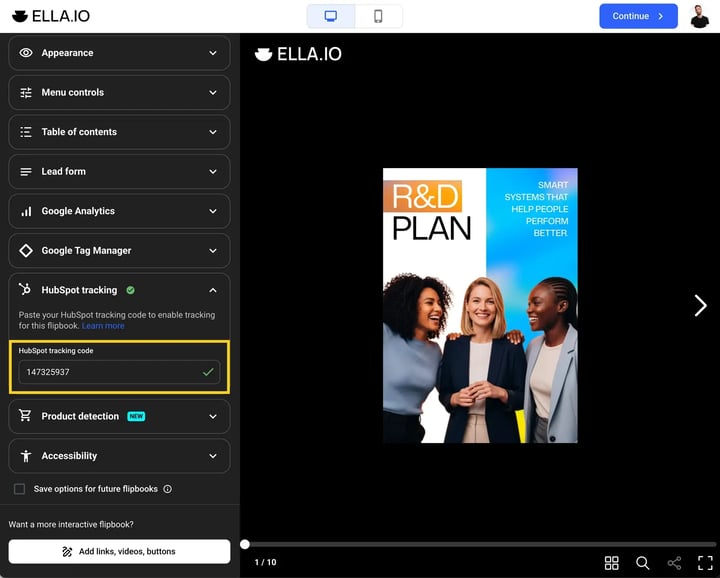
- Open your flipbook and go to Customize.
- In the left-side panel, open HubSpot tracking.
- Paste the HubSpot portal ID into the designated field.
This allows you to:
- Connect different flipbooks to different HubSpot portals
- Test tracking in a sandbox portal before using a live one
Make sure the status indicator confirms the portal ID was added successfully.
5. Publish or update the flipbook
After adding the portal ID:
- Click Continue.
- Publish the flipbook or update it if it is already published.
Once published, the HubSpot tracking code is automatically injected into the flipbook.
.png?width=720&height=578&name=Screenshot%202026-02-05%20at%2014.26.48-mh%20(3).png)
6. Validate the tracking code
To confirm the code is installed:
- Go to HubSpot Settings.
- Open Tracking & Analytics.
- Under Tracking code, use the tracking code validation tool (located beneath the tracking code section).
- Paste the URL of your published flipbook into the dedicated validation field.
If everything is set correctly, HubSpot will confirm the tracking code is detected.
.png?width=720&height=571&name=Screenshot%202026-02-05%20at%2014.26.48-mh%20(7).png)
7. Check the custom event in HubSpot
After validation:
- Go to Events in HubSpot.
- Open Event management.
- Locate the newly created Flipsnack reading progress custom event.
The event will start appearing once contacts are identified and begin reading the flipbook.
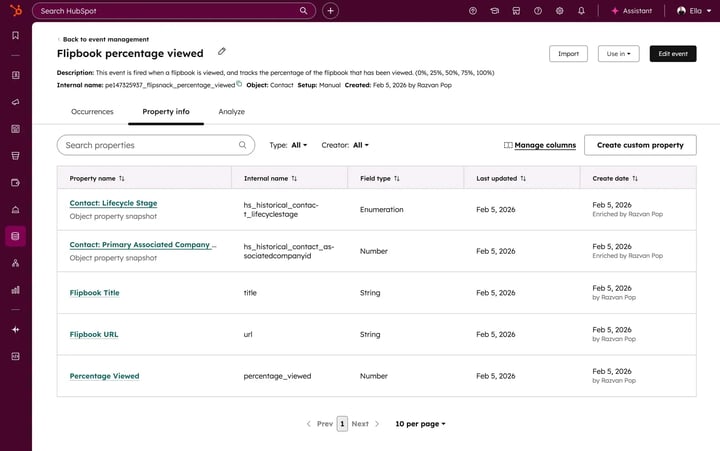
Identifying contacts for CRM tracking
HubSpot can only associate reading progress with contacts if it has an email address. You can identify readers in one of the following ways.
Option 1: Use the Flipsnack Lead form (recommended)
- Enable the Lead form in the Customize page
- Connect it to HubSpot and map the form fields to HubSpot contact properties (such as Email)
- Gate the flipbook after a few pages
When you use this option, Flipsnack will create a new contact or update an existing one in HubSpot using the submitted form data. At the same time, the flipbook reading progress event is automatically associated with that contact, including the percentage viewed.
.png?width=720&height=562&name=Screenshot%202026-02-05%20at%2014.26.48-mh%20(9).png)
This method captures interest first, then prompts readers to convert where engagement is highest.
Option 2: Redirect from a HubSpot form
This method uses a HubSpot form submission and a hidden field to dynamically control the flipbook URL while ensuring the email parameter is appended correctly.
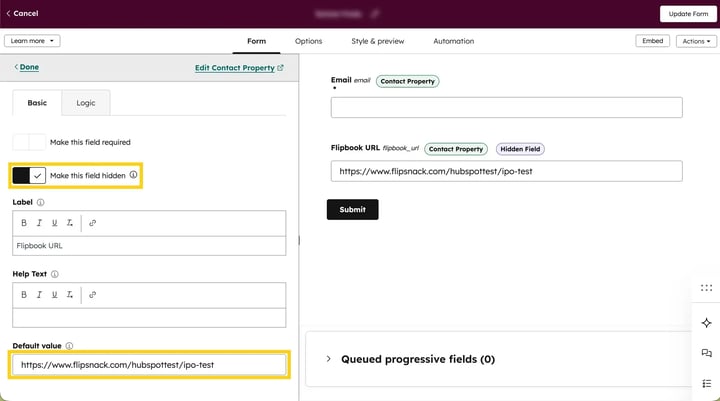
Important: Do not use HubSpot’s built-in Redirect to another page option. Select Display a thank you message instead, and let the custom script handle the redirect.
- Create a new HubSpot form.
- Add the necessary fields (such as Email and any other properties you want to collect).
- Create a new custom property called
flipbook_url. You only need to create this property once. After that, you can reuse it in other forms. - Add the
flipbook_urlproperty to your form and set it as a hidden field. - Set the default value of this hidden field to your published flipbook URL.
- Go to the Options tab and select Display a thank you message after submission.
Then, add the following script to the landing page. It reads the email and the flipbook URL from the form submission and redirects the visitor accordingly.
<script>
window.addEventListener('message', function(event) {
  if (!event.data || event.data.type !== 'hsFormCallback') return;
if (event.data.eventName === 'onFormSubmitted') {
var submission = event.data.data && event.data.data.submissionValues;
    if (!submission) return;
var email = submission.email;
    var fsLink = submission.flipbook_url;
if (!email || !fsLink) {
      return;
    }
var separator = fsLink.includes('?') ? '&' : '?';
    var finalUrl = fsLink + separator + 'email=' + encodeURIComponent(email);
setTimeout(function() {
      window.location.href = finalUrl;
    }, 0);
  }
});
</script>
You can add this script:
- Via Google Tag Manager, or
- Directly in the page settings if the landing page is hosted in HubSpot (Advanced tab → Footer HTML).
This approach allows marketing teams to control the flipbook URL directly from the form settings without modifying the script, while ensuring the reading progress event is associated with the correct contact.
Alternative (simple version – manual code edit):
If you prefer to manually define the flipbook URL directly in the script instead of using a hidden field, you can use the simplified version below. In this case, replace YOUR-FLIPBOOK-URL with your published flipbook link.
<script>
window.addEventListener('message', function(event) {
  if (!event.data || event.data.type !== 'hsFormCallback') return;
if (event.data.eventName === 'onFormSubmitted') {
var fsLink = 'https://YOUR-FLIPBOOK-URL';
var email = event.data.data &&
                event.data.data.submissionValues &&
                event.data.data.submissionValues.email;
if (!email) return;
var separator = fsLink.includes('?') ? '&' : '?';
    var finalUrl = fsLink + separator + 'email=' + encodeURIComponent(email);
setTimeout(function() {
      window.location.href = finalUrl;
    }, 0);
  }
});
</script>
Use this version if you want full control over the destination URL inside the script itself.
Option 3: Embed a form inside the flipbook
- Add a form using interactive elements or a popup
- Use it for contact or inquiry forms
.png?width=720&height=578&name=Screenshot%202026-02-05%20at%2014.26.48-mh%20(10).png)
This option works best for non-gated content and simple contact requests.
Important: If a reader’s email address is not sent to HubSpot using one of the methods above, HubSpot cannot associate the reading progress event with a contact. In this case, the event will still appear in the Event management page, but it will be recorded with an unknown contact.
Test your setup
After identifying contacts using one of the three options above, you can test that everything is working correctly.
- Complete the form you’re using (HubSpot form, Flipsnack Lead form, or embedded form) to make sure your contact appears in HubSpot.
- Open the flipbook and start flipping through the pages.
- Continue reading until you reach at least 25% of the total number of pages.
-
Go to HubSpot and check:
-
The contact record, to confirm the contact exists or was updated
- Event management or the contact timeline, to see if the flipbook reading progress event fired
-
If the setup is correct, you’ll see the event recorded with the corresponding reading percentage.
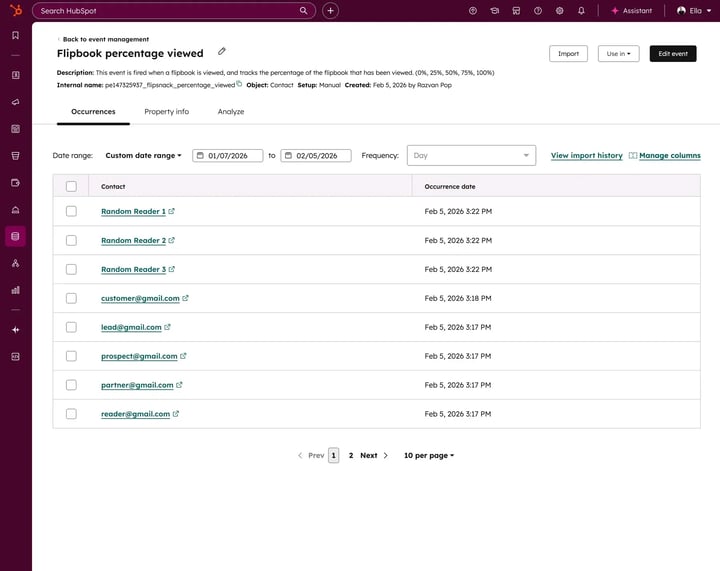
Additional tips / FAQs
- Event properties need an identified contact: The custom event fires for every flipbook view, but event properties (such as reading percentage) only appear in the contact timeline once the event is associated with an identified contact. You can still report on total event fires in Event management.
- Progress milestones: Progress milestones are incremental and update as the reader continues.
- Segmentation with other properties: You can combine reading progress with other HubSpot properties for advanced segmentation.
Troubleshooting
- No event appears in HubSpot: Make sure the flipbook is published and the domain is added to advanced tracking
- Event fires but no contact is shown: Ensure an email address is captured before or during reading
- Tracking validation fails: Check that the correct HubSpot tracking ID was added in Customize
Next steps
- Connect your HubSpot account to Flipsnack
- See what else can be done with the HubSpot integration
- Create and update contacts in Hubspot with flipbook lead forms
- Learn how to create a custom cookie banner using HubSpot
Need expert support?
Our team is here to help. Connect with our team experts or message us via the live chat for personalized assistance.