
Overview
Your flipbook catalog can tell your website what is happening inside its cart. Someone opens a product, adds one, changes how many they want, sends an order: the catalog says so the moment it happens, and your website can keep its own cart matching.
That one fact is the whole feature, and what you do with it is your choice. Either your site listens and mirrors, so the Flipsnack cart stays where it is and you finally know what people are putting in it. Or you hide the Flipsnack cart altogether, and every Add lands in the cart your shop already runs, so the order goes through your own checkout.
The catalog sits inside a frame on one of your pages, and the messages travel from that frame to the page around it. Nothing gets installed, and the catalog stays the same embed code you already paste in.
A little more detail, for the conversation with whoever builds your site: the catalog sends ordinary browser messages up to the page holding it. They travel one way, catalog to page, so nothing can be written back into the catalog from outside. There is no API key to apply for, nothing to install, and no account to connect. Your developer adds about ten lines of JavaScript to the page that holds the embed, and everything else is your own shop behaving as it always has.
This article is written for the person deciding to do it. It covers what to ask for, what to hand over, and how to tell it is working. The message-by-message reference, which your developer will want and you will not, is on the Flipsnack developer site.
💡 Benefits of sending cart events to your own site
- Your checkout, your rules: shoppers browse the catalog and pay through the store, payment provider and tax setup you already run.
- Very little to build: a few lines of code on the page holding the catalog. Nothing to install, and the embed code stays as it is.
- Real product data: every message carries the product code and the variant from your product feed, so an order matches your stock instead of a product name.
- Always the full cart: each message includes everything in the cart at that moment, so your website never has to keep count itself.
- You see what sells: product clicks show which pages and which products the catalog is actually moving.
It is worth knowing where this pays off before anyone starts building.
👥 Where cart events are helpful
- Retailers with an existing store: the catalog becomes a shopping surface on the site, and the store's cart still takes the order.
- Wholesale and B2B ordering: an order lands in the ERP or order desk the sales team already uses, with the customer's own product codes.
- Marketing and analytics teams: product clicks and cart activity go straight into GA4, a CDP or a CRM alongside the rest of the funnel.
- Agencies building a client's site: the client keeps their checkout, and the catalog is embedded rather than rebuilt.
Before your website can receive anything, a few things have to be in place.
Requirements
- Plan: Enterprise: contact sales
- Republish the catalog after it is switched on. A catalog published earlier keeps working the way it always did until you do.
- The catalog embedded on a page of your website. A catalog opened on its own, in its own tab, sends nothing.
- Someone who can add a few lines of code to that page. It is a short piece of JavaScript, and the example below is most of it.
Set it up, in order
Two of these are yours, two are your developer's, and the last one you do together. The sections below explain each.
- Step 1, you: ask the Flipsnack team to switch cart events on for your account.
- Step 2, you: republish the catalog, to start sending information from it.
- Step 3, your developer: put the embed code on the page and add
cartMode=to it, set to whichever cart you decided keeps the order. - Step 4, your developer: add the listener to the same page and connect it to your cart.
- Step 5, both of you: open the page and check it.
viewer.readyappears in the browser console as soon as the catalog loads, before anyone touches anything. If it does not, Troubleshooting says why.
Choose a cart mode
The cart mode is the decision the rest depends on, and it is yours rather than your developer's: who keeps the cart, Flipsnack or your own shop? It is set by one word added to the embed code, so it can be changed later, but changing it means changing how a shopper checks out.
With cartMode=native the Flipsnack cart stays. Shoppers open it inside the catalog and send their order the way they do today, and your website is told everything that happens so you can record it, feed a CRM, or pass the order on. Choose this when the ordering you have now works and you want the data.
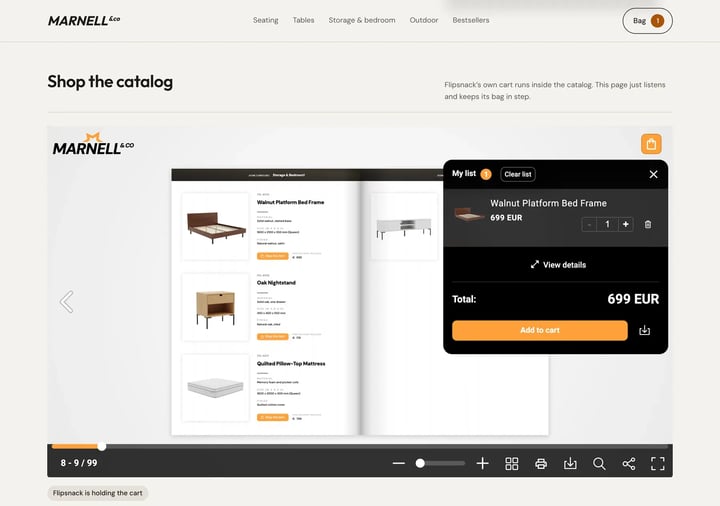
With cartMode=external the Flipsnack cart disappears: no cart icon, no cart panel, no send-order, no WhatsApp checkout, no export, no Clear list. What the shopper still sees is the product, its price, the quantity picker and the Add button. Choose this when you already have a shop and you want the order to go through it.
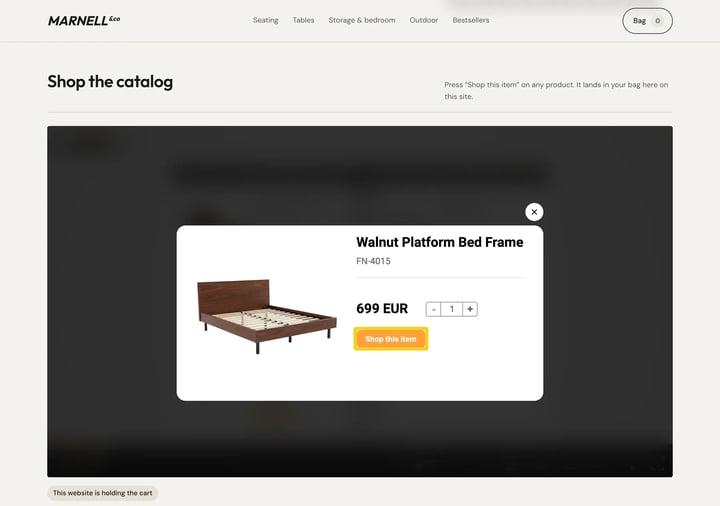
Pressing it saves nothing on the Flipsnack side. The catalog simply tells your page what was pressed, and from that moment the product belongs to your cart and your checkout.
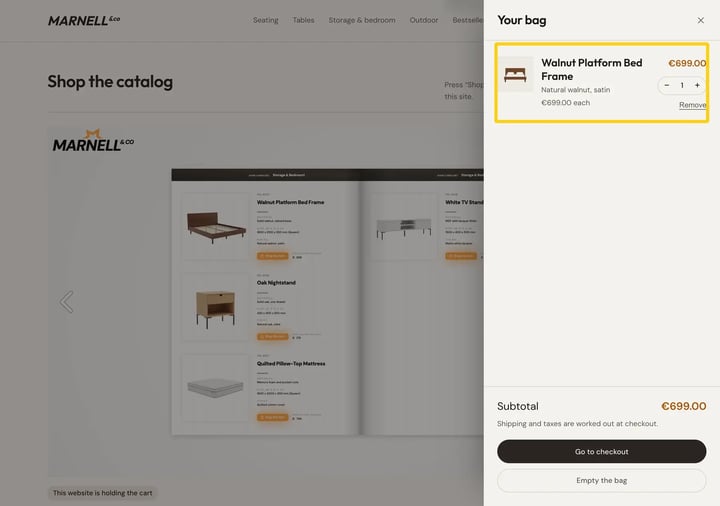
Leaving cartMode out of the embed code is the third possibility, and it means the catalog only says that it has loaded and nothing after that. Spell the value exactly as shown above, because a misspelling reads as if it were missing.
What to hand your developer
Your developer needs this whole brief. Send your developer the page that holds the embed, the mode you chose, and the link to the developer documentation. The code below is most of the job: it listens for the catalog, checks the message really came from it, and hands over the product that was added.
Three details they will thank you for knowing, because each one costs an afternoon to find out the hard way. The listener has to be on the page before the catalog finishes loading, because the catalog announces itself once and never again. The check is on which frame sent the message, not on the address it came from, because the same player address serves every catalog. And a page holding two catalogs tells them apart by that same check.
Replace YOUR_FLIPBOOK_HASH with the one from your own embed code.
What the catalog sends
You do not need to read this part to decide anything, but it is worth seeing once, because it is what your shop has to work with. Here is a real message: a shopper pressed Add on one bed frame.
Every message says the same four things: that it came from Flipsnack, which catalog it came from, what happened, and the product or cart it happened to. That is the whole shape of it.
Two things in there are worth saying out loud, because they are what integrations get wrong. Prices arrive as text, and the discounted price is empty when a product is not on offer, so your page reads the discount first and falls back to the full price. Two adds are the same cart line when the product code and the variant both match, never when the titles match, because two products can share a name.
The product code comes from your own feed and arrives as null when the feed did not supply one, which is usually the sign that a product needs a code adding.
The full list of events, with an example of every message, is in the cart events developer documentation.
Troubleshooting
- Nothing arrives at all: cart events are not switched on for the account, or the catalog was not republished afterwards. Republish it, then reload your page.
- Only
viewer.readyarrives:cartModeis missing from the embed address, or misspelled. It has to read exactlynativeorexternal. - Nothing arrives when the catalog opens in its own tab: only an embedded catalog sends events. A catalog on its own stays silent.
- Cart events show up in external mode, or
product.addToCartClickedin native mode: the page is listening to a different embed. Checke.sourceandpublication.hashagainst the catalog you meant. externalIdcomes back asnull: the product has no code in the catalog feed, or the shopper clicked a product tag rather than a feed product. Add the code to the feed and republish.cart.submittednever arrives: it is sent only when an order goes through. A failed order sends nothing.- The quantity looks wrong after a second add: adding a product that is already in the cart sends
cart.item.updated, notcart.item.added. Readpayload.cartand take the cart as given.
Additional tips / FAQs
- Can I write into the Flipsnack cart from my page? No. Messages travel one way, catalog to page, so in native mode your own view of the cart is a copy you cannot change from outside.
- Does this need a Flipsnack API key? No. Cart events happen in the browser and use no key. The Flipsnack API is a separate thing.
- What happens when a shopper adds several products at once? In external mode you get one message per product.
- What is
orderIdoncart.submitted? An identifier the catalog makes when the order form opens, not an order number from a system. - Is the shopper's contact data in the messages? No. A submitted order lists the names of the fields that were on the form, never what the shopper typed into them.
- Can I use this with the product-page popup instead of an embed? No. The catalog has to be embedded in an iframe on your page.
Next steps
- How to use the Shopping list feature in a Flipsnack catalog
- Using webhooks to collect product orders from your catalog
- Flipsnack API reference: methods, parameters, examples
- How to embed a flipbook on your Shopify storefront
Need expert support?
Our team is here to help. Connect with our team experts or message us via the live chat for personalized assistance.