
CSV product updates stop syncing automatically when no unique ID (SKU) was selected during the mapping process, since that ID is what synchronization relies on. Add a unique ID, manually update the products once, and future edits to the CSV file will sync automatically after that.
If the products from your CSV file are not updating automatically in your flipbook, follow these steps to troubleshoot the issue:
1. Map product information: Ensure that when you upload a CSV file, you correctly map the product information with your data. For detailed instructions, refer to this guide: Improve your digital catalog creation in Flipsnack with automation.
2. Select a unique ID (SKU): It is very important to select a unique ID during the mapping process. This ID is crucial for synchronization and should not be modified later on.
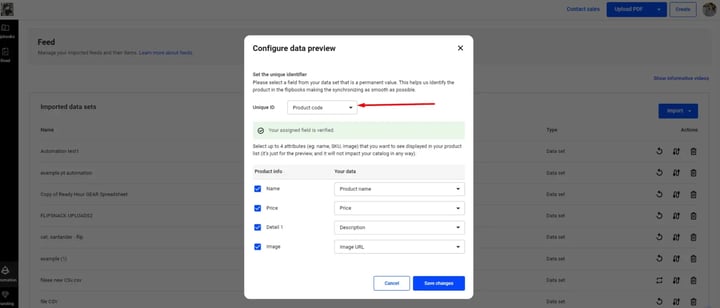
- Manual update if ID not selected: If a unique ID was not selected initially, any changes made to your CSV file will not be reflected automatically in the flipbook. In this case, you need to add a unique ID and manually update the products.
- Automatic updates for future edits: After setting the unique ID and manually updating the products, future edits to your CSV file will be synchronized automatically.
By following these steps, you can ensure that your products are updated correctly in the flipbook.
You can also refer to this article for different FAQs related to Automation.
If you have any questions, contact us via live chat.
Next steps
- CSV files for Flipsnack Automation: format, import, export
- How to prepare your spreadsheet product feed for automation
- How to sync your product feed automatically in Flipsnack
Need expert support?
Our team is here to help. Connect with our team experts or message us via the live chat for personalized assistance.