
To get started, you'll need to make sure the settings inspector is visible in Design Studio. Look for the Show settings inspector option in the View menu, located in the top-left corner of the toolbar. If the inspector isn't visible, click this option to display it under the toolbar.
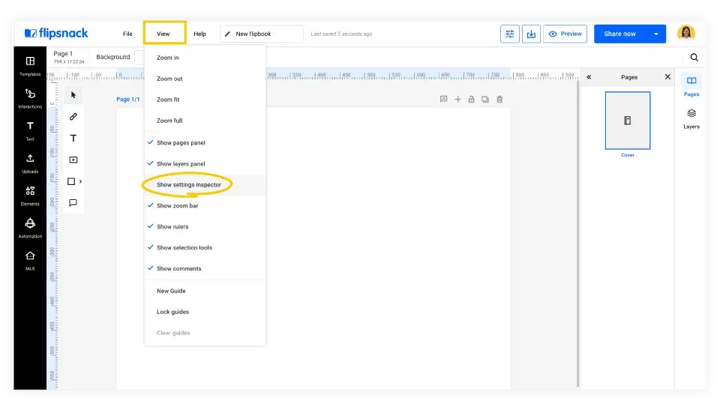
In this tutorial, you'll discover how to leverage the inspector tool in Flipsnack's editor mode to achieve precise element positioning on your page. Once positioned, you can apply these settings across all pages for a consistent look throughout your flipbook. Here's how to do it:
By following these steps, you’ll ensure that all your elements are perfectly aligned and uniformly applied across your entire flipbook, giving it a professional and cohesive look.
Next steps
Need expert support?
Our team is here to help. Connect with our team experts or message us via the live chat for personalized assistance.