
Affects: All Flipsnack accounts
Overview
When you log in, you will see a new Home tab in the left navigation, a central hub built around our updated design system that surfaces key features and highlights new releases in one place. Whether you're setting up your account for the first time or picking up where you left off, it's easier than ever to discover what Flipsnack has to offer and jump straight into the most relevant tools, without having to navigate through the entire app to find them.
Your existing dashboard has been renamed Content; that's still where all your flipbooks are. Everything else, including your team settings, analytics, and account data, stays exactly as it was.
What changed
This update introduces two changes to the navigation and landing experience:
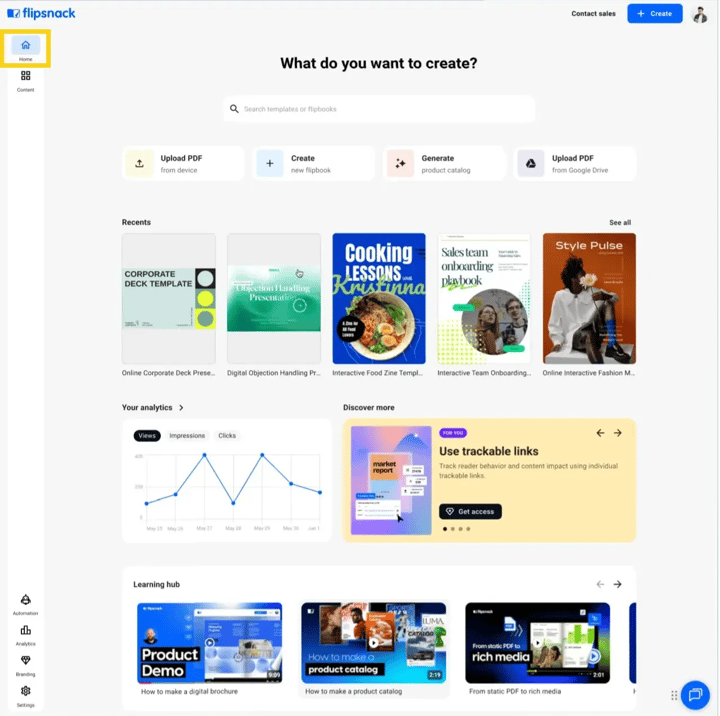
My Flipbooks → Content
The only thing changing here is the name. Your existing dashboard is now called Content, with a fresh white design, and is accessible from the left navigation menu.
.png?width=720&height=427&name=content%20is%20where%20you%20will%20find%20your%20flipbooks-mh%20(3).png)
Note: Onboarding checklist (new accounts only) A step-by-step setup checklist will appear on your Home page to guide your team through the essentials.
Quick creation options
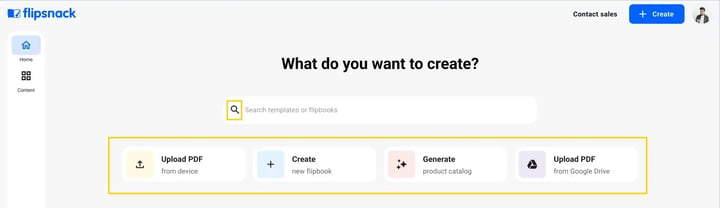
At the top of the Home page, you'll find everything you need to start creating right away. A search bar lets you find existing flipbooks. Below it, four quick-action cards give you direct shortcuts to the most common tasks:
- Upload PDF from device: turn a PDF from your computer into a flipbook
- Create new flipbook: start a flipbook from scratch
- Generate product catalog: automatically generate a catalog using your product data
- Upload PDF from Google Drive: import a PDF directly from your Google Drive
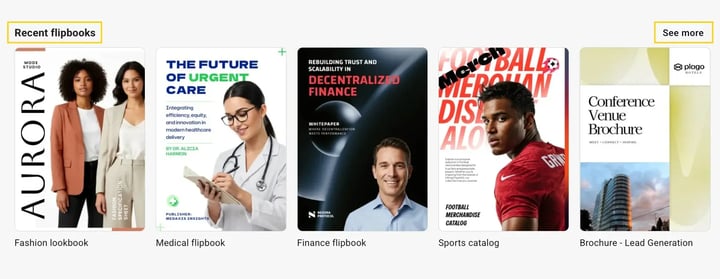
Recent flipbooks
A quick-access row showing the flipbooks you've worked on most recently, so you can pick up right where you left off without having to search through your content. Click any flipbook to open it directly. Click See more in the top right corner of the section to view your full list of recent flipbooks.
Analytics
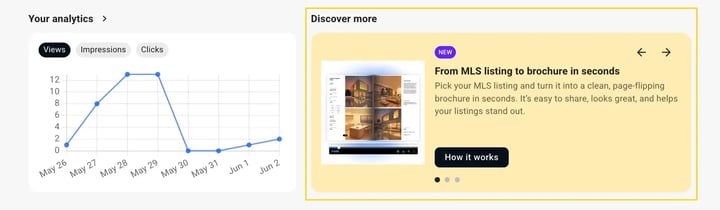
A snapshot of your flipbook performance, showing Views, Impressions, and Clicks over the past days, so you can check in on how your content is doing without leaving the Home page. Click the arrow next to Your analytics to go to the full Analytics section.
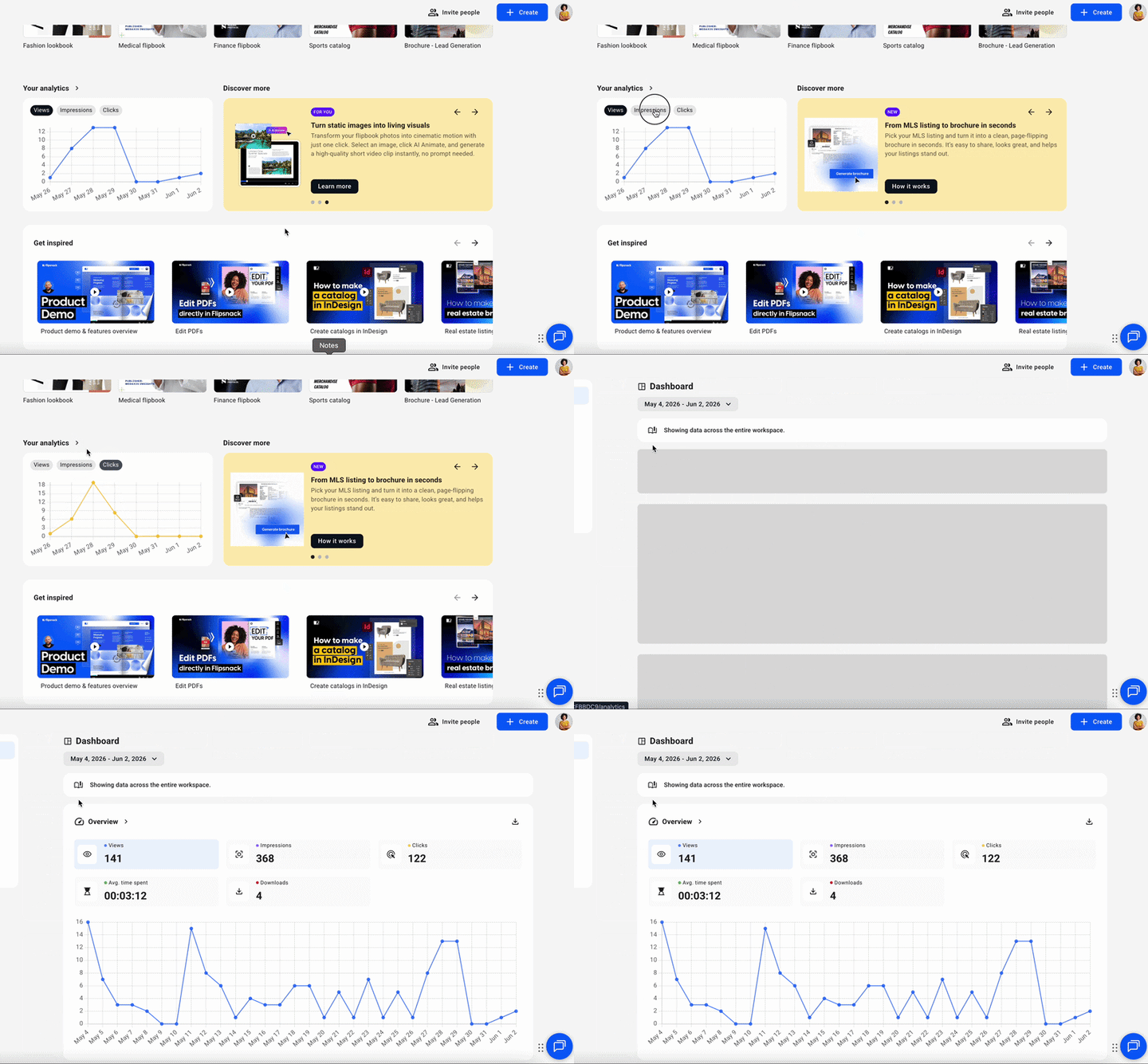
Discover more
A carousel highlighting new Flipsnack features and capabilities. Each card includes a short description and a "How it works" button so you can quickly learn about and try out what's new. Use the arrows to browse through the available cards.
Learning hub
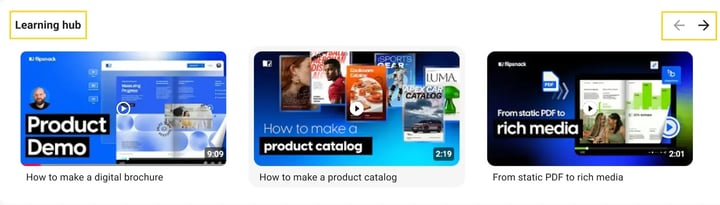
A curated row of tutorial videos and use-case walkthroughs, covering topics like product updates, real estate brochures, PDF editing, and branding, to help you and your team get more out of Flipsnack. Use the arrows to scroll through the available videos.
Additional tips / FAQs
- Will my existing flipbooks or settings change? No. Your existing flipbooks, settings, analytics, teammates, and all account data remain exactly as they are. Only the landing page and dashboard name changed.
- Where did my flipbooks go? Your flipbooks haven't moved. They're in the Content section in the left navigation menu.
- What is the onboarding checklist on the Home? The onboarding checklist guides through key setup steps for new accounts, like creating your first flipbook, adding media, customizing your branding, and sharing, to help you and your team get the most out of Flipsnack quickly.
Have feedback? We'd love to hear what you think about the new Home page. Get in touch with us by using the in-app chat.
Next steps
Need expert support?
Our team is here to help. Connect with our team experts or message us via the live chat for personalized assistance.