
Overview
Making flipbooks accessible is now faster and more accurate with our AI-powered text extraction tool. Failing to meet digital accessibility requirements, such as WCAG 2.1 Level AA, ADA Title III, Section 508, or the EAA, can expose organizations to negative publicity or loss of contracts.
👥 Where AI text extraction is helpful
- Training materials: Ensure interactive learning modules and employee handbooks are fully accessible to all staff members using screen readers, meeting strict internal compliance and LMS security standards.
- Internal communications: Distribute company-wide HR policies and executive updates securely via SSO while ensuring every page is readable by assistive technologies.
- Marketing materials: Make public-facing product catalogs and brand kits inclusive for visually impaired audiences, enhancing your brand's reach and ensuring ADA compliance.
- Target Audience: Internal Communications, Marketing, Sales, and Training teams.
To help you maintain compliance without the manual workload, our AI technology reads your document and pulls out all text exactly as it appears. This gives you a reliable 1-to-1 transcription that can be added to the Accessibility panel, ensuring a seamless reading experience for users with visual disabilities without the need to manually copy and paste text for every page.
Step-by-step instructions
- In Content, select your flipbook and click the Customize menu on the left-hand panel.
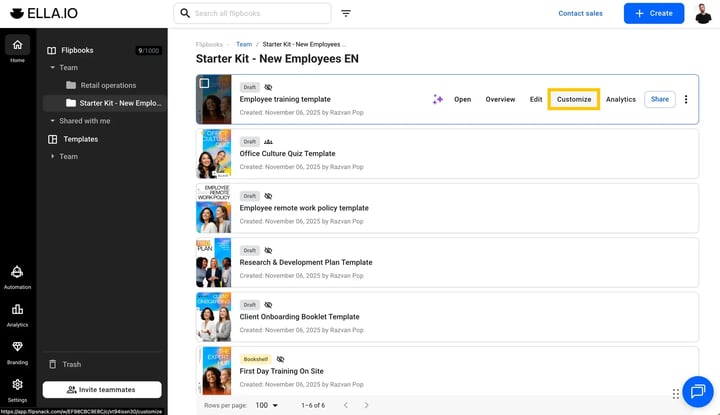
- Click on Accessibility and toggle the Enable accessibility switch to the on position.
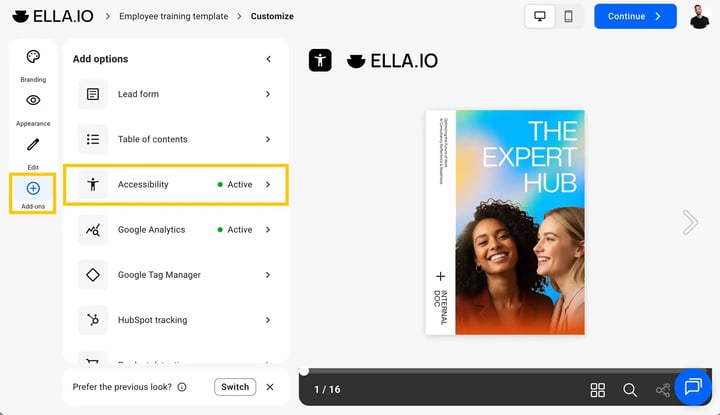
- Click the Generate descriptions button.
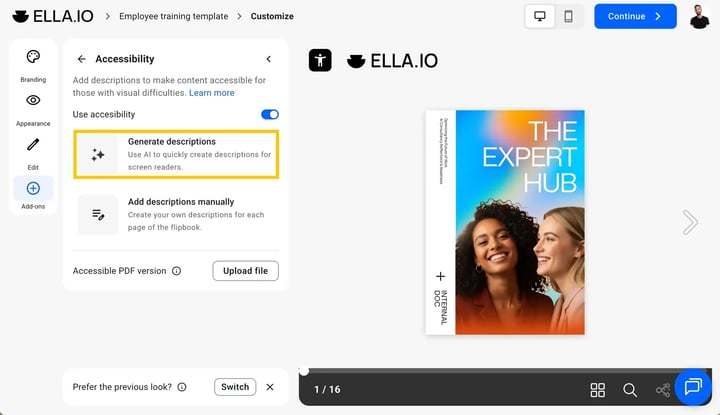
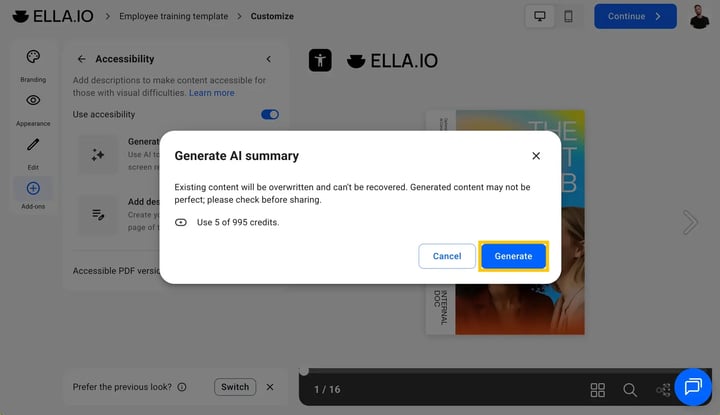
- A prompt will appear confirming that this action requires 5 AI credits. Click Generate to begin the extraction process.
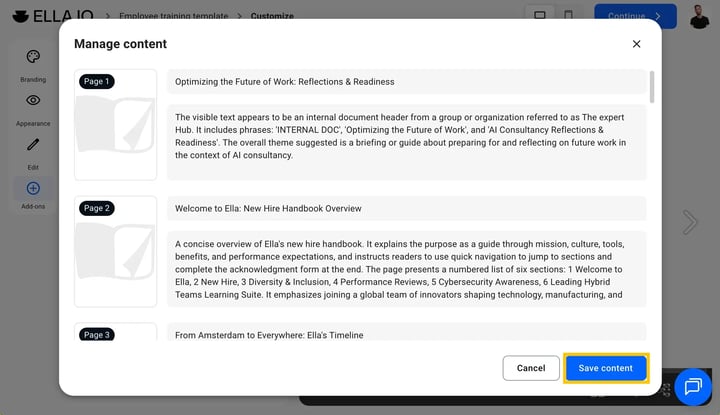
- Once the AI finishes loading, a page-by-page menu will appear. Each page will have its own Title and Description field populated with the extracted text.
- Review the generated text to ensure accuracy, then click Save changes at the bottom of the panel.
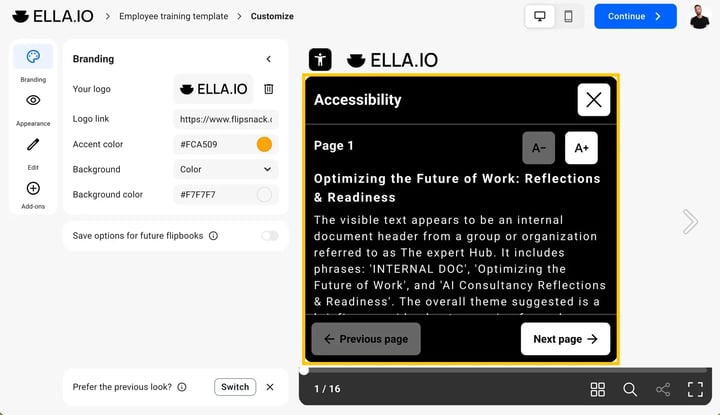
- To preview how this text will appear to a reader, click the Accessibility icon (the person symbol) in the top left corner of the top navigation bar.
Additional tips / FAQs
- AI-generated summaries: If you do not need a strict 1-to-1 transcription, our AI integration also simplifies your workflow by automatically generating concise content summaries for every page, saving you valuable time while still improving visual approachability.
- Keyboard navigation: Remember that all flipbook elements, including shapes, images, videos, and hyperlinks, are automatically labeled and navigable by keyboard (using the Tab and Enter keys) to further meet accessibility regulations.
Troubleshooting
What to do if the AI extraction misses text or formats incorrectly? The requested information is not available in the current source material. Please provide the relevant feature brief or data so I can create this article.
- How does the flipbook look for readers once accessibility is activated? Once activated, the flipbook will be displayed in a simplified format, showing the text descriptions added by the creator separately. If the reader is using VoiceOver or another screen reader, the software will read this extracted text out loud.
- Where can I send feedback about the AI accessibility features? If you have questions or improvement suggestions regarding Accessibility, we’d be delighted to hear from you. Please contact us directly at accessibility@flipsnack.com.
Next steps
- How to make your flipbooks accessible in Flipsnack
- How does Flipsnack ensure compliance with the UK Online Safety Act and EU Digital Services Act?
- Flipsnack's AI Policy
Need expert support?
Our team is here to help. Connect with our team experts or message us via the live chat for personalized assistance.