
Overview
Your flipbook is beautiful, but search engines and AI tools can't read pictures. All the copy inside a designed catalog, brochure, or lookbook is locked in the visual layer, invisible to the crawlers that decide what shows up in search results and AI answers.
👥 Where crawlable flipbook text is helpful
- Product catalogs that you want surfaced when buyers search for specific products or collections, instead of relying only on the direct link.
- Long brochures and reports where the written content carries real SEO value.
- Editorial publications and lookbooks whose copy should be discoverable by AI search tools and search engines.
Text for crawlers fixes that. It uses AI to extract the text from your flipbook and publish it as clean, crawlable HTML on the same page, so the words you already wrote start working for you in organic search and AI-powered tools. Readers still see only the flipbook; the extracted text sits below it in the page source, where crawlers read it. Nothing about how you publish changes, and nothing about the reading experience changes either.
For product catalog and sales teams, this turns a static PDF into a discoverable asset that pulls in buyers who are searching, not just the ones you sent the link to. For marketing and editorial publications, it means the SEO value of your content finally counts.
You'll find it in the Optimize SEO panel, on the Text for crawlers tab. The other tab, Search appearance, controls the meta title and description that show up in a search result — see our SEO optimization article for that half.
Plan: Title and Description are available on all plans. AI generation and crawlable text extraction need Business or Enterprise. No request needed
Flipbook: Published and set to Public
Credits: Available AI credits. Each generation uses 10 credits
How to generate text for crawlers
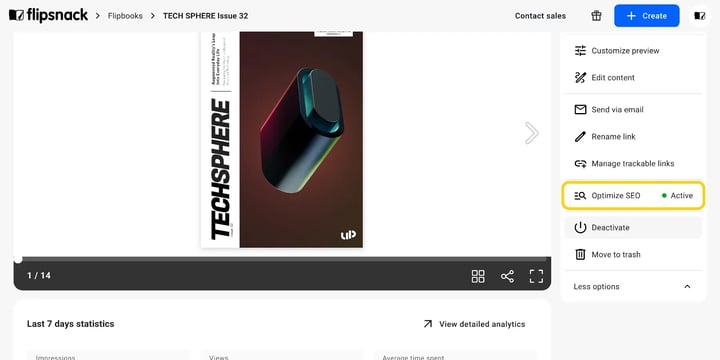
- From your flipbook's Overview page, click More options in the side panel, then select Optimize SEO.
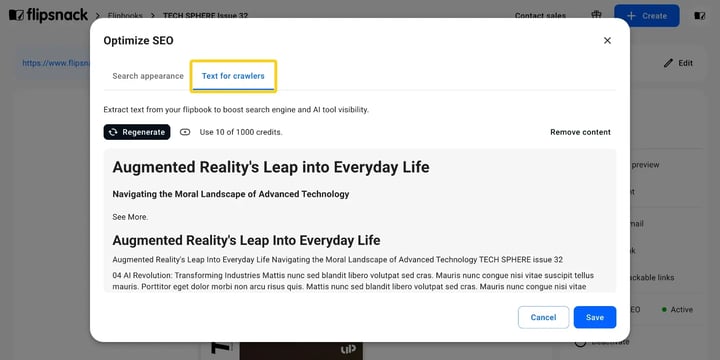
- In the dialog, open the Text for crawlers tab and click Generate. (Once text already exists for the flipbook, the button reads Regenerate instead.) Each generation uses 10 AI credits. The cost is shown next to the button.
Note: Check how many AI credits are included in your plan. Credits reset on the first of each month.
- Wait while the AI extracts your content. This can take a moment; click Run in background if you'd rather keep working while it finishes.
- Review the extracted text. It pulls through your headings, chapters, table of contents, and body copy straight from the flipbook.
- Click Save.
Once saved, Optimize SEO in the side panel is marked Active, and your published flipbook carries the extracted text as real HTML below the flipbook viewer, together with a generated table of contents. Readers see the flipbook exactly as before — the text layer is there for search engines and AI crawlers, not as a second reading view.
Keeping your crawler text up to date
The extracted text doesn't refresh on its own after you edit the flipbook. When you change your content, reopen Optimize SEO → Text for crawlers and click Regenerate to re-extract the latest text. Keep in mind that every generation uses 10 AI credits: re-generating consumes credits again, just like the first time. To clear the text entirely, use Remove content.
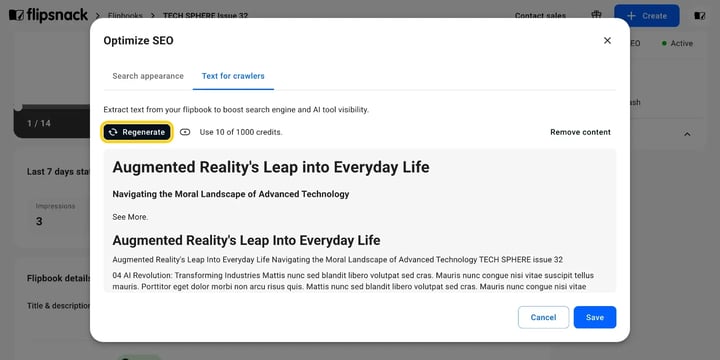
The same applies to flipbooks you published earlier: the text isn't generated for them automatically. Open each published flipbook and run the generation manually, one flipbook at a time.
Additional tips / FAQs
- AI credits usage: Because every generation (and re-generation) uses AI credits, it's worth finalizing your flipbook content before your first generation, then re-generating only when you make meaningful changes.
- Use both tabs. Text for crawlers gives crawlers something to read; Search appearance controls how the result looks once they've read it. A flipbook with crawlable text but no meta title still shows up badly in a search listing.
- Search appearance generation: On the Search appearance tab you can generate the Title, Description, and Summary for AI tools with AI, based on the content of your publication. That generation also uses 10 AI credits. See the full steps in our SEO optimization article.
Troubleshooting
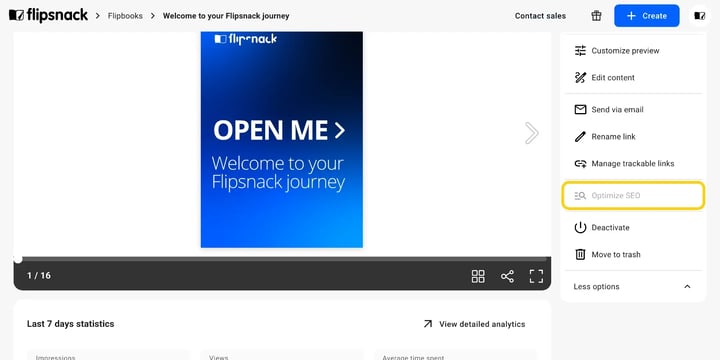
What to do if Optimize SEO is greyed out: make sure the flipbook is published and set to Public. Hovering the greyed-out option shows Available for public flipbooks only.
What to do if the Generate button isn't available: AI generation needs the Business or Enterprise plan and available AI credits. On other plans you can still write the meta title and description by hand on the Search appearance tab.
What to do if the crawler text looks outdated: the text doesn't auto-update. Reopen Text for crawlers and click Regenerate to re-extract the current content. Re-generating uses AI credits.
What to do if you can't find the text on your published page: that's expected. The extracted text is published in the page's HTML below the flipbook for crawlers to read, not as a view readers scroll to. To confirm it's there, open your published flipbook, view the page source, and look for the article block after the flipbook player.
- Does generating text for crawlers change how my flipbook looks? No. Readers still land on the visual flipbook and see exactly what they saw before. The extracted text is added to the page's HTML so search engines and AI tools can read it.
- Can readers switch to a text version? No. There's no reader-facing toggle. The text layer exists for crawlers.
- Which flipbooks can use it? Published, public flipbooks only. If your flipbook is unlisted, password-locked, or private, Optimize SEO is greyed out, so set it to Public first. See the publishing and visibility settings for details.
- Does it work on flipbooks I've already published? Yes, but not automatically. You need to open each already-published flipbook and generate the text manually, one flipbook at a time. There's no bulk option.
- Does the text update automatically when I edit the flipbook? No, it's a manual re-generate. Reopen Text for crawlers and click Regenerate after making changes. Each re-generation uses AI credits.
- Does it use AI credits? Yes. Every generation, including re-generations after edits, uses 10 AI credits. Credits reset on the first of each month.
- Which plans include it? Title and Description are available on all plans. AI generation and crawlable text extraction need Business or Enterprise. The feature is not request-based — there is nothing to ask support to switch on.
Next steps
- Optimizing your flipbook catalogs for search engines and AI answers
- Flipsnack AI and how credits work
- Publishing & visibility settings
- Tracking your publication's statistics
Need expert support?
Our team is here to help. Connect with our team experts or message us via the live chat for personalized assistance.