
Overview
Not every buyer wants to fill in a form and wait for an email. WhatsApp checkout gives them a shortcut: once you enable it, a WhatsApp button appears next to your other checkout options. Buyers pick their products, tap it, and the order opens as a ready-made message in their own WhatsApp, addressed to the number you set.
👥 Where WhatsApp checkout is helpful
- Wholesale and B2B ordering. Resellers browse the catalog and send their order list over chat, then negotiate quantities or pricing in the same thread.
- Local retail and restaurants. Customers order from a digital menu or catalog without installing anything or creating an account.
- Field sales teams. Reps share the catalog on the go and receive orders directly on the phone they already carry.
- Markets where email is secondary. Regions where buyers simply expect to reach a business on WhatsApp rather than by email.
WhatsApp shows up in Flipsnack in two places, and they do different jobs. You can share a flipbook on WhatsApp from the Share options, which sends the catalog itself to a customer or a group. WhatsApp checkout, covered here, works the other way round: it brings the finished order back to you.
Requirements
- A catalog with a shopping area or a shopping button added from the Interaction tab.
- A number connected to a WhatsApp account, which is where orders will arrive.
- WhatsApp checkout is part of Flipsnack's integrated quoting system, available on the Enterprise plan. See plans and pricing, or contact the Flipsnack team to talk through your setup.
How to enable WhatsApp checkout
- Open your catalog in Flipsnack.
- Add a shopping area or a shopping button to a page from the Interaction tab, if the catalog does not have one yet. Shop settings only appears once one is on the page.
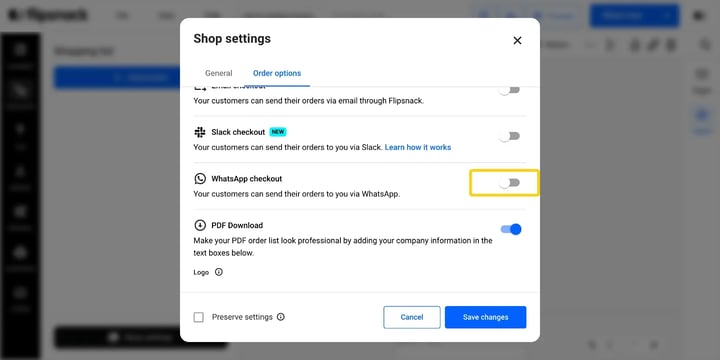
- Click on the shopping area or shopping button, then click Shop settings in the bottom left corner.
- Go to the Order options tab in the newly opened window.
- Scroll to WhatsApp checkout and toggle it on.
- Fill in the Recipient WhatsApp number, including the country code. This is where orders will arrive.
- Click Save changes.
Customize the WhatsApp messages
The checkout works out of the box, but a few fields let it sound like you instead of like a default.
- Button label is the text buyers see on the WhatsApp checkout button. It comes preset as Order via WhatsApp, and you can rename it to anything that fits your catalog.
- Message template is a grouped box holding the two messages below. Both fields ship empty, showing placeholder text as a hint of what goes there.
- Hello message is the opening line of the message pre-filled in the buyer's WhatsApp. Placeholder: Hello! This is my order from Shopping list.
- Thank you message is what buyers see once the order has been sent. Placeholder: Thank you! Have a great day!
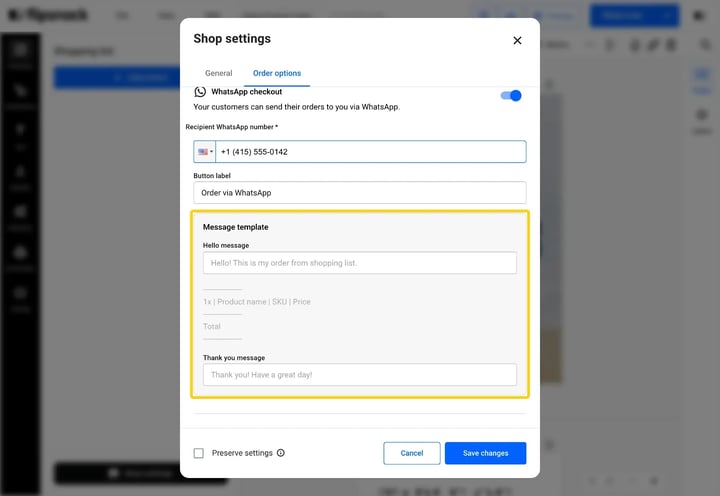
Leave the Message template fields empty and the placeholder wording is what buyers get. Type into them and your own wording takes over.
Tip: If you want these settings applied to every future order list, check Preserve settings at the bottom of the Shop settings pop-up. For a one-off catalog, leave it unchecked.
How the order looks in WhatsApp
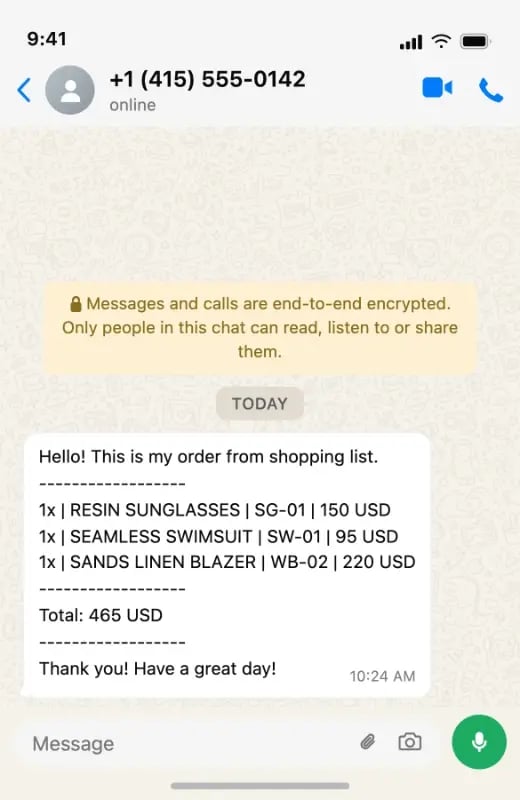
The order arrives in your WhatsApp inbox as a message from the buyer, listing the products they selected. Because it lands as a normal chat, you can reply, confirm stock, or send a quote without switching tools.
Track WhatsApp orders
Orders sent through WhatsApp are counted in the Statistics section along with your other Shopping list orders, so your reporting stays complete no matter which checkout option buyers use. Full details are in How to access workspace and Shopping list order statistics.
Additional tips / FAQs
- Run WhatsApp alongside email. WhatsApp checkout does not replace email orders. Keep both toggled on and let buyers pick the one they prefer.
- Use a number someone actually watches. Orders land in a chat, not a shared inbox, so point the Recipient WhatsApp number at a business number that is monitored during working hours.
- Set expectations in the Hello message. The placeholder wording is neutral on purpose. Adding your opening hours or an expected reply time saves a lot of follow-up questions.
- Remember what an order is. Shopping list orders are informational requests. They do not affect stock levels or trigger a payment, so confirm availability before promising anything.
Troubleshooting
- WhatsApp button missing: The WhatsApp button does not appear in the published catalog. Check that WhatsApp checkout is toggled on in the Order options tab and that you clicked Save changes, then republish the catalog.
- Orders are not reaching your phone. Confirm the Recipient WhatsApp number saved in Shop settings is the number linked to your WhatsApp account, and that it includes the country code.
- The settings reset on your next catalog. Settings apply per catalog unless Preserve settings is checked at the bottom of the Shop settings pop-up.
- Still stuck? Message us via the live chat and we will take a look at your catalog setup.
- Do buyers need a WhatsApp account? Yes. The order opens as a message in the buyer's own WhatsApp, so they need the app or WhatsApp Web to send it.
- Can I use WhatsApp checkout together with email orders? Yes. Checkout options are independent, so buyers can choose whichever one suits them.
- Does a WhatsApp order update my stock or take payment? No. Shopping list orders are informational requests that show what customers want to buy. For real-time product data, look at the API integration with PIM and ERP systems.
- Can I receive WhatsApp orders on more than one number? The WhatsApp checkout sends orders to the single Recipient WhatsApp number you save in Shop settings.
- What happens if I leave the Hello and Thank you messages empty? Both fields ship empty and show placeholder text, so buyers see the default wording. Type your own in either field to replace it.
- Are WhatsApp orders included in my statistics? Yes, they appear in the Statistics section with your other Shopping list orders.
Next steps
- How to customize order options for product catalog
- How to use the Shopping list feature
- How to access workspace and Shopping list order statistics
- How to automate Shopping list orders from Flipsnack to Slack
- Using webhooks to collect product orders
Need expert support?
Our team is here to help. Connect with our team experts or message us via the live chat for personalized assistance.