
Overview
You can keep your catalogs current without syncing by hand. Your product data lives in a Google Sheet: prices, names and stock. Your buyers read the catalog in Flipsnack, by link or on your website. A scheduled sync gets the latest data from the sheet on the days and at the time you choose, then updates the catalogs that use the feed and can publish them.
Requirements
- Plan: Enterprise: contact sales
- A product feed from a Google Sheet. It's not possible to schedule a feed from Upload CSV or Import URL. See how to create product catalogs using a product feed.
Set a sync schedule
Pick the days and the time, and your catalogs update on their own:
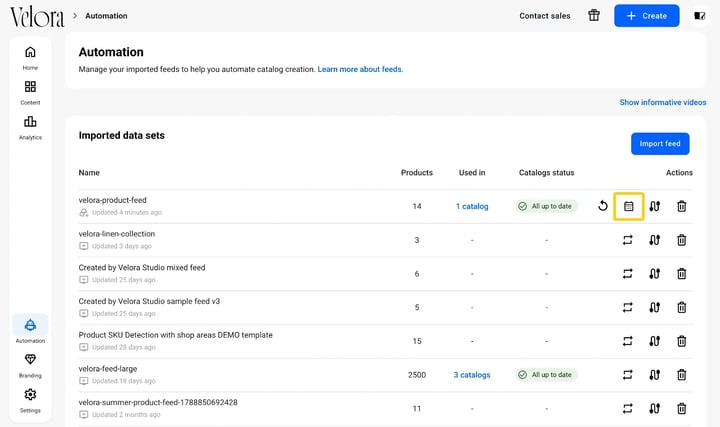
- Click Automation, find your Google Sheet feed in the Imported data sets list, and click Schedule sync (the calendar icon) in the Actions column. The Schedule sync window opens.
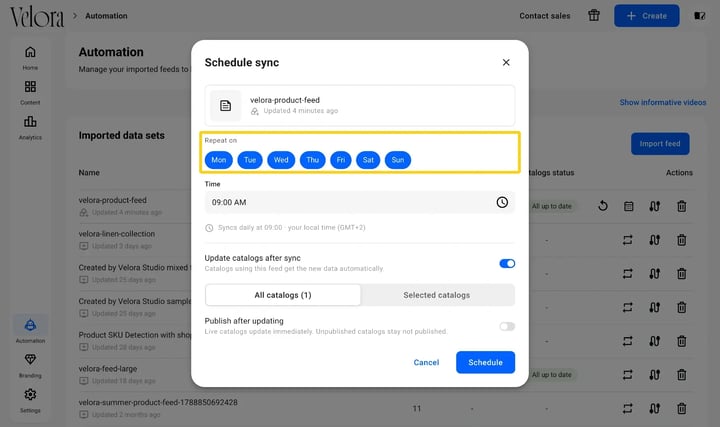
- In Repeat on, click a day to turn it off.
- Click Time and set the hour and minutes. Select AM or PM, then click OK.
- Keep Update catalogs after sync on, so the new data goes to your catalogs. Turn on Publish after updating so live catalogs update at once.
- Click Schedule. Flipsnack saves your schedule.
Your feed now syncs on the days and at the time you chose. When prices or names change in your sheet, the catalogs pick them up at the next sync.
Choose which catalogs to update
By default, the sync updates All catalogs that use the feed. To update only some of them:
- In the Schedule sync window, click Selected catalogs and select the catalogs to update.
- Turn on Include new catalogs automatically, so catalogs that you make from this feed later are added.
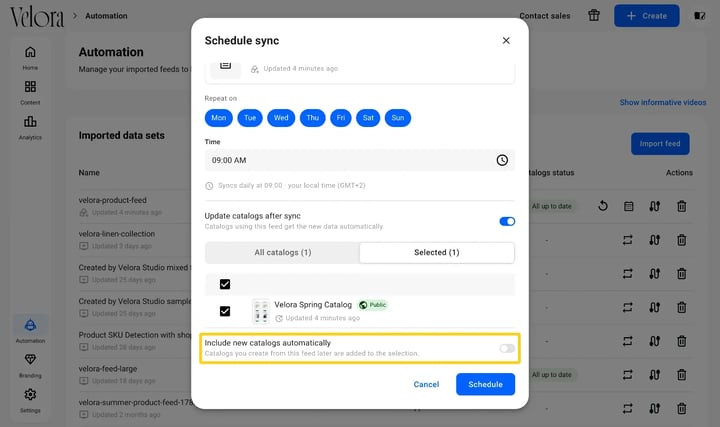
Only the catalogs you picked update, and your new ones join them. Want buyers to send an order from the updated catalog? Add a Shopping list (Professional plan and up).
Change or remove the schedule
Plans change, and your schedule can too:
- On the Automation page, click Schedule sync on the feed. The Edit schedule window opens.
- Change the days, time or catalogs as shown above. Then click Save. To stop the schedule instead, click Remove schedule.
Your schedule now matches how you work, and you can still sync the feed by hand at any time. See how to sync a product feed in Flipsnack.
Next steps
- How to sync a product feed automatically in Flipsnack: sync by hand when you need new data right now.
- Improve your digital catalog creation with automation: see every way a feed can build catalogs for you.
- How to use the Shopping list feature: let buyers collect products from your updated catalog into one order list.
- FAQ for Flipsnack automation: find quick answers about feeds, images and sync limits.
Need expert support?
Our team is here to help. Connect with our team experts or message us via the live chat for personalized assistance.