
Overview
You can remove the background from an image right on your page, so it sits cleanly on a colored page or next to your text. Without it, you'd cut the background out in a photo editor and upload the new file to Flipsnack again.
With Remove background, the AI makes the image's background transparent while you work in the Design Studio. A copy of the new image goes to your Uploads for other pages. It works on one image at a time, and SVG files, GIFs and locked images can't use it.
Requirements
- Plan: Starter or above: check your plan or compare plans
- AI credits: 5 for each image: check your balance
Remove the background from an image
Make the background of an image on your page transparent:
- Open your flipbook in the Design Studio and click the image.
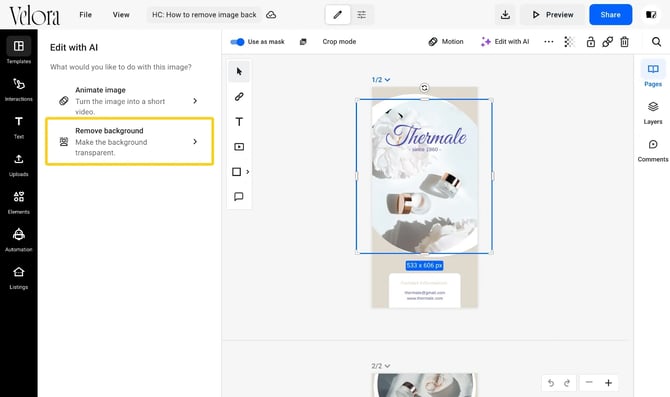
- In the image toolbar, click Edit with AI, next to Motion. In the Edit with AI panel, click Remove background.
- Click the blue Remove background button. The line under it shows the 5 credits it uses and your balance.
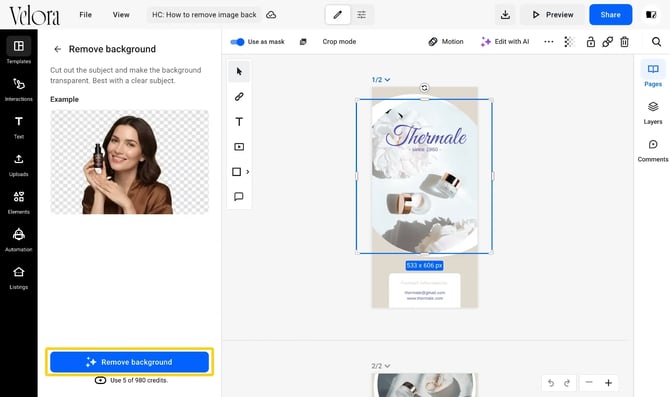
- The button shows Removing… while the AI works. Then the image without its background replaces the original on your page. Under Preview, switch between Before and After to compare the two.
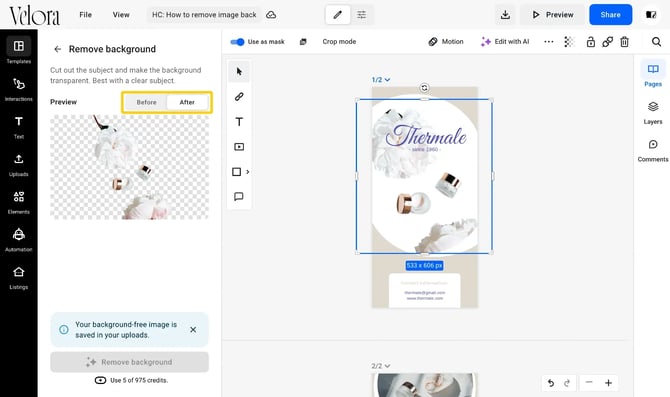
Your image now has a transparent background. A copy is saved in Uploads, so you can use it on other pages too. In the example above, the light blue backdrop of the photo is now transparent, so the white circle on the page shows through.
Want the flipbook itself to blend into your website? Remove background works on one image only. For the flipbook's own background, see how to make a flipbook's background transparent or a solid color.
Undo a background removal
Changed your mind? Click the undo arrow in the bottom right corner of the Design Studio. The original image comes back on the page. The 5 credits stay spent, and the image without its background stays in your Uploads in case you need it later.
Troubleshooting
What to do if Edit with AI isn't available
- Select only one image. Edit with AI works on one image at a time.
- Check the file type. SVG files and GIFs, GIF stickers included, can't use it.
- Check that the image isn't locked. A locked image can't use it.
- Wait until the image finishes uploading.
What to do if Remove background opens an upgrade window
Your plan doesn't include Remove background. It starts on the Starter plan, so compare plans and pick Starter or a higher plan.
What to do if you run out of AI credits
When you have no AI credits left, Flipsnack opens the AI credits window. See how AI credits work to check your balance and get more.
What to do if parts of the background stay in the image
The Remove background panel says it works best with a clear subject. If some of the background stays, undo the change and try an image where the subject stands out clearly from its background.
Frequently asked questions
Do I get my credits back if I undo?
No. Each removal uses 5 credits, even if you undo it later.
Does it change my original file?
No. The image without its background is saved as a new file in your Uploads. Undo puts the original image back on the page.
Can I remove the background from several images at once?
No. Select one image, remove its background, then move on to the next one.
Next steps
- How do I remove or replace a flipbook's background?: make the whole flipbook's background transparent or a solid color.
- Flipsnack AI credits explained: costs and monthly balance: check your balance before you remove the backgrounds of many images.
- How to undo and redo your changes in the Design Studio: step back through your other Design Studio edits too.
- How do I upload an image to the Flipsnack Design Studio?: add your own images before you remove their backgrounds.
Need expert support?
Our team is here to help. Connect with our team of experts or message us via the live chat for personalized assistance.