
Overview
Engaging with prospects and readers in real-time is crucial for high-performing sales and marketing materials.
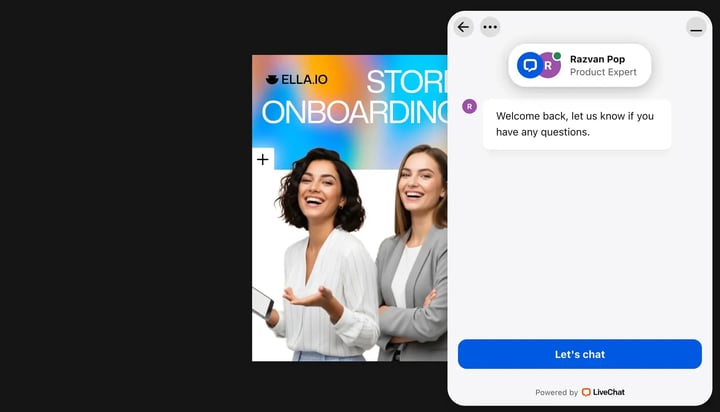
By integrating a LiveChat widget directly into your Flipsnack flipbooks via Google Tag Manager (GTM), you can answer questions instantly, capture leads, and remove friction from the buyer's journey.
Requirements
- Plan: Enterprise: contact sales
- An active LiveChat account.
- A Google Tag Manager account and container: set up Google Tag Manager
How to install LiveChat via GTM
The first part of the process involves authenticating LiveChat to automatically push its tracking code into your Google Tag Manager container.
- Log in to your LiveChat account and navigate to Settings. Under the Channels section, select Website to view your integration options.
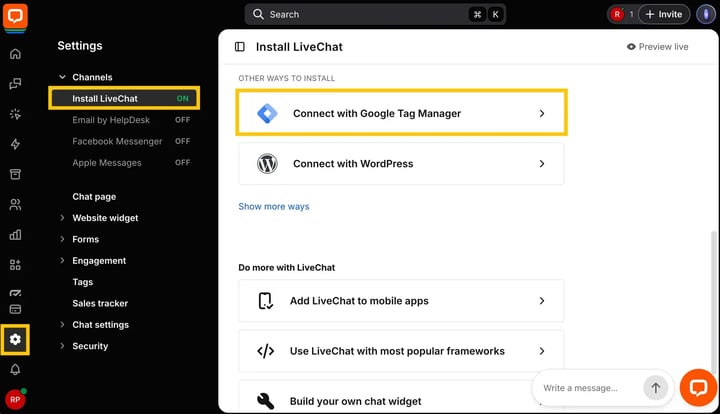
- Click on the Install with Google Tag Manager button to initiate the connection.
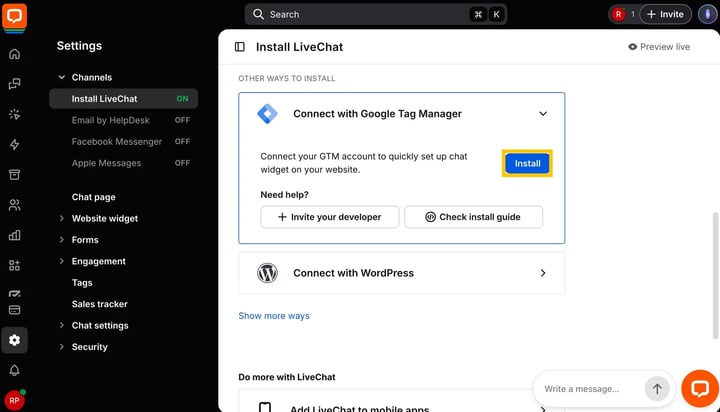
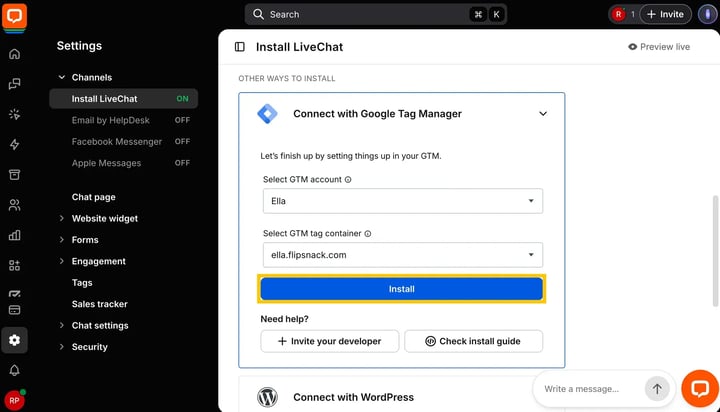
- A secure popup will prompt you to authenticate your Google account. Once connected, select your specific Google Tag Manager Account and the corresponding Container from the dropdown menus, then click Install.
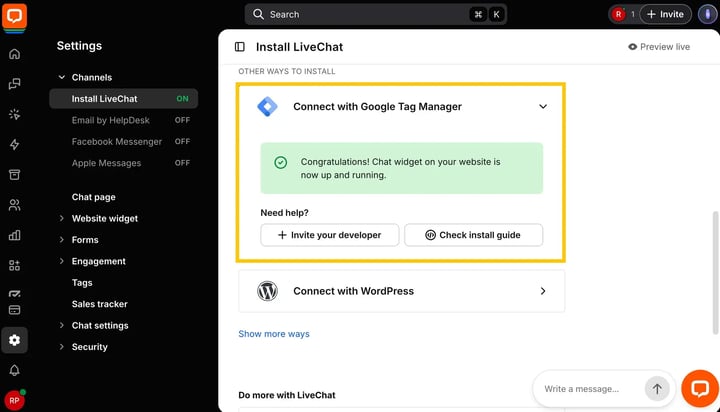
- LiveChat will automatically configure the tag. Wait for the success confirmation screen indicating that the widget has been successfully installed in your GTM container.
- To ensure everything is set up correctly, open your Google Tag Manager workspace. Navigate to the Tags section and verify that the new LiveChat Widget Code tag is present and configured to fire on All Pages.
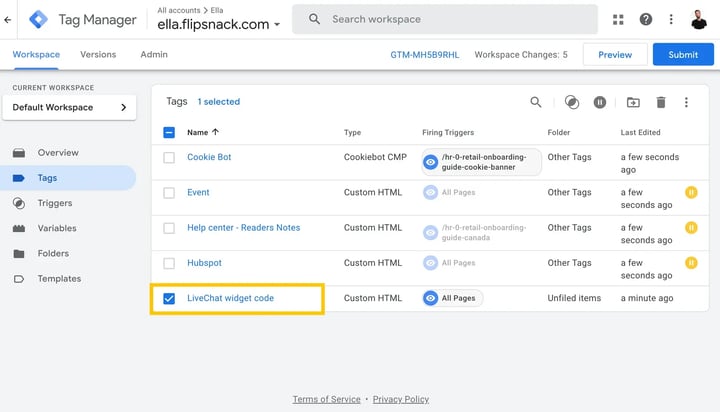
- Once verified, adjust your trigger or tag settings then press Submit and Publish in Google Tag Manager to make your changes live. Your LiveChat widget is now successfully deployed via GTM.
How to add the GTM container to your flipbook
With your tag live in GTM, the final step is to connect the GTM container to your Flipsnack workspace. You must install the Google Tag Manager ID on the specific flipbooks or the public profile where you want the LiveChat integration to appear.
- To integrate GTM on a specific flipbook via the Customize page, read our guide on GTM integration in the flipbook player.
- To integrate GTM across your entire workspace or custom profile, check out the second step in our main guide for Google Tag Manager integration in Flipsnack.
Once you add your Container ID and publish your changes, your LiveChat widget is live and ready to engage readers on your flipbook!
Next steps
- LiveChat's official Google Tag Manager deployment guide
- Learn more about GTM integration in the flipbook player
- Learn more about workspace-level GTM integration in Flipsnack
- How to brand the Flipsnack App with your custom domain
Need expert support?
Our team is here to help. Connect with our team experts or message us via the live chat for personalized assistance.