
Overview
Reading long-form business collateral, training materials, or product catalogs often requires referencing specific details later on. Flipsnack's readers notes feature allows your readers to place private notes directly onto any page of a published flipbook. This interactive upgrade replaces static reading with a dynamic, highly contextualized workspace, allowing users to capture thoughts, mark important updates, or jot down action items on the go.
👥 Where Reader notes are helpful
- Sales enablement & agent notes: Field sales representatives can open a master product catalog, navigate to key items, and leave internal price markups, client objections, or specific product configurations directly on the relevant page.
- Interactive employee training & onboarding: Employees undergoing compliance training or reviewing company manuals can add notes on complex policies to improve retention and track key compliance instructions.
- Client portals & shared proposals: Business partners viewing private reports or customized pitches can annotate areas of interest directly in their browser, creating a built-in notepad for future review meetings.
Because these notes are saved locally to each reader's session, they remain completely private. Readers can personalize their viewing experience without altering your original publication or affecting the reading sessions of other users.
Requirements
- Plan: Business or above: check your plan or compare plans
How to enable readers notes
To allow your readers to utilize readers notes, you must activate the feature in the workspace settings during publication or customization. Follow these simple steps:
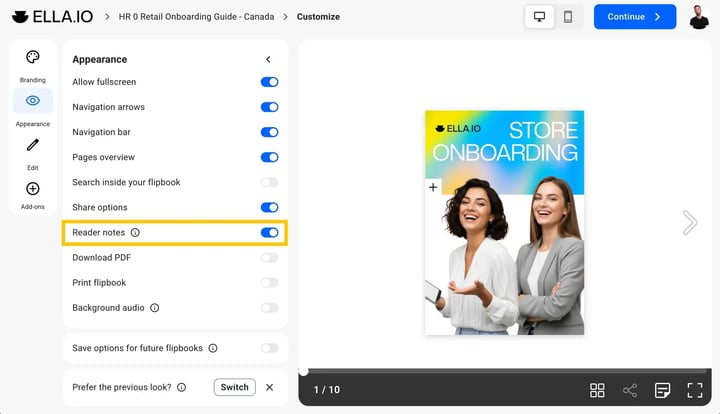
- Log in to your Flipsnack account and go to the main Dashboard.
- Select the flipbook you want to customize.
- In the flipbook card, click Customize (or, if you are working inside the Design Studio, click the Customize page button in the App header).
- Once on the Customize page, find the left-hand Appearance panel.
- Scroll down to Menu controls and find the Readers notes option.
- Switch the toggle to On.
- Click Continue in the App header and publish your changes.
Warning: Disabling this feature after this will remove all notes previously added by your readers.
How readers add and manage readers notes
Once activated, readers can seamlessly add, customize, and organize their private annotations through a single, intuitive interface. Follow this straightforward step-by-step workflow:
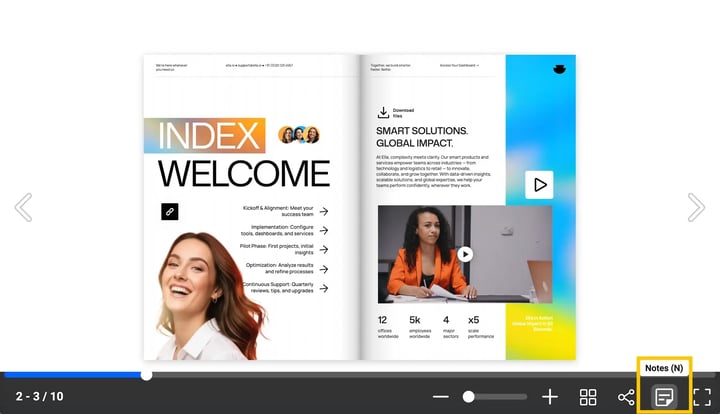
- Access the notes sidebar: As a viewer you need to open the shared flipbook link and click the Notes icon in the bottom-left corner of the player to open the Notes sidebar.
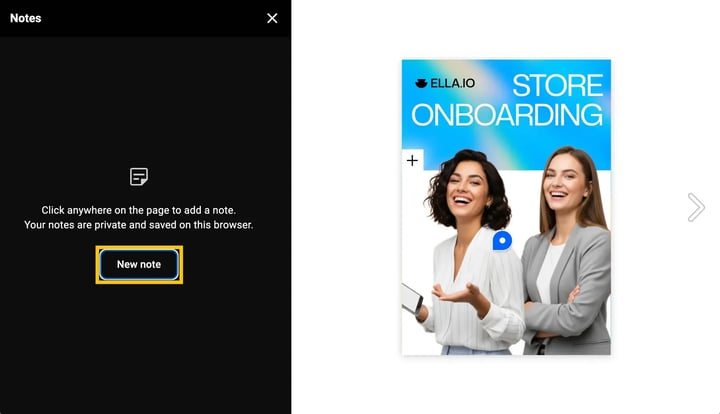
- Add a note: Click directly anywhere on the flipbook page where you want to place your note, or click the creation button inside the sidebar. If you are not in Notes mode you can quickly add a note using the right click.
- Write and color-code: Type your message inside the digital sticky note card, and select one of the circular color-coding presets at the bottom of the card to categorize your comment.
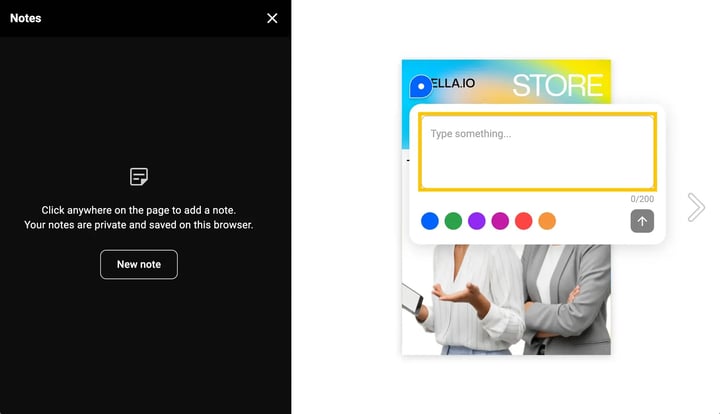
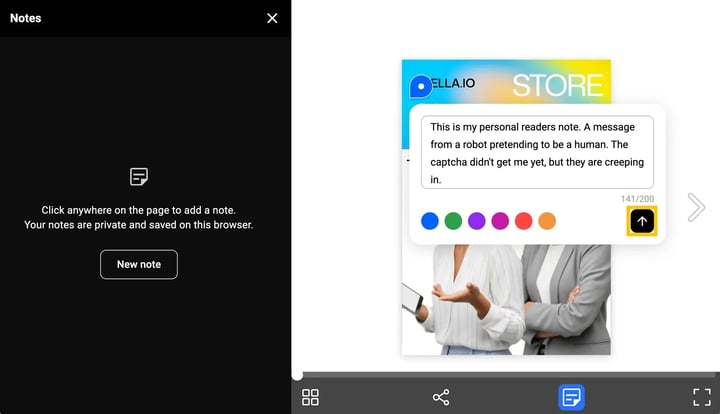
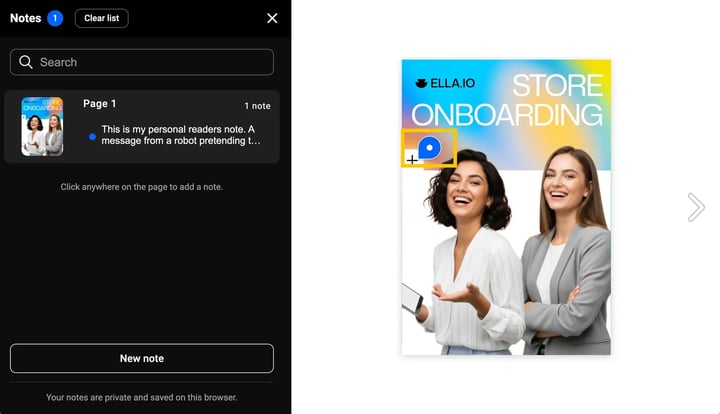
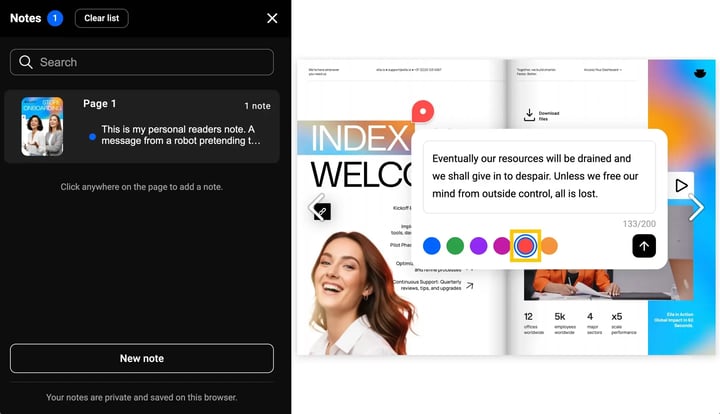
- Save your entry: Click the Send arrow button on the note card. Once saved, the note will be anchored to that exact page coordinate with a pin, and will instantly appear inside the organized list in your Notes sidebar.
- Navigate page-by-page: Inside the sidebar, your notes are automatically grouped by page number (e.g., Page 3, Page 12). Click on any note preview inside the sidebar list to instantly jump the flipbook player to that specific page.
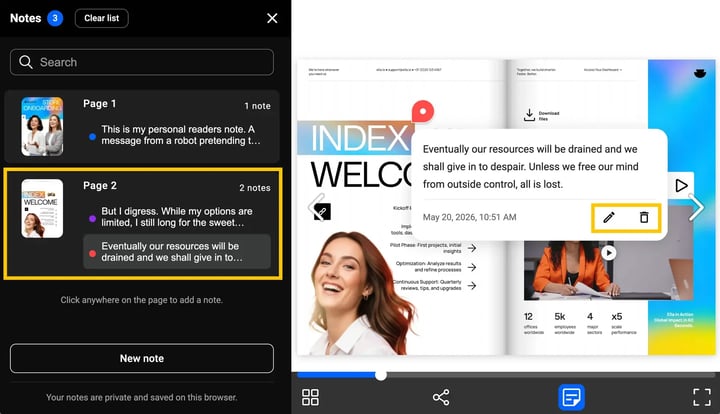
- Edit your notes:
- On the page: Click on any pinned note, edit your text, adjust the color, and click Save (checkmark).
- In the sidebar: Hover over the note entry in the sidebar list and click the Edit (pencil) icon to update its text or select a different color category.
- Delete your notes:
- On the page: Click on the pinned note on your page and click the Delete (trash can) icon in the bottom-right corner.
- In the sidebar: Hover over any note entry in the sidebar list and click the Delete (trash can) icon to instantly remove it from both your list and your flipbook.
Additional tips / FAQs
- Session-based storage: Readers notes are securely saved in the reader's local browser storage. This ensures that even if they close the tab, their annotations will still be there when they return, provided they use the same browser and device.
- 100% privacy guarantee: Flipsnack prioritizes security. Pinned notes are saved client-side, meaning workspace owners, other readers, and Flipsnack administrators cannot see, access, or analyze the content of these notes.
- Non-destructive design: Pinned notes function as a clean overlay. They do not edit or permanently modify the underlying vector text, images, or interactive elements of the master publication.
Troubleshooting
- Notes icon missing: What to do if the Readers notes icon is missing in the bottom-left corner?
- Check that the feature toggle is switched to On on the Customize page for that specific publication and that changes were saved.
- Plan requirement: Verify your subscription tier. If the 3-month promotional period has ended, ensure your workspace is active on a Business plan or higher.
- What to do if a reader's saved notes have disappeared?
- Because notes are tied to the local browser session, clearing browser cookies and cache, using a different browser, or opening the flipbook link in an Incognito / Private window will prevent notes from loading. Ensure the reader uses their standard browser window and avoids clearing their cache if they wish to retain annotations.
- If I make notes and leave the flipbook to return later, will my notes still be there?
- Yes. Your notes are securely saved in your browser's local storage.
As long as you return using the same device and browser (and haven't cleared your cache or cookies), your notes will remain intact.
- Yes. Your notes are securely saved in your browser's local storage.
- What happens if I make notes on one device then access the flipbook on other devices?
- Because readers' notes are stored strictly on your specific device and browser, they will not sync across different devices. You must use the exact same device and browser to view them.
- Can the flipbook owner read the notes I leave on their publications?
- No. Notes are strictly private and stored on your local device. No one else has access to them.
- Are readers notes available on mobile devices?
- Yes. The readers notes tool is responsive and can be accessed by tapping the notes icon in the player menu on tablets and mobile phones.
- Can I export my notes into a PDF or Excel sheet?
- Currently, notes are designed for inline browser reference only. We are actively collecting feedback to support exporting options in future feature releases.
Next steps
- How to brand your flipbooks and player appearance
- How to securely share flipbooks with account readers
- Understanding flipbook visibility labels and options
Need expert support?
Our team is here to help. Connect with our team experts or message us via the live chat for personalized assistance.