
Overview
For enterprise teams, keeping internal communications, employee handbooks, and training materials centralized is crucial for productivity. By embedding your interactive Flipsnack publications directly into Google Sites, your team can easily access essential resources without ever leaving your company's intranet or project hubs.
Note: The embed process and the structure of the iframe code are exactly the same whether you are embedding a single flipbook or an entire bookshelf.
Google Sites Embed Breakdown
Google Sites accepts full HTML iframe blocks, making it very easy to paste the code directly from Flipsnack. If you want to customize how large the flipbook appears on your site, you can edit specific variables in the code.
Requirements
- Role: Edit permissions for the target Google Site
How to get your embed code
Before moving to Google Sites, you need to grab the embed code from your Flipsnack workspace. You can access this code from the Overview screen or by clicking the three dots (More options) on the flipbook or bookshelf and selecting Embed.
For a detailed walkthrough on generating your initial iframe code, please visit our guide on how to embed flipbooks into your website.
How to embed the publication in Google Sites
- Go to your Google Sites dashboard and select the page you wish to edit, or create a new one.
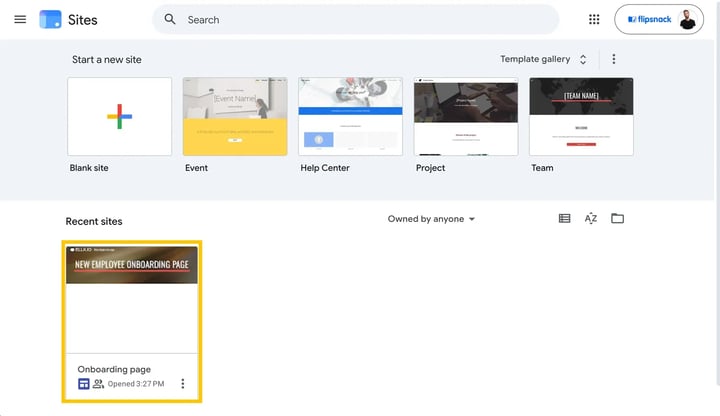
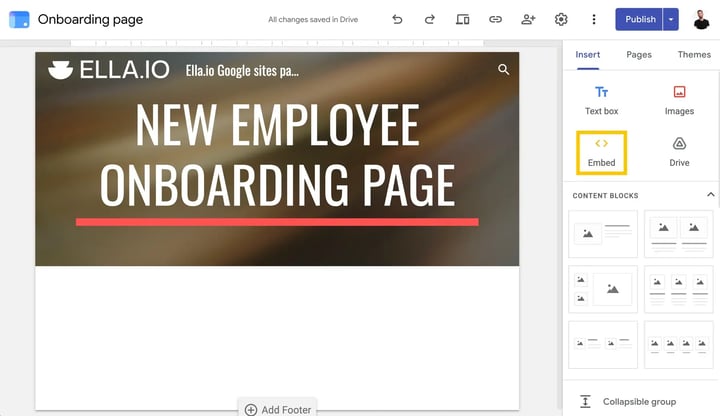
- In the right-hand Insert menu, select the Embed option.
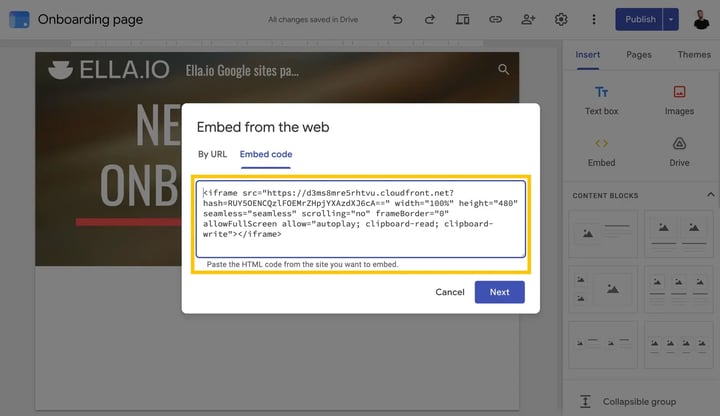
- Choose the Embed code option in the next pop-up window.
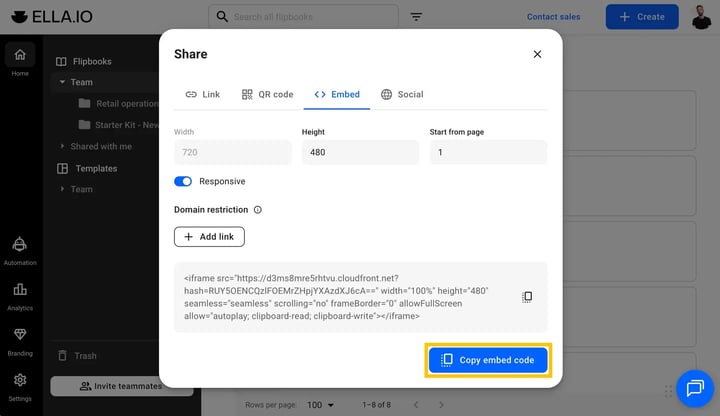
- Go to your Flipsnack workspace and copy the full iframe embed code for your flipbook or bookshelf. Paste your Flipsnack code into the dedicated embed code field in Google Sites and click Next.
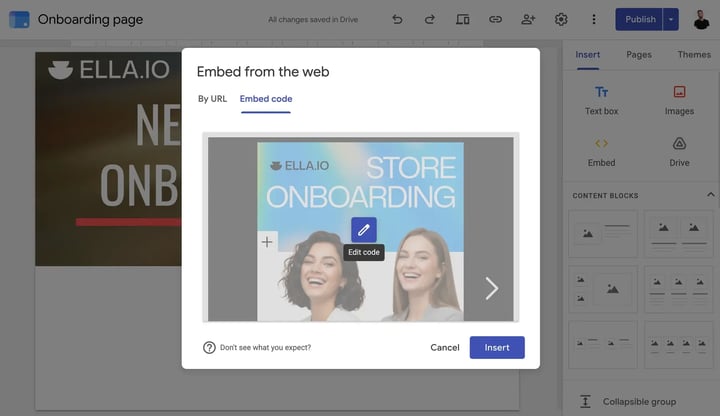
- A preview of your flipbook will appear. Verify that it looks correct, and then click Insert.
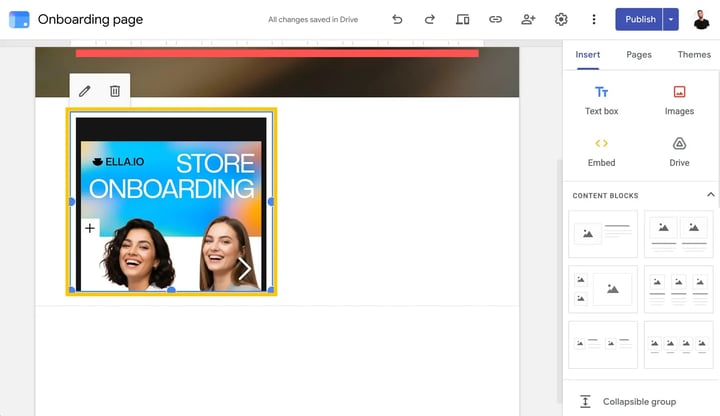
- Adjust the size of the embedded element on your page using the blue drag handles so it fits your layout perfectly.
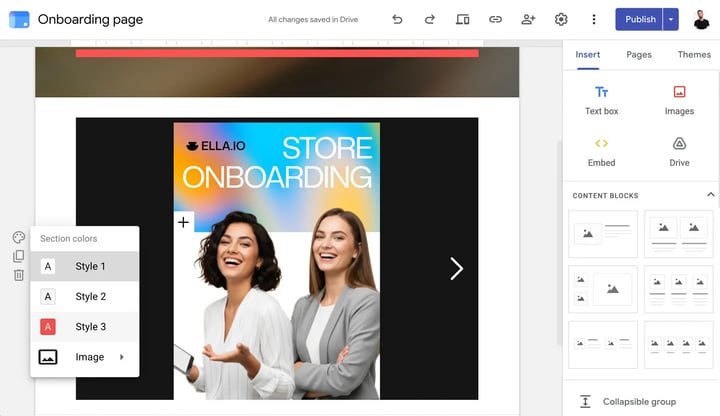
- If needed, use the section settings on the left side of the block to change the section color or background.
- Once you are satisfied with the layout, click Publish in the top right corner.
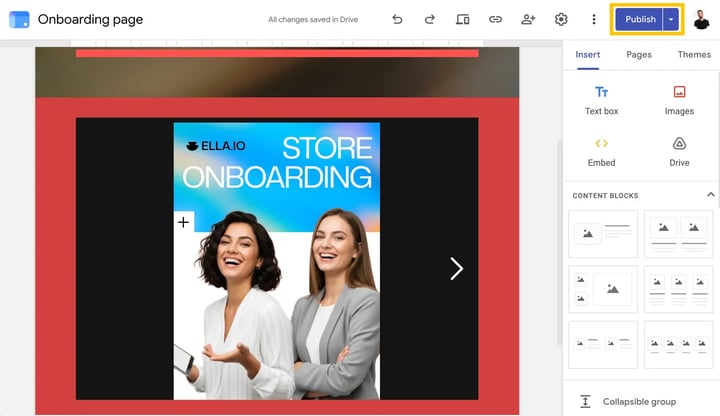
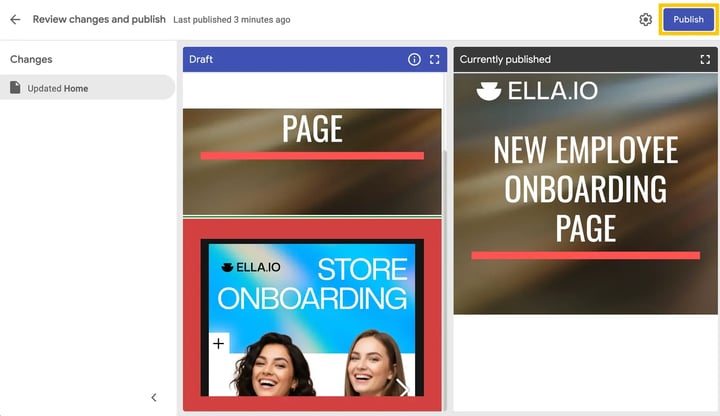
- Review your changes in the side-by-side comparison screen, and hit Publish one last time to set it live.
Troubleshooting
- Flipbook too small or cut off: If your embedded flipbook appears constrained or requires a scrollbar to view fully, you likely need to adjust the element's height. You can either use the blue drag handles in the Google Sites editor to physically pull the container down, or click the edit pencil icon over the embed to return to the code view and manually increase the
height="480"value (e.g., toheight="700").
Next steps
Request a native integration or get help
Need expert support?
Our team is here to help. Connect with our team experts or message us via the live chat for personalized assistance.