
Overview
For organizations prioritizing seamless employee onboarding and continuous learning, bringing your interactive materials into your native tools is a massive time saver. By embedding your Flipsnack publications directly into Connecteam courses, your team can engage with dynamic training manuals and documents directly within their employee app.
Note: The embed process requires you to extract the direct link from your Flipsnack iframe code, and the steps are exactly the same whether you are embedding a single flipbook or an entire bookshelf.
Requirements
- Role: Edit permissions for the target Connecteam courses
How to get your embed link
Before heading to Connecteam, you need to grab the embed link from your Flipsnack workspace. You can access this code from the Overview screen or by clicking the three dots (More options) on the flipbook or bookshelf and selecting Embed.
For a detailed walkthrough on generating your initial iframe code, please visit our guide on how to embed flipbooks into your website.
How to embed the publication in Connecteam
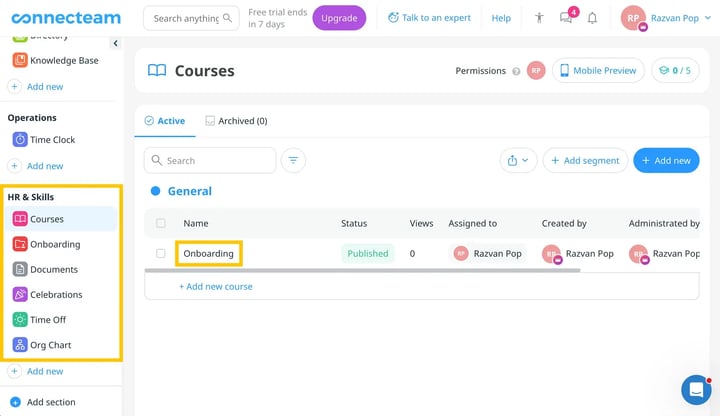
- Navigate to your Connecteam dashboard. Under the HR & Skills menu, select Courses (or the relevant content type you wish to use), and click on the title of your desired course to edit it.
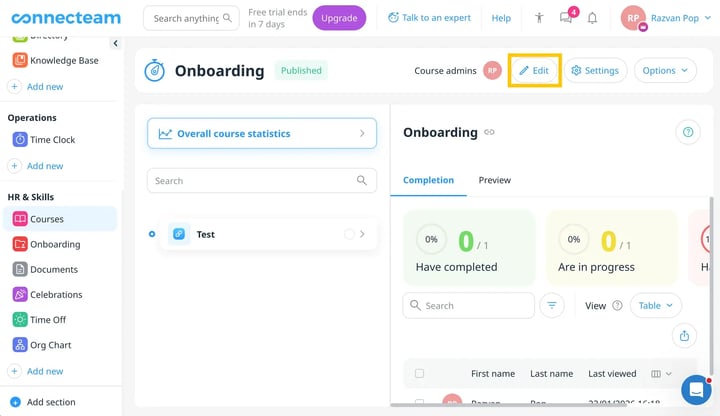
- In the course overview screen, click the Edit button in the top right to access the course builder.
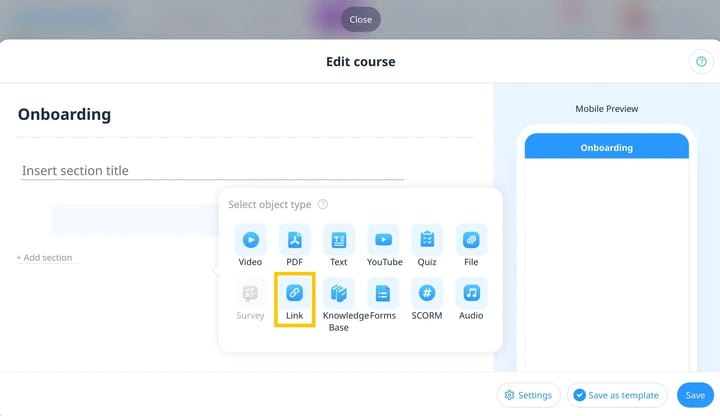
- Click on + Add object and insert a Link element into your course timeline.
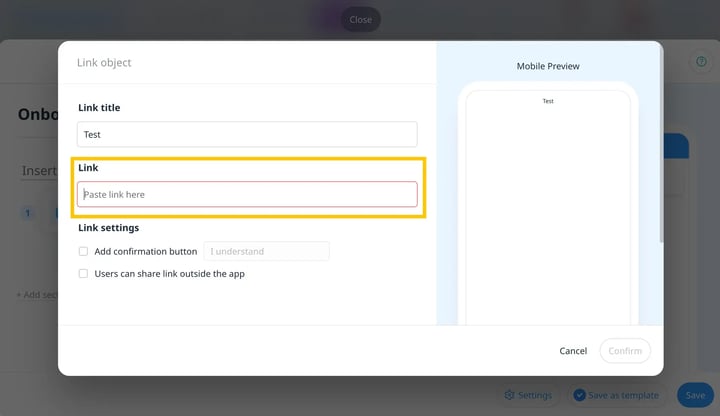
- In the Link object panel, write the title of your flipbook in the Link title field. Keep this window open.
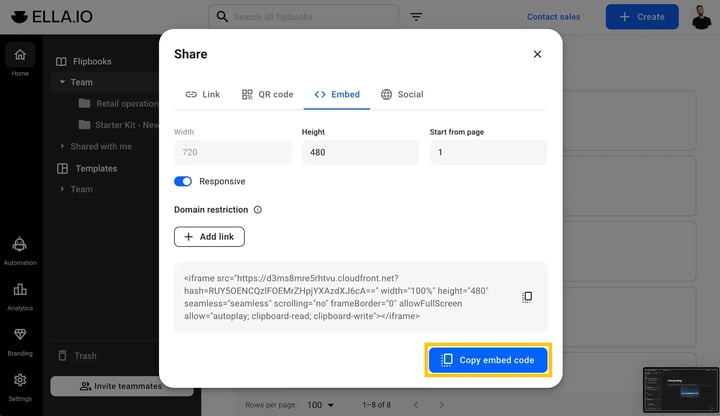
- Go to your Flipsnack workspace, click the 3 dots on the flipbook, select Embed, and click Copy embed code to get the full iframe snippet.
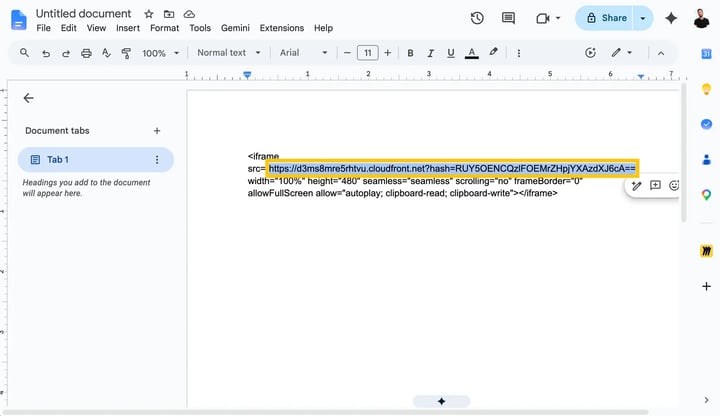
- Paste the copied HTML snippet into a basic text editor. Locate the
src="..."part of the code and copy only the URL inside the quotation marks.
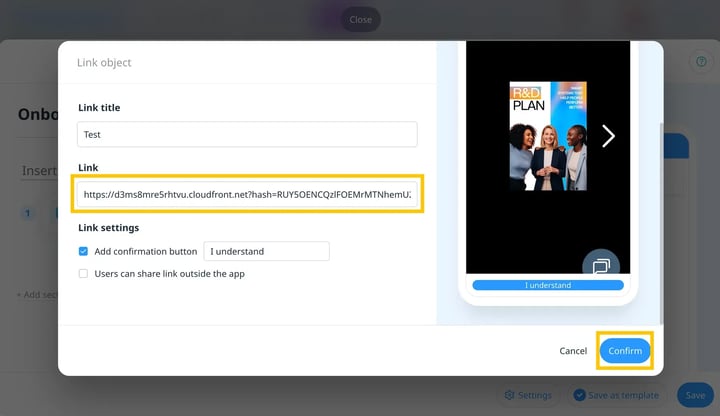
- Return to Connecteam and paste the extracted URL into the Link field. Choose a confirmation button style if you need one, and click Confirm.
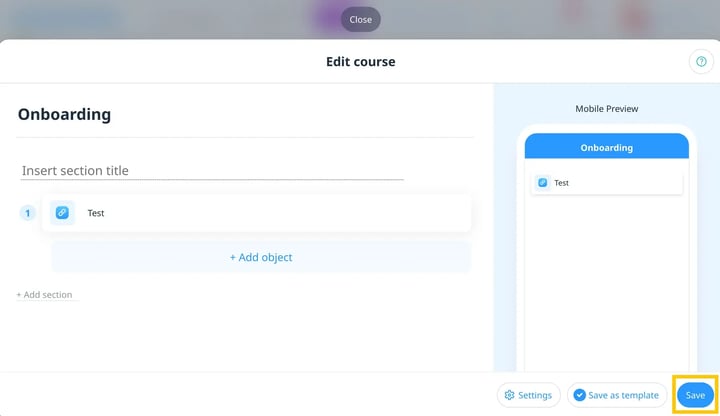
- Your flipbook will now be visible in the mobile preview on the right. Build the rest of your course as needed, and then click Save in the bottom right corner. You are now ready to share the course with your team!
Troubleshooting
- Flipbook fails to load: If your Connecteam course displays an error message or a plain text hyperlink instead of the interactive reader, double-check that you only pasted the direct URL into the link block. Connecteam cannot process standard HTML tags. Ensure you have not pasted the entire HTML snippet into the field or that the link does not have any quotation marks left from copying.
Next steps
Request a native integration or get help
Need expert support?
Our team is here to help. Connect with our team experts or message us via the live chat for personalized assistance.