
Overview
When someone fills in a lead form or places an order in your flipbook, that information is usually most useful somewhere else: your CRM, a spreadsheet, your email tool. Zapier is how you get it there automatically, without anyone exporting a file.
Zapier listens for Flipsnack events, called triggers. When a reader interacts with a flipbook element, such as submitting a form or completing a quiz, the data is sent automatically to the app you choose.
This article explains how the integration works and guides you through the complete setup process.
Common use cases
Connecting Flipsnack to Zapier helps you act on reader interactions automatically, without exporting data manually.
- Collect and follow up on leads faster: Send lead and contact form submissions directly to your CRM so your sales or marketing team can respond immediately.
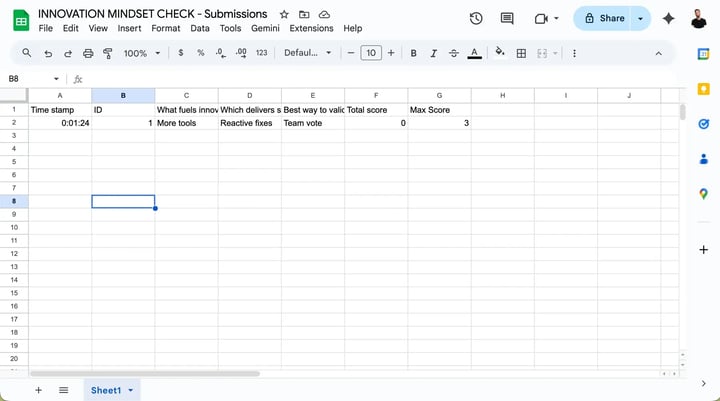
- Keep all responses in one place: Store form submissions, quiz answers, and orders in tools like Google Sheets for reporting and analysis.
- Get notified instantly: Receive email or chat notifications when readers submit forms, complete quizzes, or place orders.
- Support sales workflows automatically: Create deals, tasks, or pipeline entries when readers interact with lead forms or shopping lists.
- Track performance effortlessly: Monitor reader engagement and trackable link activity in real time.
How the Flipsnack,Zapier integration works
The integration has two main parts:
- Connecting Flipsnack to Zapier using your workspace API key
-
Configuring a Zap, where you:
-
Choose a Flipsnack trigger
- Select a flipbook and its interactive element
- Map the available data to another application
-
Each Zap starts with a trigger and continues with one or more actions.
Requirements
- Plan: Business or Enterprise
Zapier account: An active Zapier account is required
Permissions: Workspace admin or editor access
Flipbook setup: A published flipbook with at least one interactive element (form, quiz, question, Shopping list, or trackable link): go to Zapier
Step 1: Connect Flipsnack to Zapier using the API key
This step authorizes Zapier to access your Flipsnack workspace.
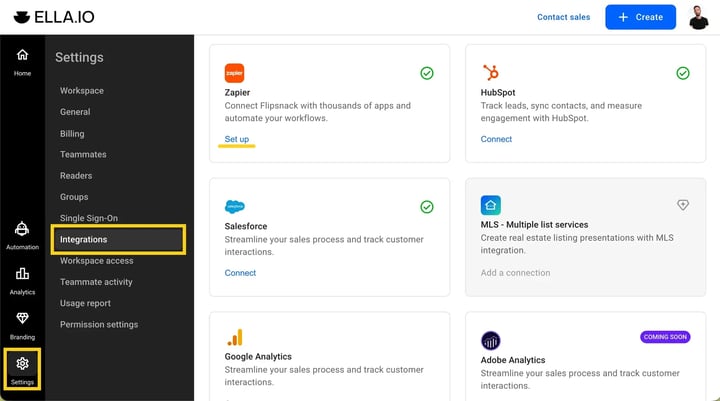
From the Flipsnack side
- Log in to your Flipsnack account and go to the Dashboard.
- Navigate to Settings.
- Click Integrations.
- Find Zapier in the list and click Set up.
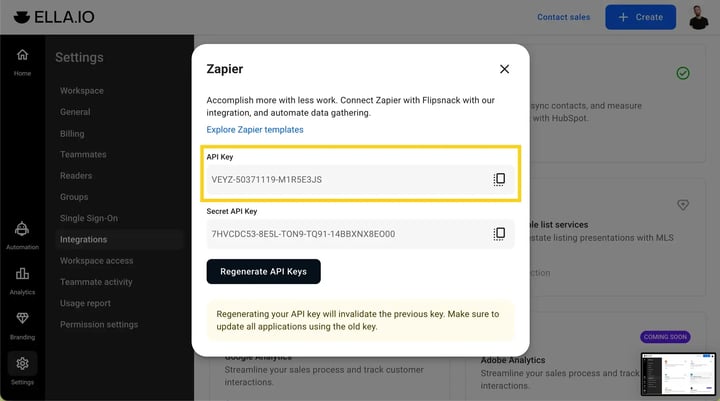
- The API key and Secret API key for your workspace will appear.
- Copy the API key.
From the Zapier side
You connect Flipsnack to Zapier by authorizing the Flipsnack app inside Zapier. This is a single connection, but it requires setup in both apps.
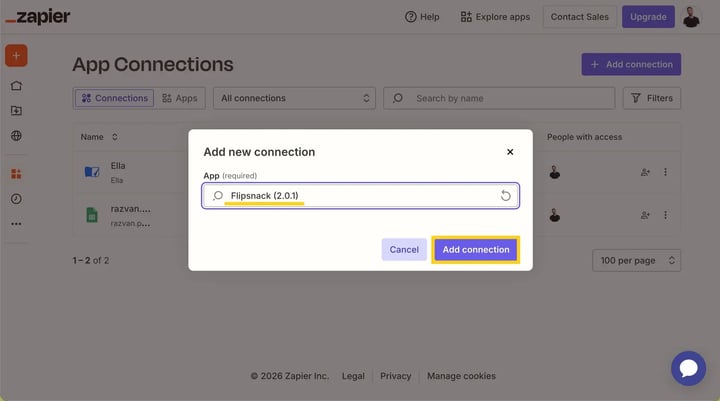
- Go to Zapier connections.
- Click Add connection.
-
Search for Flipsnack and select it.
-
Note: You can also reach this step when creating a new Zap and choosing Flipsnack as the trigger app.
-
- A connection window will open asking for your API key.
- Paste the API key copied from the Flipsnack Integrations tab.
- Click Continue.
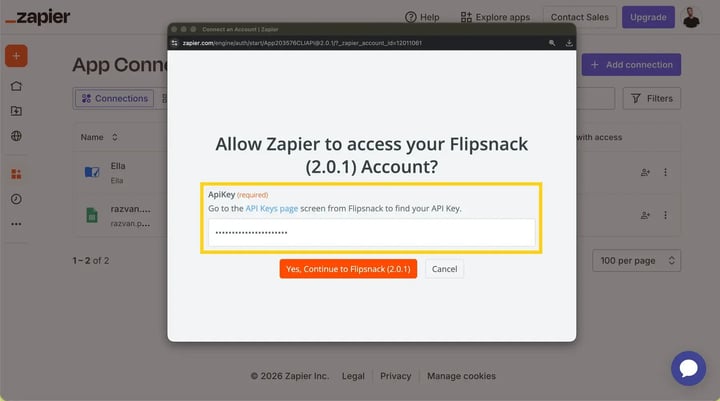
Once this step is completed, your Flipsnack workspace is connected to Zapier and can be used as a trigger in any Zap.
Step 2: Prepare your flipbook and interactive element
Zapier triggers work only with published flipbooks that contain interactive elements.
- Create a flipbook by uploading a PDF or designing one from scratch.
-
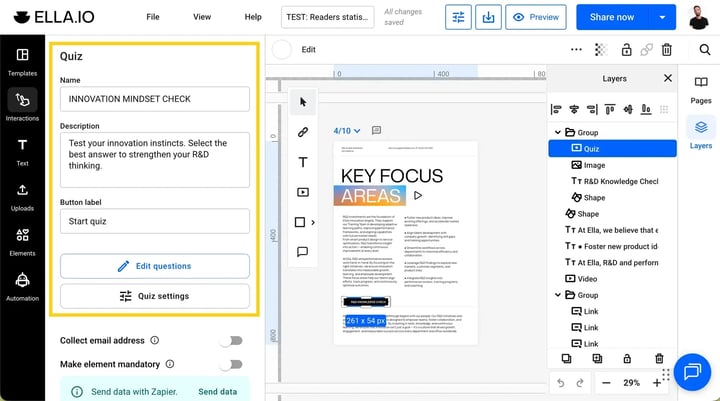
Add at least one interactive element, such as:
-
Lead form or contact form
- Quiz or question
- Shopping list
- Trackable link
-
- Publish the flipbook.
This flipbook will be selected later when configuring the Zap trigger.
Step 3: Create a Zap and select a Flipsnack trigger
- In Zapier, click Create Zap.
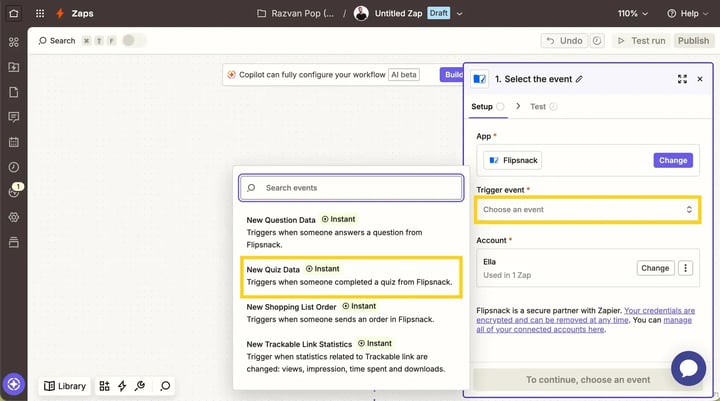
- In the Trigger step, select Flipsnack.
- Open the Event dropdown.
- Choose the trigger that matches the interaction you want to track.
- Click Continue.
 Select the flipbook and trigger element
After choosing the trigger, define exactly what Zapier should listen for.
-
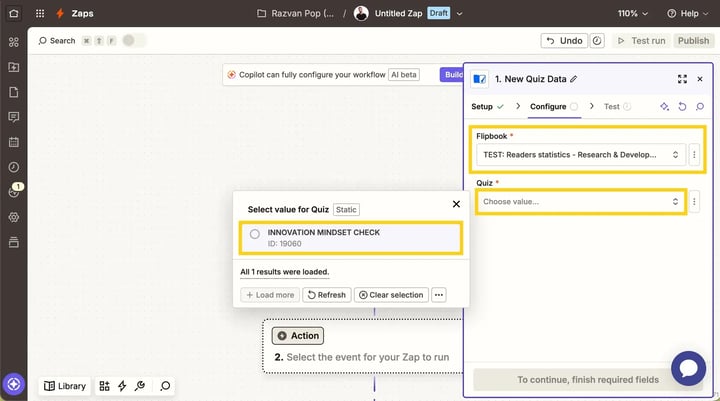
In the Trigger configuration, select the flipbook that contains your interactive element.
-
Use the search field or scroll through the list.
- If needed, scroll down and click Load more to display additional flipbooks.
-
- Select the specific form, quiz, question, Shopping list, or trackable link.
- Click Continue.
- In the Test step, click Test trigger to confirm the setup.
Step 4: Send Flipsnack data to another app
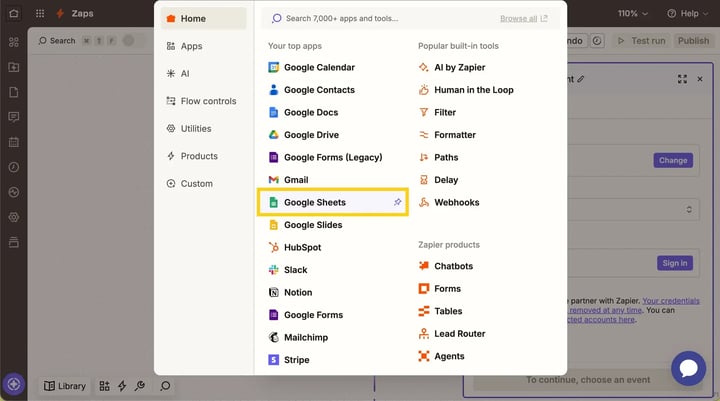
Now decide where the Flipsnack data should be sent.
- In the Action step, choose a destination app, such as Google Sheets, HubSpot, Salesforce, or Gmail.
- Select the action event (for example, creating a spreadsheet row or adding a contact).
- Connect your account for the selected app.
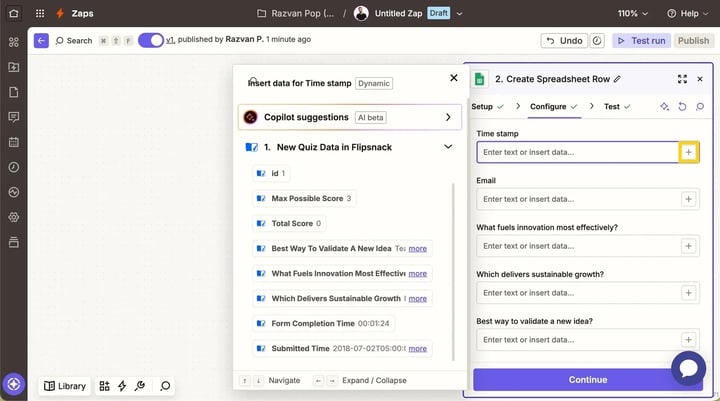
- Map the Flipsnack trigger fields to the corresponding fields in the destination app.
- Test the action to make sure everything works correctly.
- Click Publish to activate the Zap.
Available Flipsnack triggers and data
The following triggers are available when connecting Flipsnack to Zapier.
Notes: Field names for forms, questions, quizzes, and products are dynamic and reflect how those elements are named in Flipsnack. Order-related triggers include both order-level fields and repeating item-level fields inside OrderItems.
Troubleshooting
I can’t see my flipbook in Zapier
Make sure the flipbook is published and contains the interactive element required by the selected trigger.
The trigger test returns no data
Submit a new form or complete an interaction in the flipbook, then test again.
Data is missing or mapped incorrectly
Review the field mapping in the action step and ensure the destination app fields match the Flipsnack trigger fields.
Next steps
- Zapier integrations and workflows
- How to add lead forms to a flipbook
- How to create quizzes and questions
- Catalog automation
- How to collect form submissions from Flipsnack into Monday.com
- How to automate Shopping list orders from Flipsnack to Slack
Need expert support?
Our team is here to help. Connect with our team experts or message us via the live chat for personalized assistance.