
Overview
The Flipsnack MCP server link is https://mcp.flipsnack.com/mcp. To connect Flipsnack to an AI tool, add this link as a custom connector (some tools call it a remote MCP server) and sign in with your Flipsnack account. You need no API key. This works in Cursor, Gemini CLI, local LLM apps such as LM Studio and Jan, and other tools that support remote MCP servers. After you sign in, the AI tool can create flipbooks from PDF links, manage and share them, and pull their statistics.
In Claude and ChatGPT you do not need the link: add Flipsnack from Claude's connectors directory or the ChatGPT app directory.
👥 Where Flipsnack in your AI tool is helpful
- Marketing: Ask your AI tool to turn a PDF link into a flipbook and draft the announcement with the share link in the same chat.
- Developers: Ask Cursor to list your flipbooks and return the iframe code while you edit your website code.
Requirements
- Flipsnack: A Flipsnack account. The connection uses the workspace your Flipsnack login opens by default.
- MCP server link:
https://mcp.flipsnack.com/mcp - AI tool: A tool that supports remote MCP servers with OAuth sign-in.
Pick your tool:
- Gemini CLI
- Cursor
- Local LLM apps (LM Studio, Jan, Open WebUI)
- Other AI tools
- Supported actions and commands
How to connect Flipsnack to Gemini CLI
Note: Since June 18, 2026, Gemini CLI works only with a Gemini Code Assist Standard or Enterprise license or a paid Gemini API key. Personal Google accounts (free, Google AI Pro and Ultra) use Antigravity CLI (agy) instead. Antigravity CLI cannot connect to Flipsnack yet: Flipsnack does not accept its sign-in.
- In your terminal, run this command:
gemini mcp add --transport http flipsnack https://mcp.flipsnack.com/mcp- Start Gemini CLI with
gemini. If it asks whether you trust the folder, select Trust folder. Gemini CLI loads a project's MCP servers only from a trusted folder. - Type
/mcp auth flipsnack. Your browser opens the Flipsnack sign-in page. Sign in and approve the access. - Type
/mcpto check that flipsnack is connected and lists its tools. - Write a request, for example: "List my flipbooks."
The command saves the server for the current project. To use it in every folder, add --scope user to the command. To remove it, run gemini mcp remove flipsnack.
How to connect Flipsnack to Cursor
- Open the
mcp.jsonfile. Use~/.cursor/mcp.jsonfor every project, or.cursor/mcp.jsoninside one project. - Add Flipsnack under
mcpServers:
{
  "mcpServers": {
    "flipsnack": {
      "url": "https://mcp.flipsnack.com/mcp"
    }
  }
}- Save the file, then open Customize in Cursor's sidebar and find flipsnack in the MCP servers.
- Start the sign-in for the server and sign in to Flipsnack in your browser. Add no
headersand noauthvalues: Flipsnack needs no API key and no client ID. - In Cursor chat, ask for what you need, for example: "List my flipbooks."
To pause the connection without removing it, use the toggle next to the server in Customize.
How to connect Flipsnack to a local LLM app
Local LLM apps run a model on your computer and can use Flipsnack through the MCP server link:
- LM Studio (version 0.4.10 or later): Add Flipsnack to
mcp.jsonwith"url": "https://mcp.flipsnack.com/mcp"and no headers. LM Studio opens your browser to sign in. - Jan: Add Flipsnack as a remote (HTTP) MCP server, then click Sign in on the server.
- Open WebUI on your computer: Add an MCP (Streamable HTTP) connection with the link, select OAuth 2.1, then click Register Client.
Ollama runs models only. To use Flipsnack with an Ollama model, open the model in one of the apps above.
How to connect Flipsnack to other AI tools
Any other tool that supports remote MCP servers over HTTP with OAuth sign-in can try the same steps.
- Open the client's settings for MCP servers or connectors and add a remote server.
- Enter the server URL
https://mcp.flipsnack.com/mcp. If the client asks for a transport, select HTTP (Streamable HTTP). - Start the sign-in. The client opens Flipsnack's sign-in page at
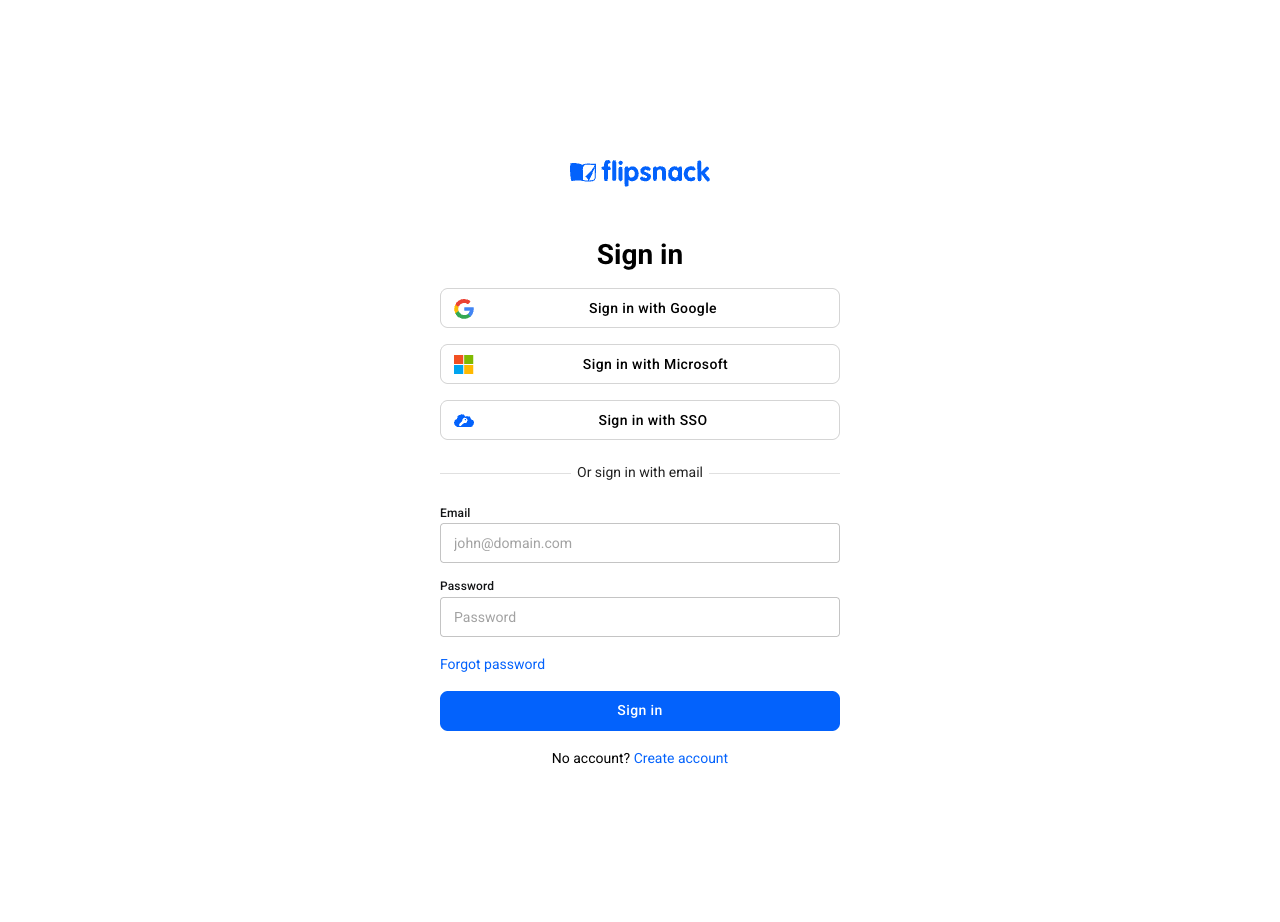
auth.flipsnack.com. Sign in and approve the access.
The tool registers itself with Flipsnack, so it needs no client ID or secret. If your tool asks for scopes, use mcp:read to read data and mcp:write to also create and change things.
Caution: Flipsnack accepts automatic registration only from supported AI tools. If your tool shows "Automatic registration with this server failed" and asks for an OAuth client ID and client secret, it cannot connect to Flipsnack yet. Today this is the case for the Gemini app, Antigravity (the desktop app and Antigravity CLI), VS Code and Perplexity.
Supported actions and commands
The tools come from the Flipsnack server, so every connected AI tool can:
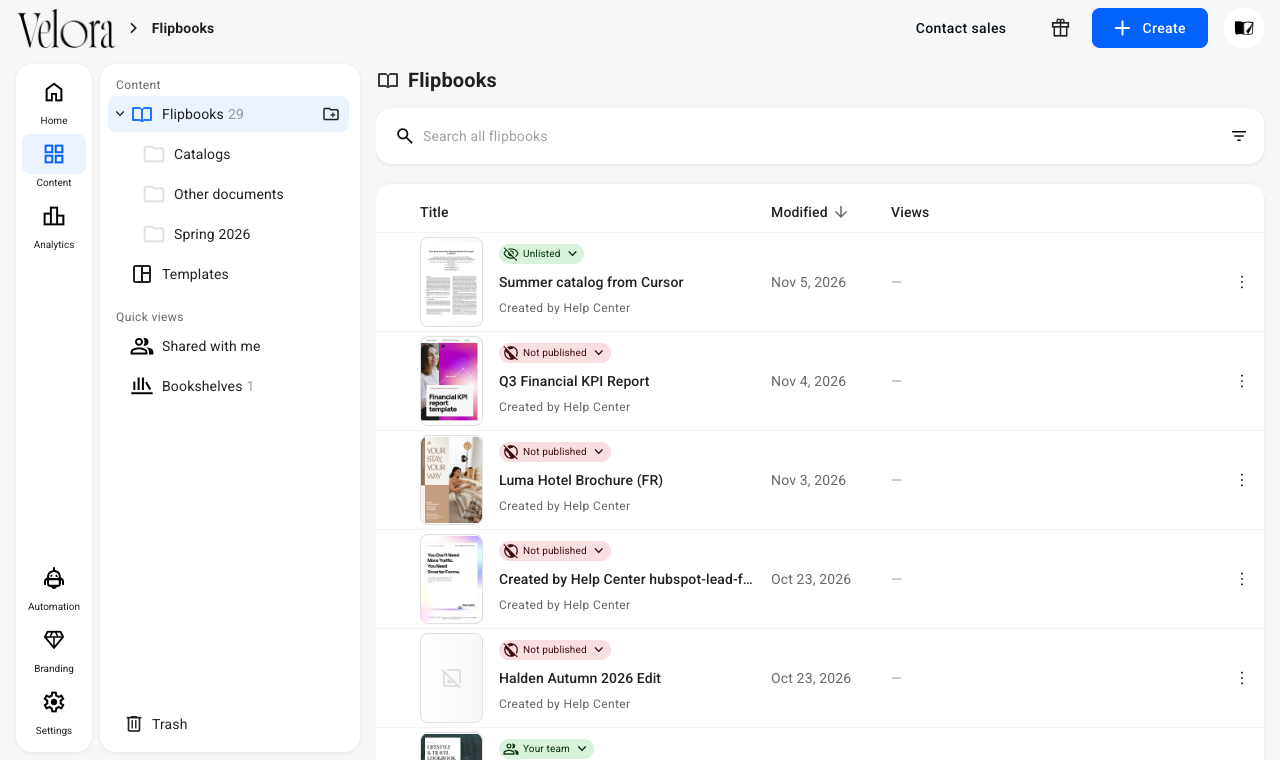
- Create flipbooks: Create a flipbook from a PDF at a public URL. Example prompt: "Create a flipbook from this PDF link and give me the share link."
- Manage and search flipbooks: List your flipbooks or open the details of one. Example prompt: "List my flipbooks."
- Update details: Change the details of a flipbook. Example prompt: "Rename my Spring catalog to Spring 2027 catalog."
- Embed flipbooks: Get the iframe code for a flipbook, at a fixed size or responsive. Example prompt: "Give me a responsive iframe for my Spring catalog."
- Share by email: Send a flipbook to a list of email addresses. Example prompt: "Email my Spring catalog to anna@example.com and tom@example.com."
- Manage reader access: See and change who can read a private flipbook. Example prompt: "Who can read my Price list flipbook? Add sam@example.com."
- Retrieve statistics: Get account-wide statistics, statistics for one flipbook, or reader-level statistics. Example prompt: "How many views did my account get last month?"
- Delete flipbooks: Move a flipbook you no longer need to the trash. You can restore it from the trash. Example prompt: "Move my Old promo flipbook to the trash."
Caution: The AI tool cannot convert a file you upload into the chat. Give it a public link to the PDF instead.
Troubleshooting
- The tool says it needs authentication or shows a 401 error: Start the sign-in again. In Gemini CLI, type
/mcp auth flipsnack. In Cursor, sign in to the server again from Customize. - Gemini CLI shows flipsnack as disabled: The folder is not trusted. Start
geminiin the folder and select Trust folder, or add the server with--scope user. - The AI tool cannot find my flipbook: Check that the flipbook is in the workspace your Flipsnack login opens by default. The connection works in that workspace only.
- My tool asks for an API key: Leave it empty. Flipsnack uses OAuth sign-in with automatic client registration.
- My tool shows "Automatic registration with this server failed": Your tool is not supported yet. Flipsnack does not give out client IDs. Use Gemini CLI, Cursor or a local LLM app instead.
Additional tips / FAQs
- Do I need a Flipsnack API key? No. You sign in with your Flipsnack account.
- Can I connect several Flipsnack workspaces? No. The connection works in the workspace your Flipsnack login opens by default.
- Can the AI tool delete my flipbooks? It can move a flipbook to the trash when you ask it to. Check the confirmation your AI tool shows before you approve a change.
- Will my AI tool use my Flipsnack data to train its models? Flipsnack does not use your data or publications to train AI models. For how your AI tool handles chats and connected data, read its privacy policy.
Next steps
- How to connect and use the Flipsnack app in Claude
- How to connect and use the Flipsnack app in ChatGPT
- Getting started with the Flipsnack API
Need expert support?
Our team is here to help. Connect with our team experts or message us via the live chat for personalized assistance.