
Overview
To connect Flipsnack to Claude, add it as a custom connector: paste the Flipsnack server URL, https://mcp.flipsnack.com/mcp, into Claude's Connectors settings and sign in to Flipsnack. Claude can then create flipbooks from PDF links, manage your flipbooks, share them and pull their statistics from inside a chat.
👥 Where Flipsnack in Claude is helpful
- Marketing: Turn a PDF URL into a live flipbook link while Claude writes the promotional email in the same chat.
- Sales: Pull reader statistics for a product catalog right before a client call to see what the client has read.
Flipsnack is not in Claude's connector directory yet. You need no API key: you sign in with your Flipsnack account.
Requirements
- Permissions: Flipsnack workspace admin access. On Claude Team and Enterprise, an Owner adds the connector for the organization first: about roles
How to add Flipsnack to Claude as a custom connector
Use the steps that match your Claude plan.
Claude Free, Pro and Max
- In Claude, go to Customize > Connectors.
- Click Add, then select Add custom connector.
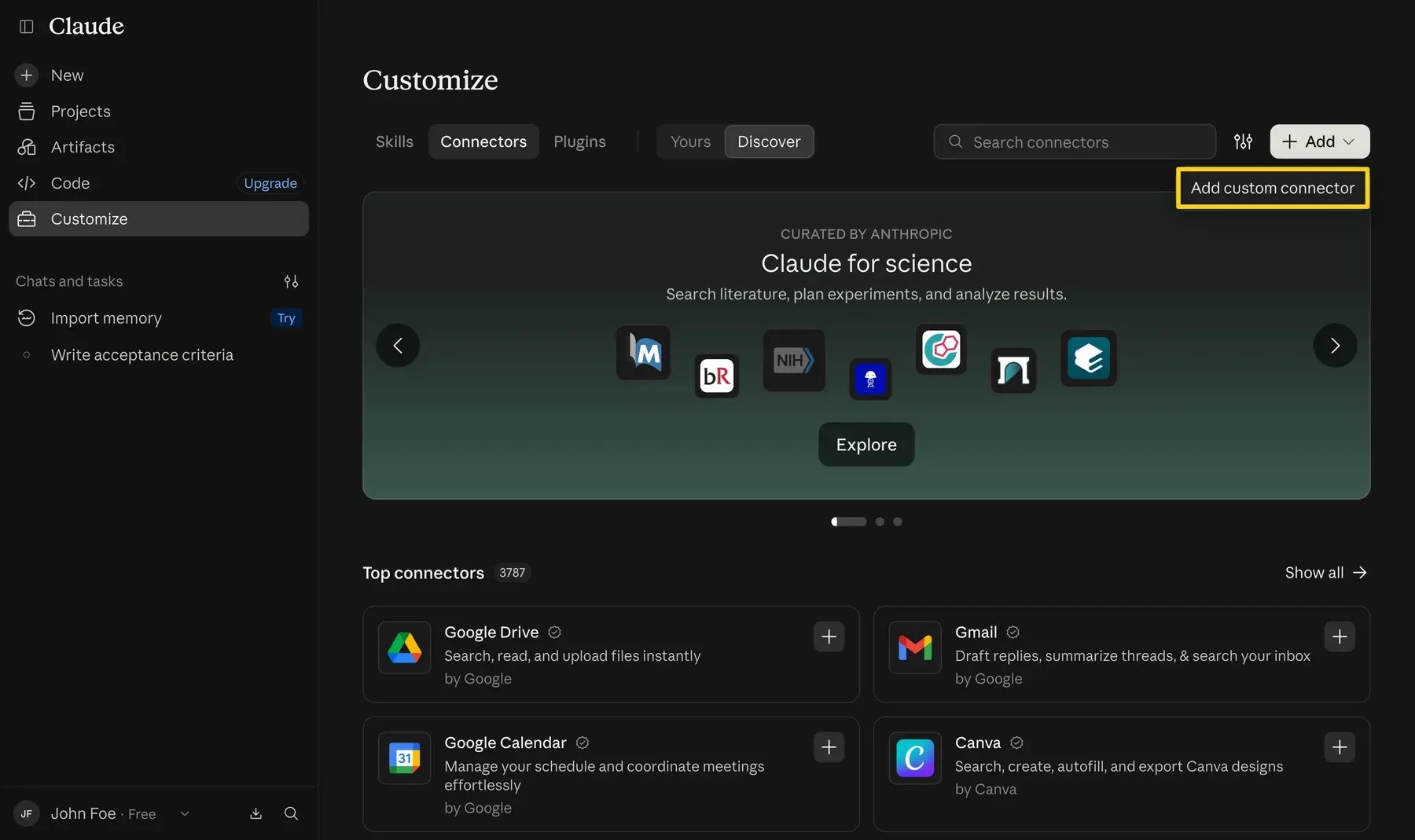
- Enter Flipsnack as the Name and paste
https://mcp.flipsnack.com/mcpinto MCP server URL. Click Continue.
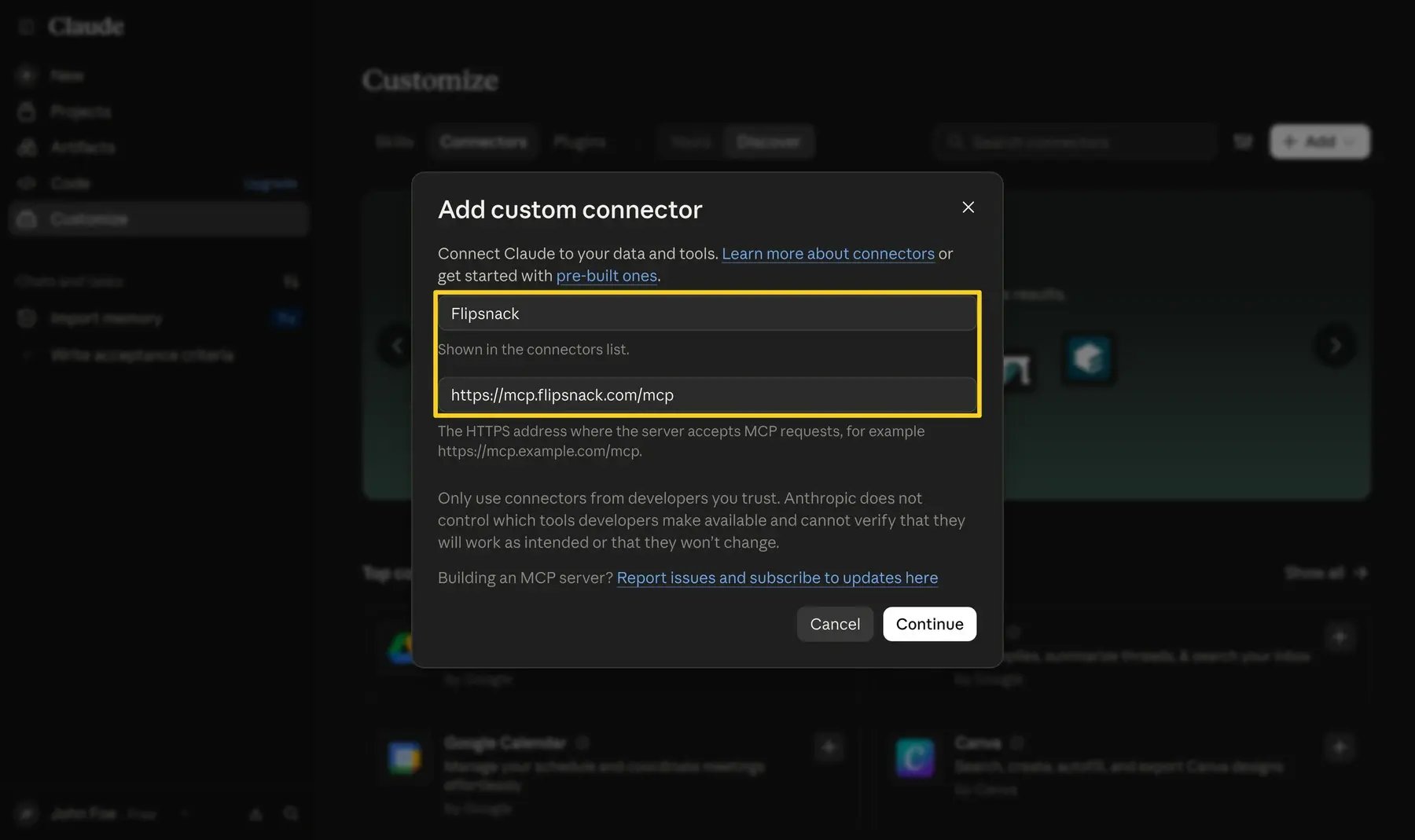
- Keep the settings Claude detects: Sign in now and Register automatically. You do not need your own OAuth client or an API key. Click Add.
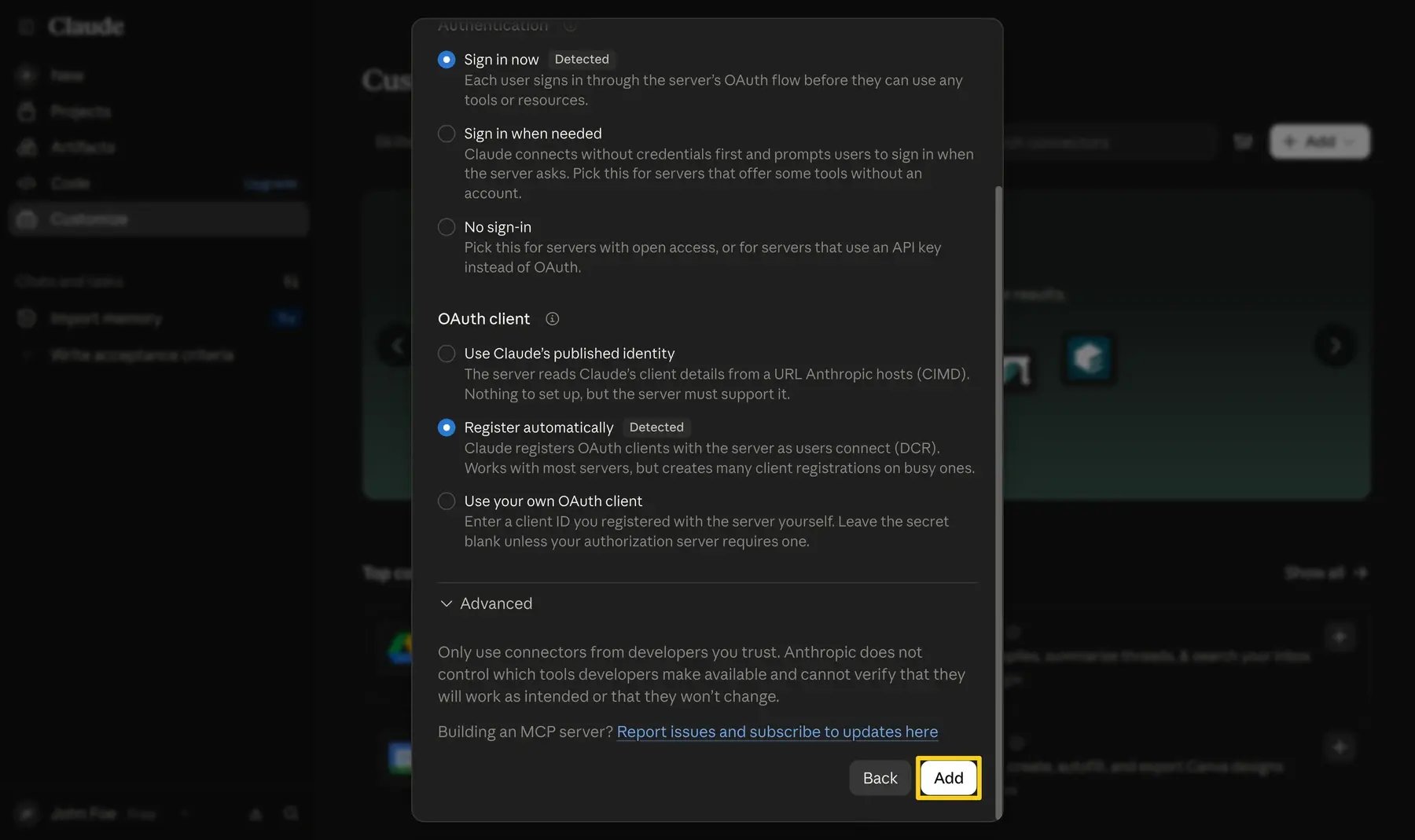
- On the Flipsnack connector page, click Connect.
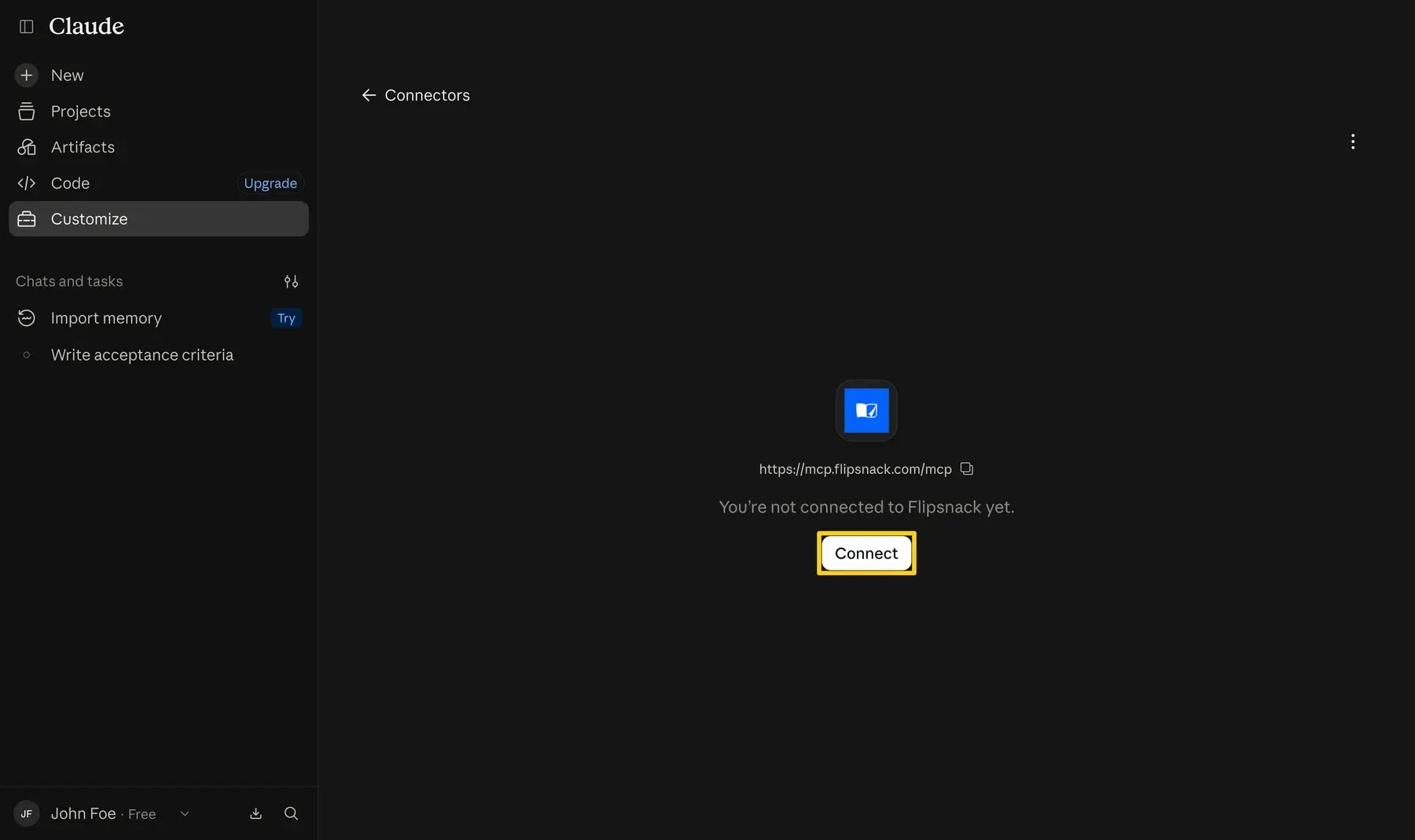
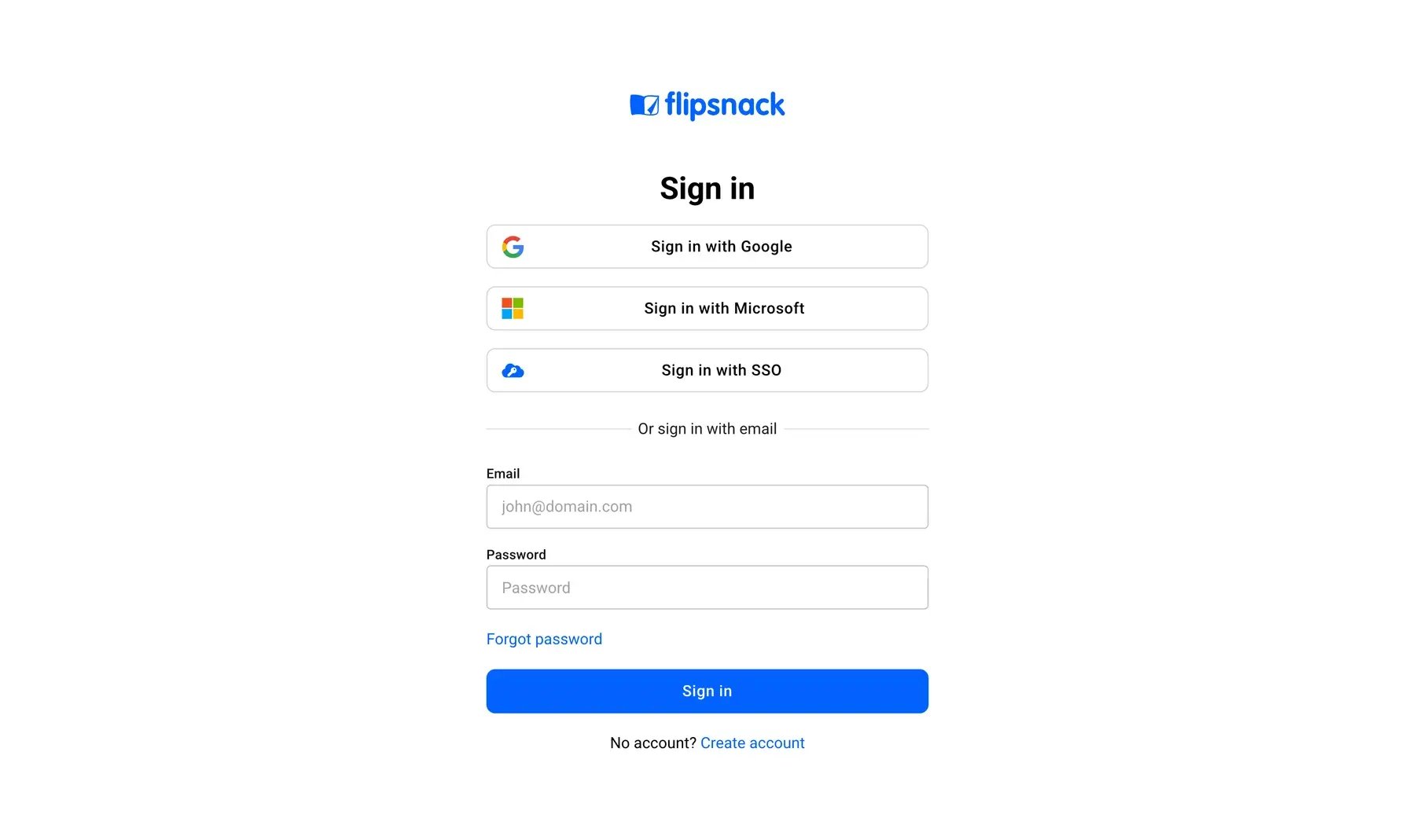
- Sign in to Flipsnack with your email and password, or with Google, Microsoft or SSO. Claude takes you back to the connector page as soon as you are signed in.
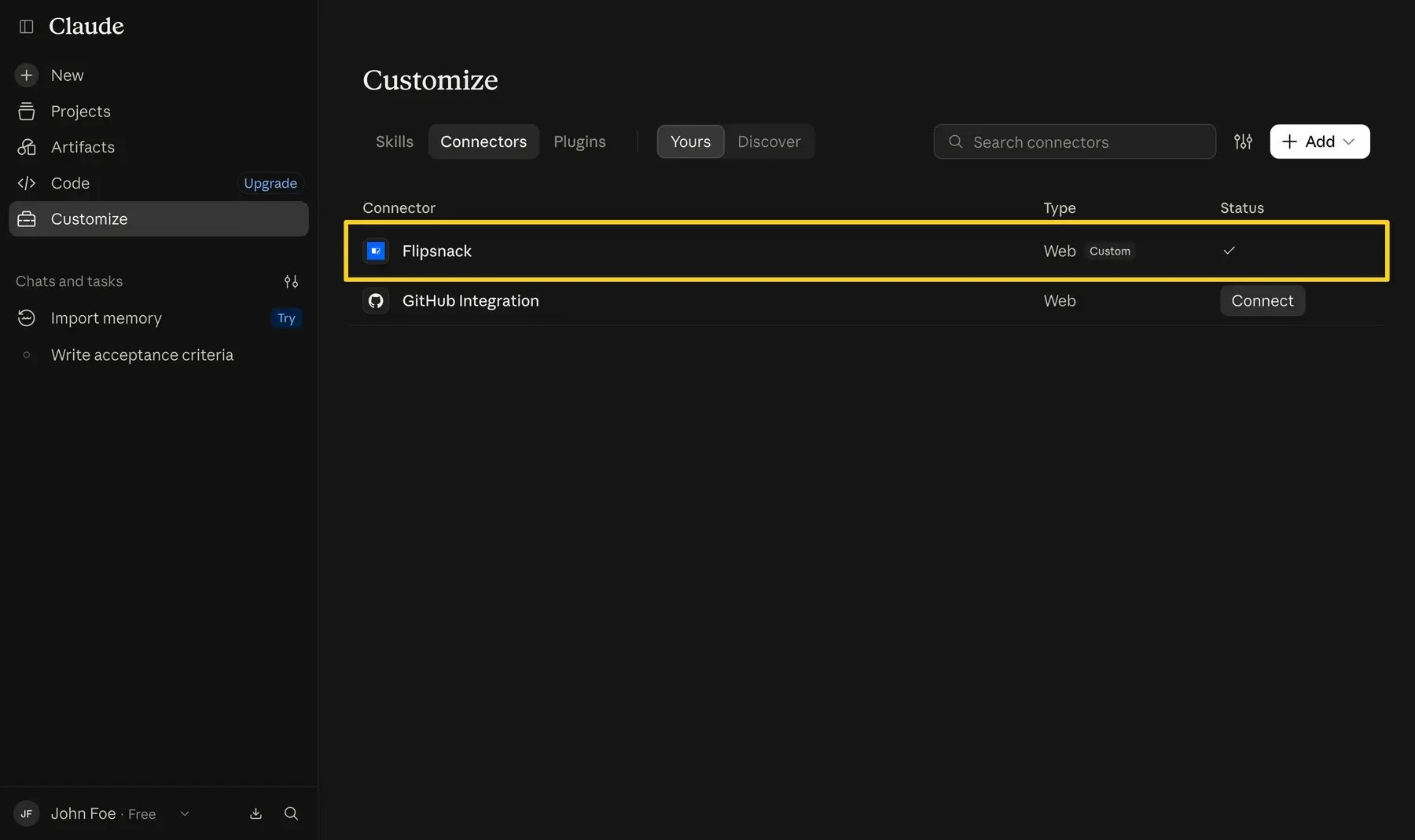
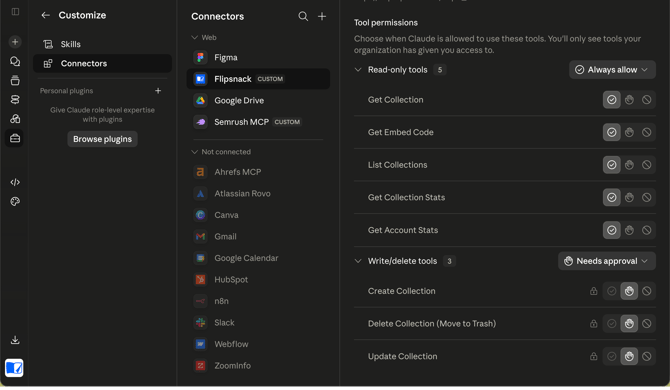
- Flipsnack now shows in your connectors, marked Custom, with a check under Status.
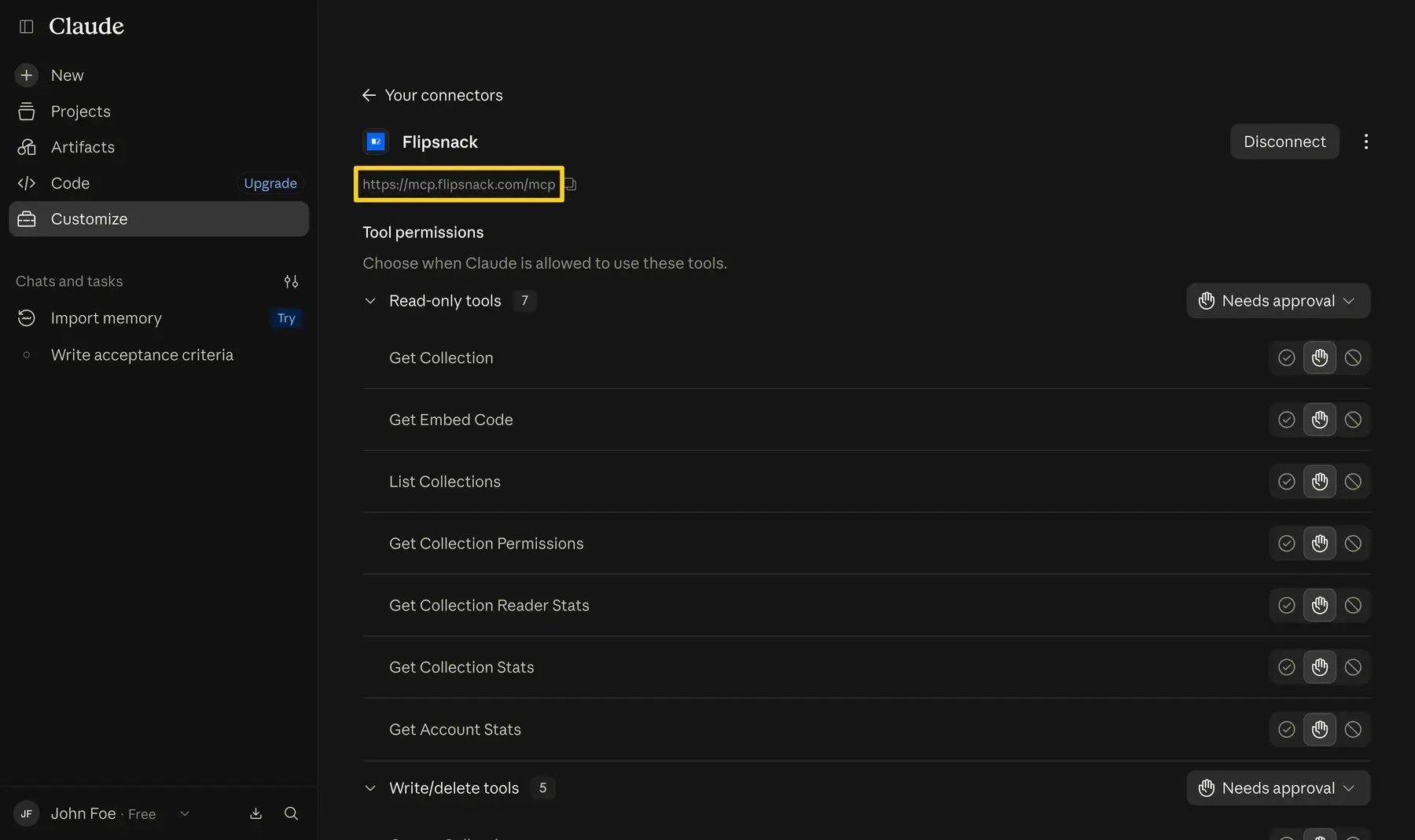
- Open Flipsnack in the list to check the server URL and set its Tool permissions.
Claude Team and Enterprise
An Owner adds the connector once for the whole organization:
- Go to Organization settings > Connectors.
- Click Add, hover over Custom, then select Web.
- Paste
https://mcp.flipsnack.com/mcpand click Add.
Each member then connects their own Flipsnack account:
- Go to Customize > Connectors.
- Find Flipsnack and click Connect.
- Sign in to Flipsnack.
How to use Flipsnack in a Claude chat
- In a chat, click + in the lower left of the message box.
- Select Connectors and turn Flipsnack on.
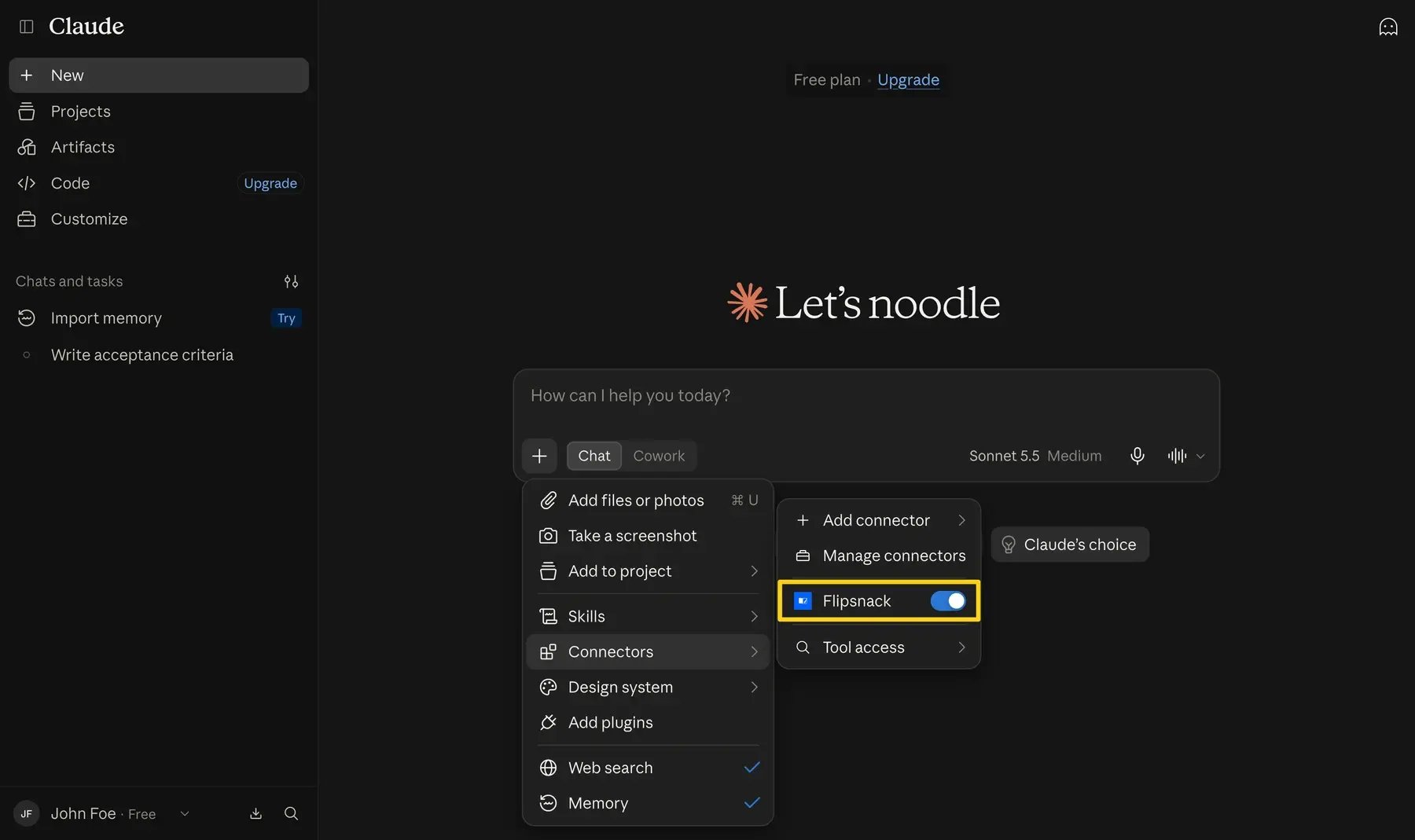
- Ask in plain words, for example: List my last 10 flipbooks and their views, or Give me the embed code for my spring catalog.
Note: Each Flipsnack action has its own setting under Tool permissions on the connector page, and every action starts on Needs approval. Keep Needs approval on for write and delete actions, so Claude asks you before it creates, changes or deletes anything.
Supported actions and commands
Once connected, Claude can:
- Create flipbooks: Create a flipbook from a PDF at a public URL. Claude returns the flipbook details, including its link.
- Manage and search flipbooks: List your flipbooks, filter them by status or folder, or open the full details of one flipbook.
- Update details: Change the title, description or visibility of a flipbook.
- Generate embed codes: Get the iframe code for a flipbook, at a fixed size or responsive.
- Share by email: Send a flipbook to a list of email addresses.
- Manage reader access: See and change who can read a private flipbook.
- Retrieve statistics: Get account-wide statistics, statistics for one flipbook, or reader-level statistics.
- Delete flipbooks: Move a flipbook you no longer need to the trash.
Caution: Claude cannot convert a file you upload into the chat. Give it a public link to the PDF instead.
Coming soon: connect Flipsnack from Claude's directory
Flipsnack is not in Claude's connector directory yet. When it is listed, you will be able to connect it by searching for it instead of pasting a URL. Until then, these steps will not work: use the custom connector steps above.
Once it is listed, the steps are
- Go to Customize > Connectors and click Add connection.
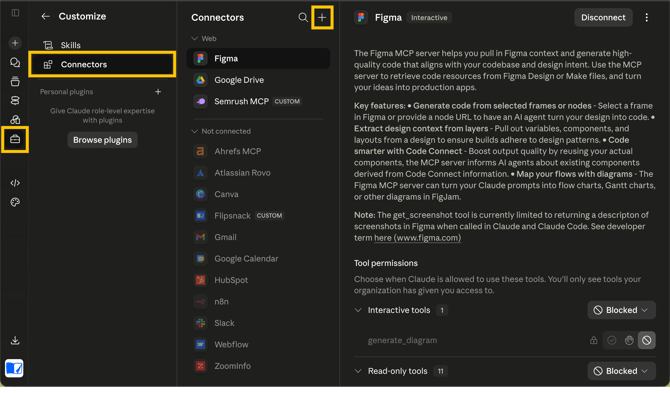
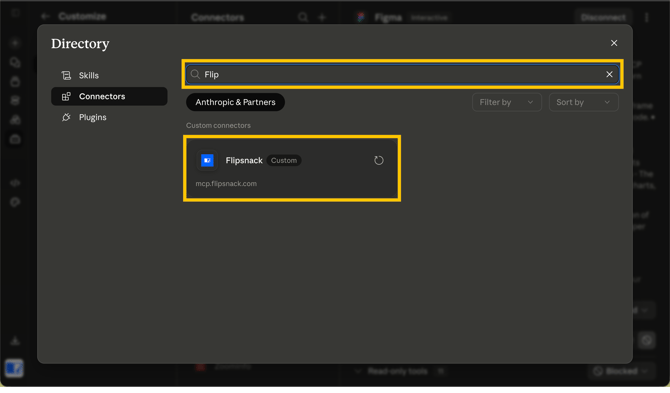
- Search for Flipsnack and select it.
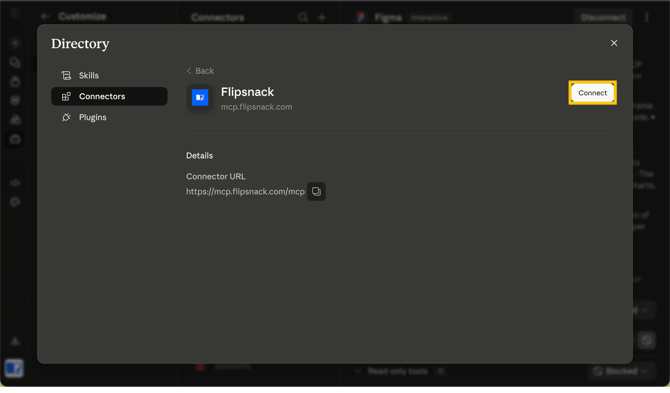
- Click Connect, choose who can see the connection, and click Connect again.
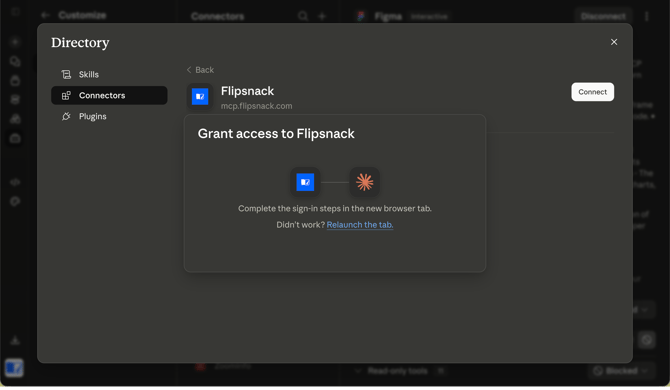
- Sign in to Flipsnack to authorize the connection.
- Claude takes you back to your connectors, with Flipsnack connected.
Troubleshooting
- I cannot find Flipsnack in Claude's connector directory: It is not listed yet. Add it as a custom connector with
https://mcp.flipsnack.com/mcp. - Add custom connector is greyed out: Your organization lets only Owners add custom connectors. Ask your Owner to add Flipsnack under Organization settings > Connectors, then connect it from Customize > Connectors.
- Claude says I already have a custom connector: The Claude Free plan allows one. Remove the other custom connector or upgrade your Claude plan.
- Claude does not use Flipsnack in my chat: Click + in the message box, select Connectors and check that Flipsnack is on.
- Claude cannot find my flipbook: Check that the flipbook is in the workspace your Flipsnack login opens by default. The connector works in that workspace only.
- I get an authentication error: Go to Customize > Connectors, remove Flipsnack, and add it again with the steps above.
Additional tips / FAQs
- Do I need a Flipsnack API key? No. You sign in with your Flipsnack account when you click Connect. Leave the connector's OAuth settings as Claude detects them.
- Can I connect several Flipsnack workspaces? No. The connector works in the workspace your Flipsnack login opens by default.
- Will Claude use my Flipsnack data to train its models? Flipsnack does not use your data or publications to train AI models. For how Claude handles your chats and connected data, read Anthropic's privacy policy.
- How do I disconnect Flipsnack? Go to Customize > Connectors, open Flipsnack and click Disconnect.
Next steps
- How to connect and use the Flipsnack app in ChatGPT
- Getting started with the Flipsnack API
- Integrate Google Analytics for in-depth tracking and statistics
Need expert support?
Our team is here to help. Connect with our team experts or message us via the live chat for personalized assistance.