
Overview
Nowadays, professionals across almost every department rely on ChatGPT to tackle their daily tasks. Whether you are drafting a sales proposal, outlining internal training materials, or building a marketing campaign, having to stop, open a new tab, upload a PDF, and retrieve a link breaks your focus and slows you down.
👥 Where the Flipsnack app in ChatGPT is helpful
- Marketing: Turn a PDF URL into a live flipbook link in seconds while simultaneously generating your promotional copy in the same chat thread.
- Sales: Instantly pull reader analytics for a specific product catalog directly in ChatGPT right before a client call to see exactly what they have been reading.
The Flipsnack ChatGPT app allows you to manage your digital publishing workflow directly within your chat interface. By connecting your account, you can create flipbooks from PDF URLs, update metadata, fetch real-time engagement statistics, and manage your collections without ever leaving ChatGPT.
Requirements
- Permissions: workspace admin in Flipsnack: about roles
How to connect Flipsnack to ChatGPT
To start using Flipsnack inside ChatGPT, you need to authenticate and connect the app through your ChatGPT settings.
- Open your ChatGPT interface and navigate to Apps. Browse or search the app directory for Flipsnack and select it.
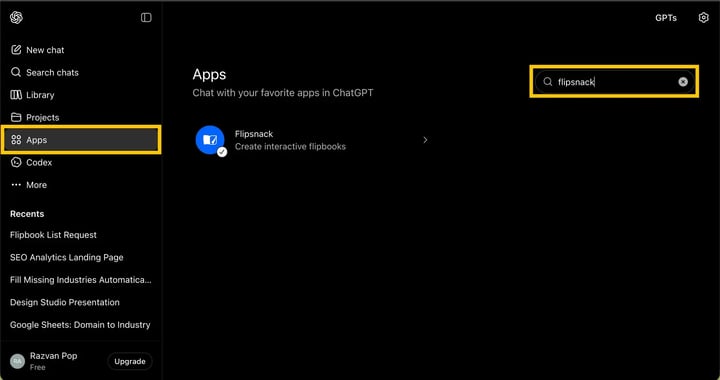
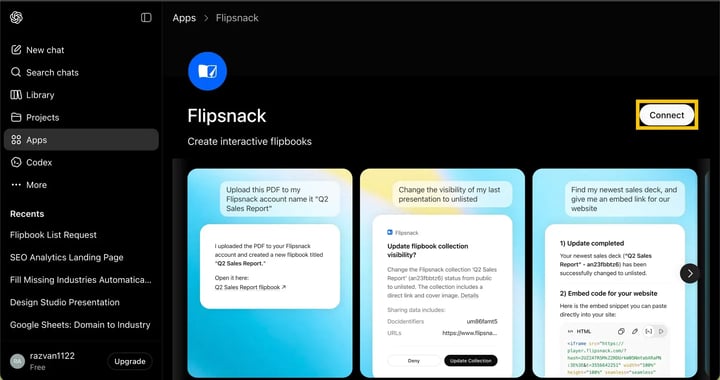
- Once on the Flipsnack App page, select Connect.
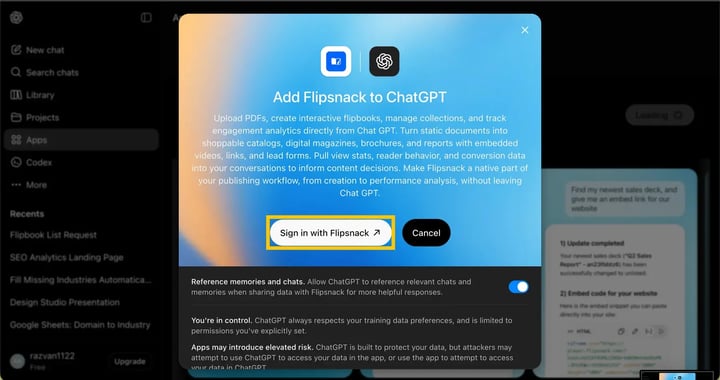
- Follow the on-screen prompts to log in and authorize the connection with your Flipsnack account. If you're already logged into your Flipsnack account the app will connect automatically.
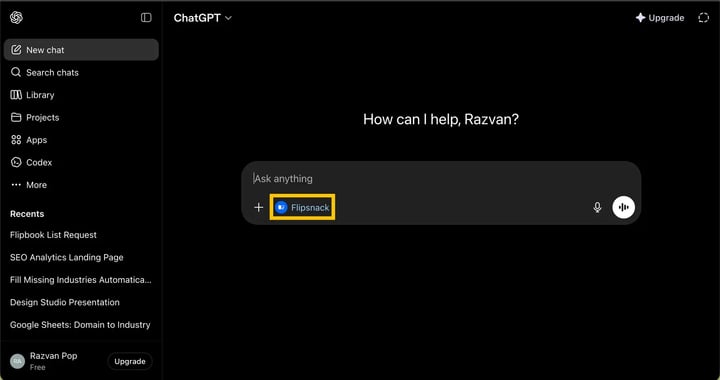
- Once authorized, the Flipsnack app is ready to use in your ChatGPT conversations.
Supported actions and commands
Once connected, you can simply ask ChatGPT to perform various actions on your Flipsnack account.
Note: Before making any changes (like creating, updating, or deleting content) in Flipsnack, ChatGPT will provide a prompt asking you to confirm the action first.
The app supports the following commands:
- Create flipbooks: Ask ChatGPT to create a new flipbook. You can instantly import a PDF from a public URL, and the AI will return the full collection details, including your direct link and hash.
Caution: You cannot convert files uploaded in the chat. We are currently working on an update that will soon fix this. Until we release it you have to provide a public link for conversion.
- Manage and search flipbooks: Prompt ChatGPT to list your existing flipbook. You can ask it to filter by status, search for a specific folder, or fetch the full details (title, cover image, publish date) of a single collection.
- Update metadata: Instruct ChatGPT to update the title, description, or visibility status of an existing flipbook.
- Generate embed codes: Need to put a flipbook on your blog? Ask ChatGPT to generate the HTML iframe snippet. You can even specify pixel dimensions or request a responsive iframe.
- Retrieve statistics: Pull real-time analytics without opening Flipsnack. You can ask for account-wide stats (total impressions, shares or time spent) or request a detailed breakdown for one specific flipbook.
- Delete flipbooks: Ask ChatGPT to delete a flipbook when you no longer need it.
Additional tips / FAQs
To get the most out of this integration, allow ChatGPT to reference your relevant chats and memories. This enables the AI to automatically suggest contextual titles, generate relevant descriptions based on your previous conversations, and streamline the data you send to Flipsnack for a more helpful, personalized experience.
Troubleshooting
ChatGPT cannot import my PDF URL
If you ask ChatGPT to create a flipbook from a URL and it fails, verify that the PDF URL is publicly accessible. If the file is hidden behind a password, firewall, or requires a login, the integration will not be able to retrieve it.
I cannot find Flipsnack in my ChatGPT Apps
If you are using a ChatGPT Enterprise or Edu plan, third-party apps are often disabled by default. Your workspace admin will need to approve and enable the Flipsnack app from the ChatGPT Workspace settings before you can connect it.
- Why doesn't it work when I upload files to convert? The Flipsnack app for ChatGPT cannot directly convert local files (like a PDF on your computer) uploaded straight into the chat, for now. You must provide a publicly accessible URL of the PDF for Flipsnack to fetch and convert it. If you have a local file, upload it to a public hosting service or cloud drive first, ensure the link is public, and provide that link to ChatGPT.
Make sure that the hosting service you are using doesn't prevent AI models from scraping the file. If ChatGPT returns a 50 API error message, try to upload your PDF file to your website and get the public link from there.
- Why is ChatGPT asking me to reconnect my Flipsnack account? For security reasons, your authentication token may expire over time, or you may be prompted to reconnect if you clear your browser data or use a new device. Simply follow the prompt to log in and authorize the connection again to secure your account.
- Can I connect multiple Flipsnack workspaces to ChatGPT? Currently, the integration connects to the default workspace associated with your Flipsnack login credentials. If you need to perform actions in a different workspace, you must switch workspaces natively within the Flipsnack app.
Next steps
- How to connect and use Flipsnack in Claude
- How to automate the export of question submissions via Zapier
- Integrate Google Analytics for in-depth tracking and statistics
Need expert support?
Our team is here to help. Connect with our team experts or message us via the live chat for personalized assistance.