
Table of contents
Overview
Flipsnack’s motion presets feature allows you to add dynamic visual effects directly to text, images, and shapes inside the Design Studio. This feature eliminates the need for complex external animation software, enabling editors to build cinematic digital publications that instantly capture reader attention.
Requirements
- Flipsnack plan: Available starting with the Business plan.
- Supported assets: Animations can be applied to native shapes, text boxes, and uploaded media elements.
Use Cases
- Interactive Catalogs: Apply a pulsing or shaking effect to buy buttons or product tags to draw immediate consumer focus toward specific conversion areas.
- Corporate Reports: Utilize smooth sliding or fading motion presets on text headings and data visualization charts to elevate the publication’s professional appearance.
- Training Materials: Prevent reader fatigue by animating key notes or callouts, transforming passive compliance materials into an active educational flow.
How to apply motion presets to design elements
Now that you understand the strategic benefits of motion effects, follow these steps to animate your canvas elements:
- Open your digital publication inside the Design Studio.
- Click on the text box, image, or shape layer you wish to animate to reveal the top editing toolbar.
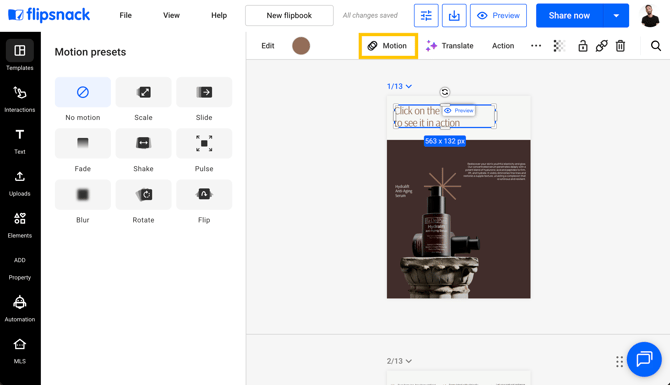
- From the top toolbar menu, click on the Motion button to open the Motion presets panel on the left side of the screen.
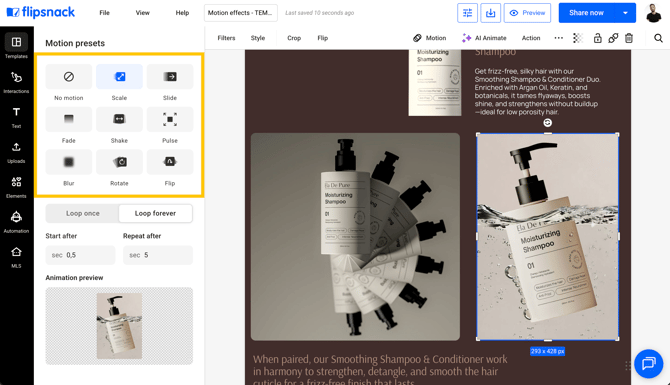
- Select an animation style that best fits your content layout from the available presets (Scale, Slide, Fade, Shake, Pulse, Blur, Rotate, or Flip).
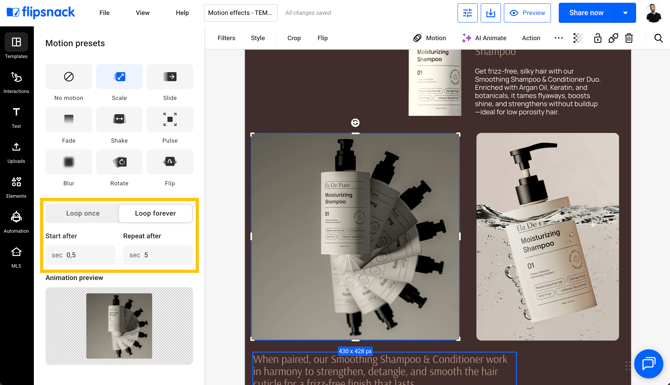
- Customize the playback behavior within the configuration options:
- Choose between Loop once or Loop forever based on your design preference.
- Input a delay inside the Start after field (e.g.,
sec 0,5) to control exactly when the motion begins once a reader lands on the page. - Define the frequency of the animation interval inside the Repeat after field (e.g.,
sec 5) for continuous loops.
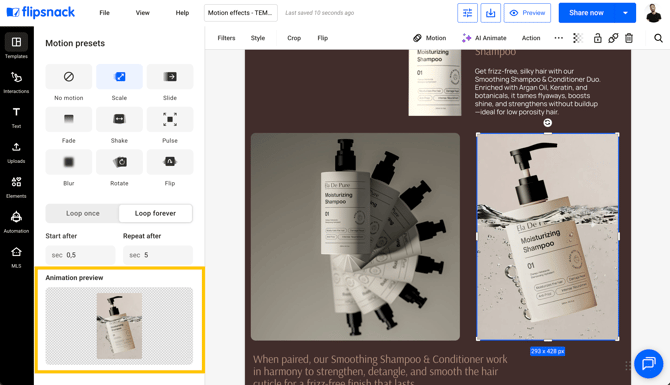
- Review the real-time movement of the animated layer inside the Animation preview window at the bottom of the panel.
- Save your design changes by clicking the blue Share now button in the app header, followed by Update to publish the revisions instantly to your live readers.
Motion presets preview
Use the interactive preview below to see each preset in action, and experiment with the configuration options under Try the settings to simulate exactly how these dynamic loops will perform on your live flipbook pages before publishing your updates.

Next steps
Now that you have successfully animated elements within your digital publication, discover more customization and collaboration capabilities in Flipsnack:
- How to add interactions in Flipsnack
- How to upload videos in your flipbooks
- How to add photo slideshows in your flipbooks
Need help setting up your element animations?
Our team is here to help. Connect with our team experts via the in-app chat for personalized assistance!