
Overview
You can show a Cookiebot consent banner on your Flipsnack flipbooks by adding your Google Tag Manager container to the flipbook, then serving the Cookiebot script through it. This extends the same GDPR and CCPA consent you already run on your main website to the flipbooks you publish and embed, without managing a second consent tool.
By integrating a custom Cookiebot banner via Google Tag Manager (GTM), you can deploy a centralized cookie policy that ensures your readers' data is handled securely and in strict accordance with your legal requirements. This setup works best when using a custom domain, giving you full governance over your digital assets.
Requirements
- Plan: Enterprise: contact sales
- An active Cookiebot account: go to Cookiebot
- A Google Tag Manager account and container: set up Google Tag Manager
- A Flipsnack custom domain or subdomain (Highly recommended to ensure you have full tracking control over your Flipsnack content): set up a custom domain
How to configure Cookiebot and GTM
We highly recommend setting up a custom domain or subdomain for your Flipsnack account before starting this process. Working on a custom domain ensures that your cookie banner behaves predictably and gives you full control over your privacy settings.
1. Add your domain to Cookiebot
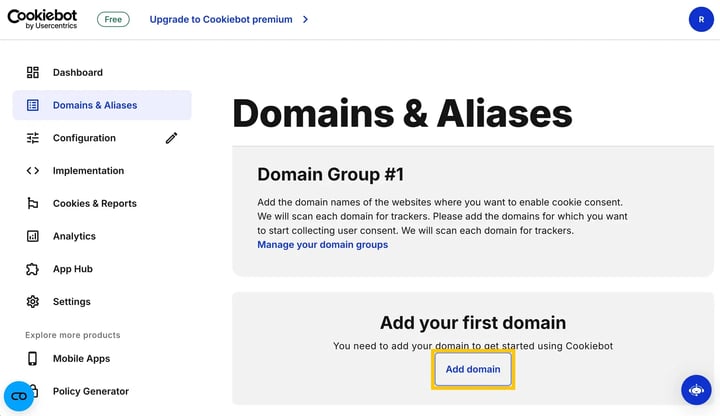
- Log in to your Cookiebot account and add your Flipsnack custom domain or subdomain.
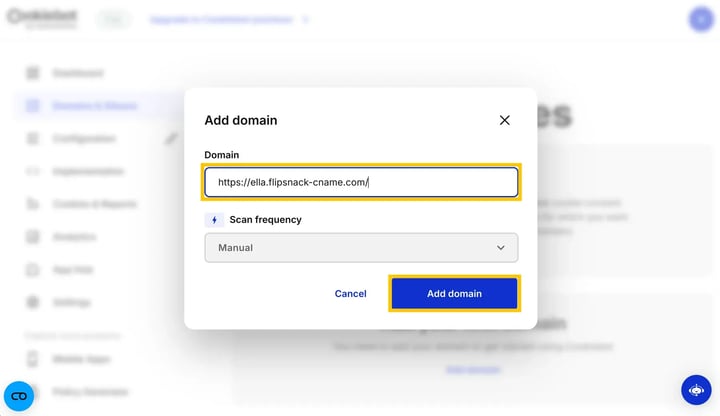
- Choose your scan frequency and configure your domain settings.
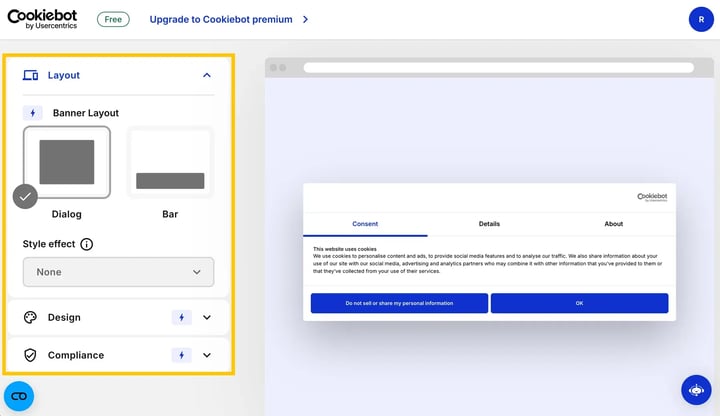
- Customize your cookie banner's appearance and adjust your specific compliance settings to match your brand and regional requirements.
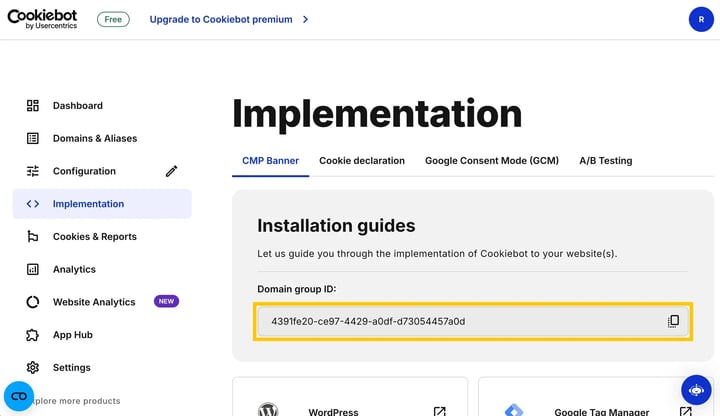
- Navigate to the implementation tab and copy your Domain Group ID to use in Google Tag Manager.
2. Deploy Cookiebot via Google Tag Manager
Now that your banner is saved, you need to link it to GTM. For a detailed walkthrough, please refer to Cookiebot's official Google Tag Manager deployment guide.
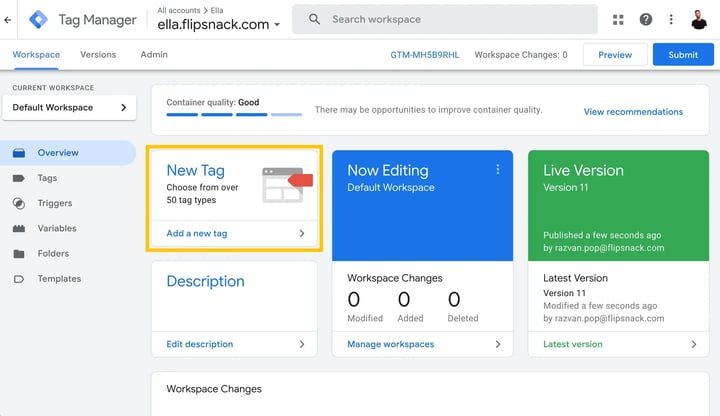
- Open your Google Tag Manager container and create a new tag.
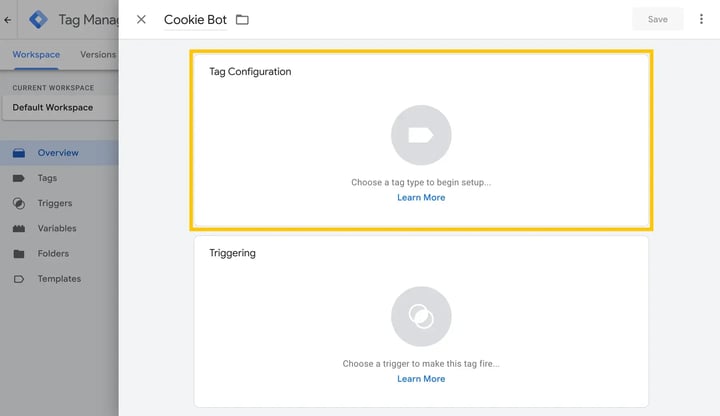
- Click on Tag Configuration.
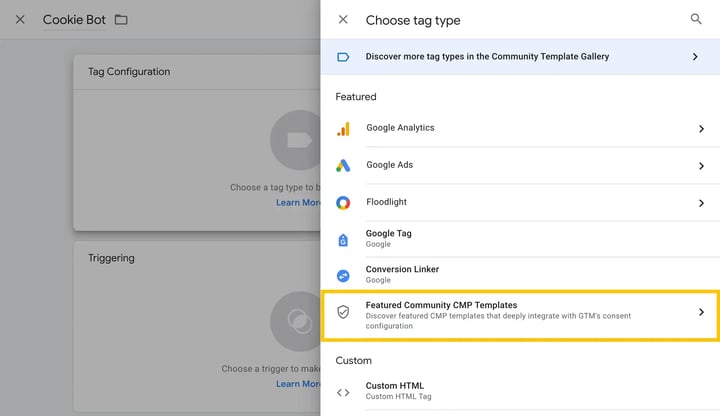
- Navigate to the Community Template Gallery.
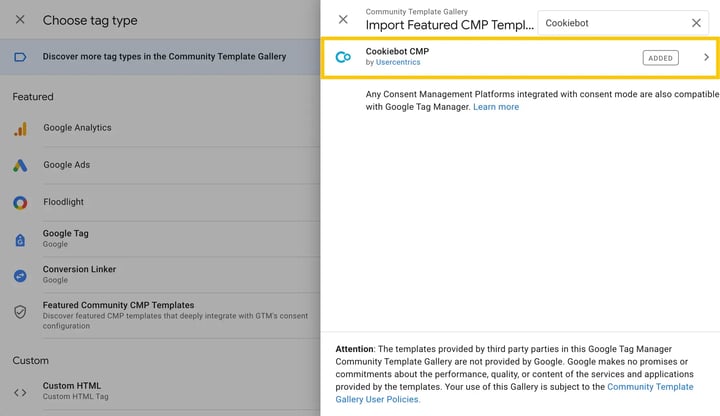
- Search for and select the Cookiebot CMP template.
- Paste the Domain Group ID (from the implementation tab in Cookiebot) into the configuration panel.
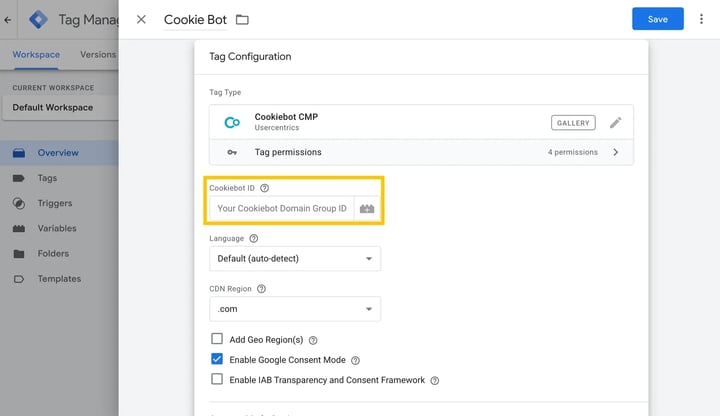
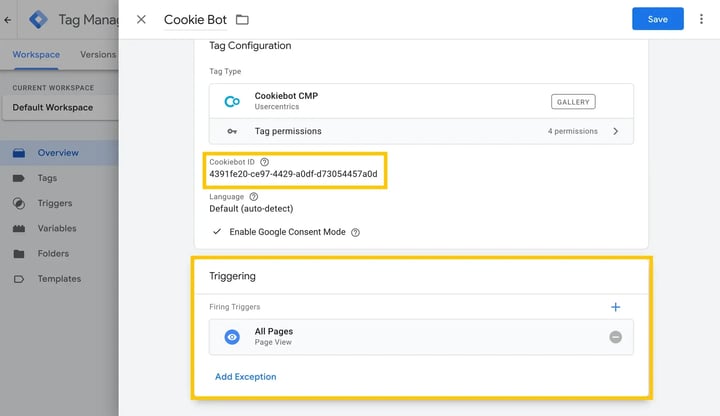
- Select the desired trigger (typically All Pages) to fire the tag and save your changes.
- Click Submit to review your changes, and then publish your container.
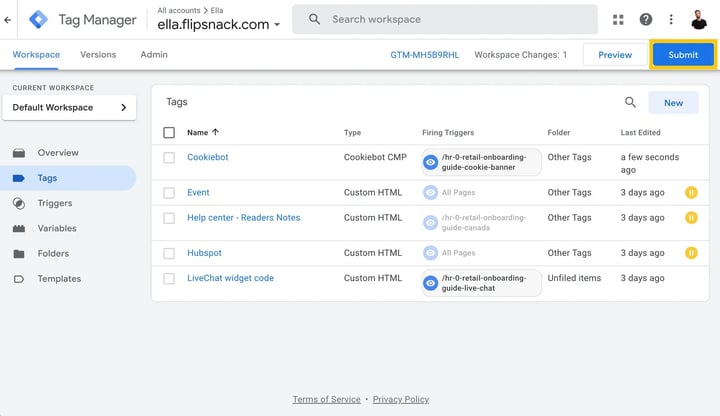
- Verify your implementation in GTM to ensure the tag is firing correctly.
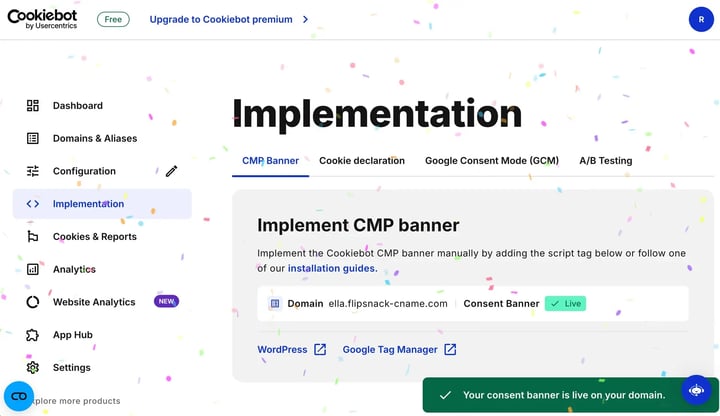
- Your Cookiebot setup inside GTM is now complete.
How to add the GTM container to your flipbook
With your tag live in GTM, the final step is to connect the GTM container to your Flipsnack workspace. You must add the GTM Container ID to the specific flipbooks or the public profile where you want the Cookiebot banner to appear.
- To integrate GTM on a specific flipbook via the Customize page, read our guide on GTM integration in the flipbook player.
- To integrate GTM across your entire workspace or custom profile, check out the second step in our main guide for Google Tag Manager integration in Flipsnack.
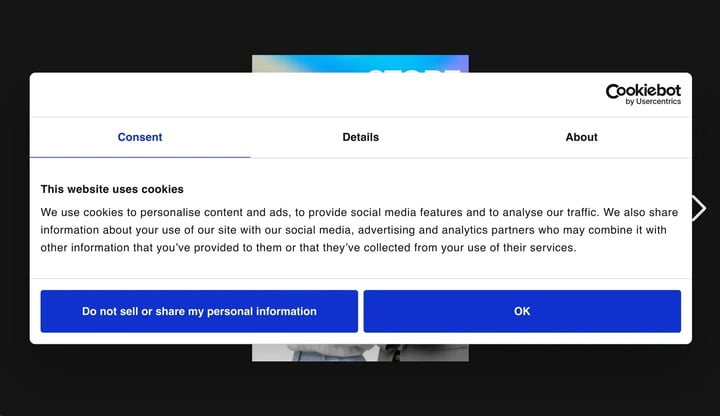
Once you add your Container ID and publish your changes, the Cookiebot banner will appear on your flipbooks, allowing readers to manage their consent preferences.
Note: After publishing, test your Cookiebot banner by opening a flipbook in a private/incognito browser window to confirm the consent banner appears correctly for first-time visitors.
Troubleshooting
What to do if your cookie banner does not appear in embedded iframes?
If you embed your flipbooks on an external website using an iframe, the Cookiebot banner may fail to load within the player. To resolve this, add the iframe domain generated by Flipsnack to your approved Cookiebot domains: log in to your Cookiebot account, navigate to your domain group settings, and add the Flipsnack iframe domain alongside your custom domain.
Next steps
- Cookiebot's official Google Tag Manager deployment guide
- Learn more about GTM integration in the flipbook player
- Learn more about workspace-level GTM integration in Flipsnack
- How to brand the Flipsnack App with your custom domain
Need expert support?
Our team is here to help. Connect with our team experts or message us via the live chat for personalized assistance.