
Overview
A printed catalog usually stops at the page. Your buyer sees the product, writes the code on a notepad or types it into an order form, and every one of those keystrokes is a chance to order the wrong thing. In a warehouse it is worse: someone walks the aisles with a clipboard, matching what is on the shelf against what is in the book. A scannable barcode removes that step.
💡 Benefits of adding a scannable barcode to a page
- It really scans: the barcode is generated to the standard you pick, not pasted in as a picture
- No retyping: the product code moves from page to scanner without a human in between
- It works with automation: map it to a feed column once and every product page gets the right code
- It survives print: bar ratios and margins are preserved in PDF export
- It behaves like any element: move it, resize it, rotate it, copy it, delete it
The Barcode element closes that gap. It turns a product code into a real, scannable barcode printed on the page, so the code travels from your catalog into a scanner without anyone retyping it.
You can type a code in yourself for a one-off, or connect the element to a column in your product feed so every generated product page gets its own.
What you need
To add a barcode and type a code in yourself: all plans, including free.
To fill barcodes automatically from a product feed: Enterprise, since it uses catalog automation.
Where it works: any flipbook you can open in Design Studio, including ones you created by uploading a PDF.
Step-by-step guide
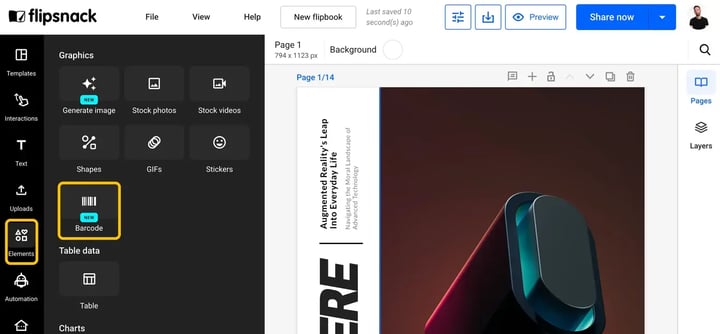
1. Open the Elements panel
Open your flipbook in Design Studio, then click Elements in the left sidebar. You will find Barcode in the Graphics section.
2. Place it on the page
Click the Barcode tile. An empty barcode lands on your page, showing Enter a code to generate. Drag it where you want it and pull a corner to resize.
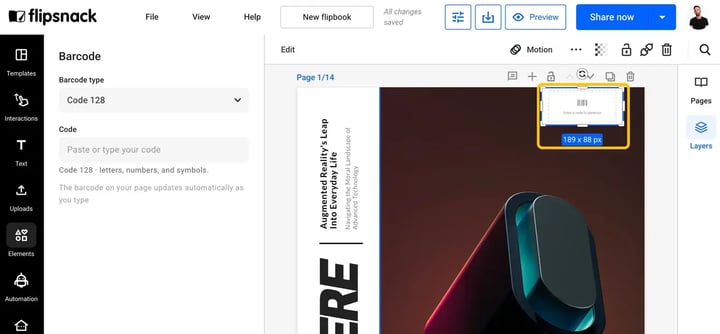
It keeps its proportions as you resize. That is on purpose: a squashed barcode stops scanning.
3. Enter your code
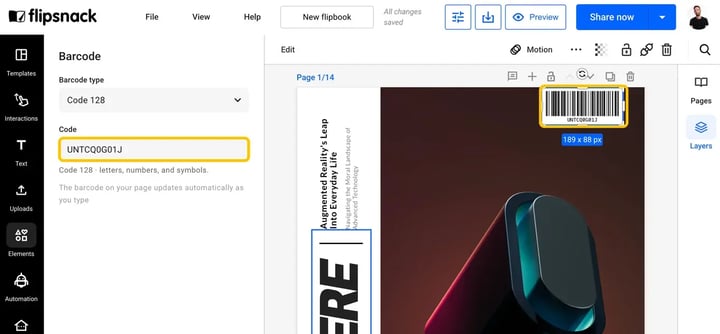
With the barcode selected, click Edit in the toolbar to open the Barcode panel. Type or paste your code into the Code field, and the barcode appears as you type.
4. Pick your barcode type
Code 128 is selected for you. It accepts letters, numbers and symbols, so it covers most catalogs. If your codes follow a different standard, choose it from the Barcode type dropdown.
Each type has its own rules, and the next section lists all of them.
Barcode types and their rules
Fourteen types are supported. Check your codes against this before you build your feed, so you are not fixing them one page at a time later.
About the check digit: EAN-13, EAN-8, UPC-A and ITF-14 end with a check digit that is calculated from the digits before it. Both ways work: leave it off and Flipsnack calculates and adds it, or include it and Flipsnack verifies it. If you include one that does not match, the code is rejected rather than silently corrected.
QR codes are not part of this element. To share a whole flipbook as a QR code, see the link at the end of this article.
Fill barcodes automatically from a product feed
Typing codes by hand is fine for a handful of products. For a catalog built from a product feed, you map the barcode once and every generated page gets its own code.
How it works
The barcode has its own slot in the feed mapping, next to the slots for product title, price and image. You point that slot at whichever column holds your codes, and during generation each product page gets the value from its own row.
Setting it up
- Place a barcode element inside your grouped product elements, so it is copied along with the rest of the product layout.
- Pick the barcode type on the element, as in step 4 above.
- Open Connect and map the barcode's code slot to your codes column.
- Generate or sync your catalog as usual.
Three things worth knowing
- The barcode does not borrow your SKU mapping. It has a separate slot, so you map it yourself even when it points at the same column your shopping button uses.
- The type is set on the element, not in the feed. Every product using that layout gets the same barcode type, so all your codes need to follow the same standard.
- Rows with no code render nothing. An empty cell leaves a blank space on that product's page rather than a broken barcode. Same for a code that does not fit the type you chose.
Because the type is fixed per layout, mixed code standards in one feed need one layout per standard. If your feed has EAN-13 for some products and internal codes for others, split them.
What your buyer gets when they scan it
Your buyers are the ones holding the printed catalog: a purchasing manager building an order, a warehouse team counting stock, a rep taking orders at a trade show. Here is what the barcode does for each of them.
Scanning returns the code itself: the SKU, EAN or part number you put in. It goes straight into whatever system the scanner feeds.
- A purchasing manager scans items from your catalog into their own ordering system, instead of typing product codes off the page and risking a wrong digit.
- A warehouse team scans the catalog page against what is on the shelf, so stock checks stop being a clipboard exercise.
- A sales rep scans products at a trade show or in a client meeting and builds the order as they go.
One expectation to set: a barcode holds a code, not a link. Scanning it will not open a web page, a product listing or a checkout. If you want an online reader to tap a product and land on your store, that is a shopping button. Many catalogs use both, the button for readers on screen, the barcode for whoever is holding the paper.
Printing and sizing
Barcodes are included in PDF and print export. They are drawn as vectors, so they stay sharp at any size with no loss of quality.
For a professional print run, use Download PDF - Print rather than the standard web PDF. It exports at up to 300 DPI in CMYK, and lets you add bleeds and crop marks. See Understanding Flipsnack's "Download PDF for print" option for the full settings. Print-ready export is available on all paid plans from Starter up.
The thing that breaks a printed barcode is size. Below a certain width the bars merge and no scanner will read it, and the barcode also needs clear empty space on either side, the quiet zone: or the scanner cannot tell where the code starts.
Print a test first. Before committing to a print run, export the PDF, print one page at the final size, and scan it with the device your readers will actually use. A barcode that scans on screen can still fail on paper.
Minimum sizes and quiet zones
These are the published figures for each standard. Flipsnack draws the barcode to the proportions of the type you picked, so what matters is how large you make the element on the page.
Two rules cover most cases. Retail codes such as EAN-13 and UPC-A should not be shrunk below 80% of their nominal size. Everything else is governed by the width of the narrowest bar, and needs a quiet zone about ten times that width clear on each side, no text, no image, no border.
Additional tips / FAQs
- Can I make a QR code with this? No. This element makes bar-style codes only. Flipsnack has a separate QR code feature for sharing a flipbook.
- Do I need to include the check digit? Only if you want to. Leave it off and it is calculated for you. See the note above.
- Can different products use different barcode types? Not within one layout. The type is set on the element, so split the products into separate layouts if your codes follow different standards.
- What if a product has no code in my feed? Nothing shows for that product. The rest of the page is unaffected.
- Does it work on a flipbook I made from a PDF? Yes. If you can open the flipbook in Design Studio, you can add a barcode to it.
- Will the barcode lose quality when printed large? No. Barcodes are vectors, so they stay sharp at any size.
- Can readers scan it from a screen? Usually yes, if the barcode is large enough and the screen is not too dim, but printed output is more reliable.
Common use-cases
- Wholesale catalogs: buyers scan items straight into an order form
- Parts and manufacturing catalogs: every item carries its part number
- Retail catalogs: shelf-ready codes that match your POS system
- Inventory sheets: printed stock lists for counting
Troubleshooting
I see an error instead of a barcode
Your code does not fit the type you picked. Check it against the table above: length and allowed characters vary a lot between types.
Some product pages have no barcode
Those rows are empty or invalid in your feed. Published pages skip them rather than show something broken. Check the column you mapped.
My barcode did not change after I updated the feed
Sync the feed. If the flipbook is already published, publish it again.
My scanner will not read the printed code
Usually size. Make the barcode bigger, make sure there is empty space either side of it, and print a test at final size before a full run.
It scans, but gives a number instead of opening a page
That is expected. See What happens when someone scans it above.
Next steps
- How to create product catalogs from scratch using a product feed
- How to sync your product feed in Flipsnack
- How to generate a QR code for your flipbook?
Need expert support?
Our team is here to help. Connect with our team experts or message us via the live chat for personalized assistance.