
Overview
The Question interactive element lets you gather direct feedback from readers right inside your flipbook, no separate survey tool needed. Once your flipbook is published, every answer is collected on the Stats page, where you can review responses individually or export them all to a CSV file for deeper analysis.
Requirements
- Plan: Business or above: check your plan or compare plans
How to add a question
Log in to your Flipsnack account and create a flipbook by uploading a PDF or creating it from scratch or edit one you already have.
Head over to the Interactions tab, which can be found on the left side of the Design Studio.
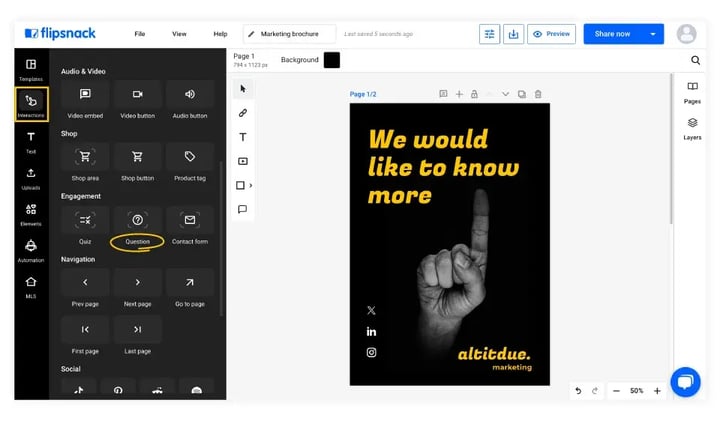 Scroll down, go to the Engagement section, and then be able to see the Question element and add it to your page.
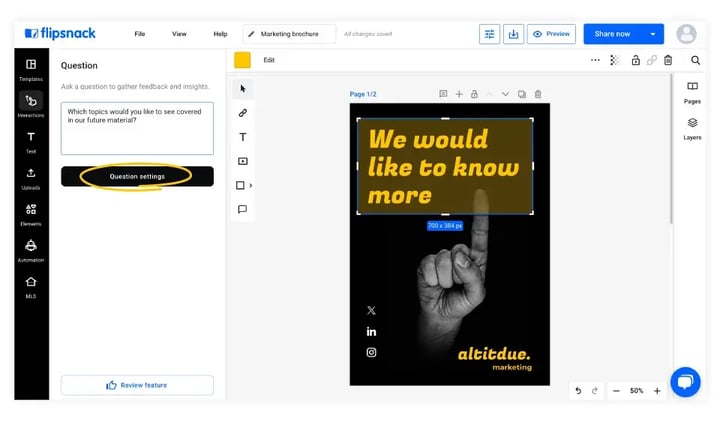
After placing the question feature within your flipbook page, a left panel will appear. Enter your desired question in the text box. Below that, you will see a button Question settings. Click on it to further customize your question options.
Note: You can also resize the question area and adjust the opacity of the blue background, in the upper right corner, for seamless integration with the rest of your page.
Customize the question
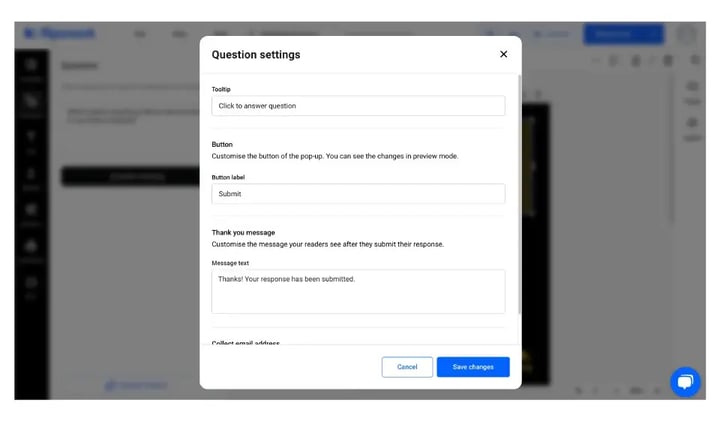
In the newly opened window, you can customize:
- Tooltip: Enter a message that will appear when users hover over the question.
- Button Label: Change the button text (e.g., Submit, Send answer, etc).
- Thank you message: Customize the message that appears after submission.
 If you scroll down, you can set up the compliance with data collection and privacy standards:
- Collect email address: Enable or disable the requirement for respondents to enter their email address to submit their answers.
Note: For flipbooks shared privately with Readers or SSO viewers, we automatically record the list of readers and their email addresses on the statistics page. In these cases, there's no need to collect email addresses separately.
- Add privacy policy: The name of the company associated with the quiz and the URL link to the company’s privacy policy.
- Add GDPR compliance check: Allow a GDPR compliance checkbox and a customized message.
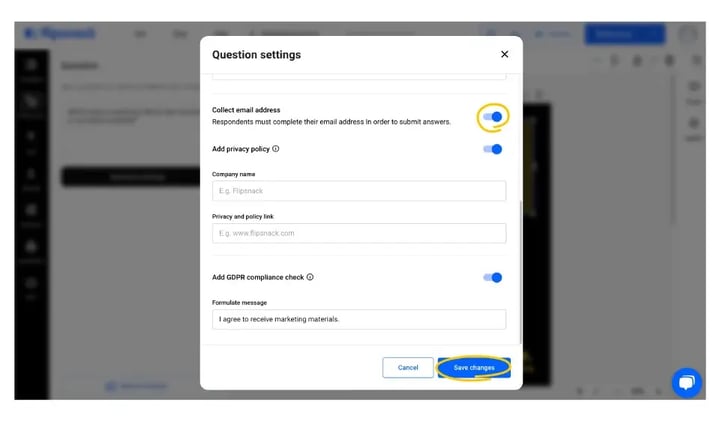 After customizing your question interaction, click on Save changes.
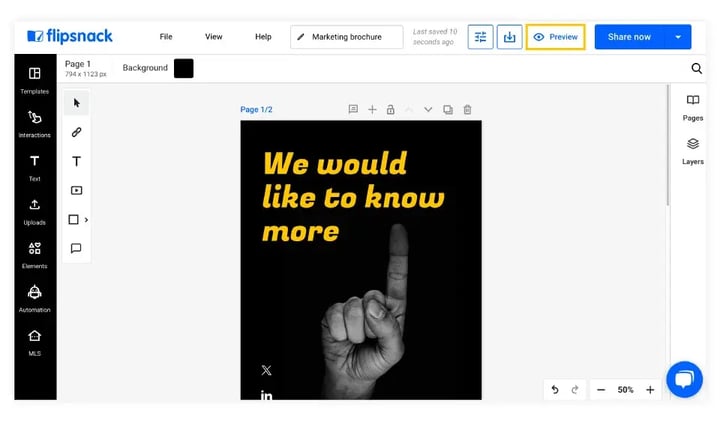
Use the Preview button in the upper right corner to see how your question will look and function in the flipbook.
View question statistics
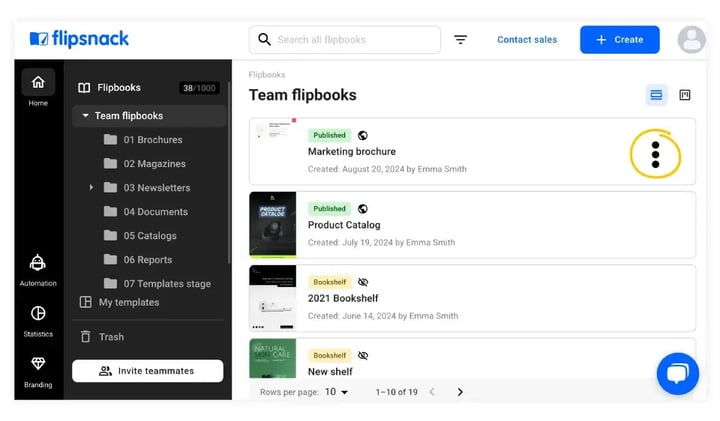
To access these reports, search for the flipbook you added the question feature, click on the three dots, and then Stats. If you don't see that option, your flipbook wasn't published.
Important: To share a flipbook and collect data about it, you must publish it first.
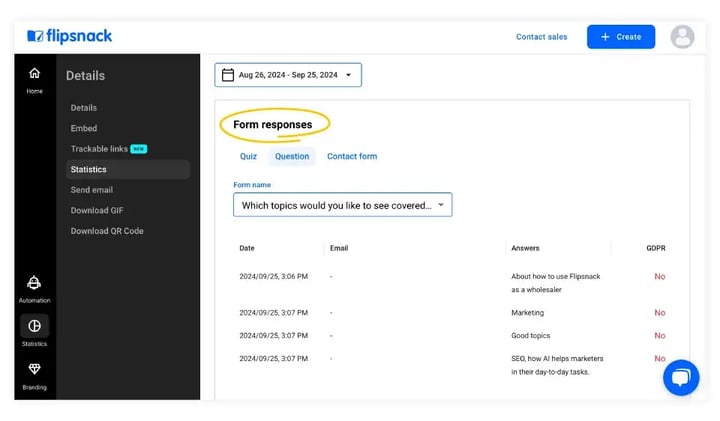
Then, scroll down to the Form responses section to get detailed insights into how users interact with your questions. This section provides information about the responses, clicks, and other interaction data.
Warning: When you delete a question feature from the flipbook, the associated statistics will no longer appear on the statistics page.
Download Question answers as a CSV file
Once your flipbook is published and readers respond, you can export their answers to a CSV file instead of collecting them manually. On the Stats page, scroll to the Question responses section and click Export to CSV.
.png?width=720&height=401&name=contact-form-export-mh%20(1).png)
Next steps
- How to add an interactive quiz to your flipbook pages
- Try built-in quizzes, questions and forms in your flipbooks
- Using a Lead Form to gather reader contact details
Need expert support?
Our team is here to help. Connect with our team experts or message us via the live chat for personalized assistance.