
Overview
For marketing, sales, and internal communications teams, exporting flipbook statistics in CSV format provides a structured way to analyze performance, share insights, and generate reports. With Flipsnack, you can download detailed data on impressions, views, engagement, and lead form submissions for further processing in Excel, Google Sheets, or BI tools.
💡 Benefits of downloading your flipbook statistics
- Easy to share: send performance data to other teams as one file.
- Ready for analysis: apply filters and formulas to segment the data.
- Charts and reports: turn the numbers into charts for executive summaries.
- Offline access: keep the statistics for planning without opening Flipsnack.
You can access two types of statistics in Flipsnack: workspace statistics (all flipbooks taken as a group) and individual flipbook statistics.
This article refers to individual flipbook statistics.
Note: All Flipsnack statistics are presented following the UTC timezone.
Requirements
- Plan: Pro or above: check your plan or compare plans
How to download CSV reports in Flipsnack
To download your statistics, you have to access the Statistics page. To do so, go to your Flipbooks dashboard, click on the three dots icon, then click on Stats. You can do so for any flipbook from your dashboard.
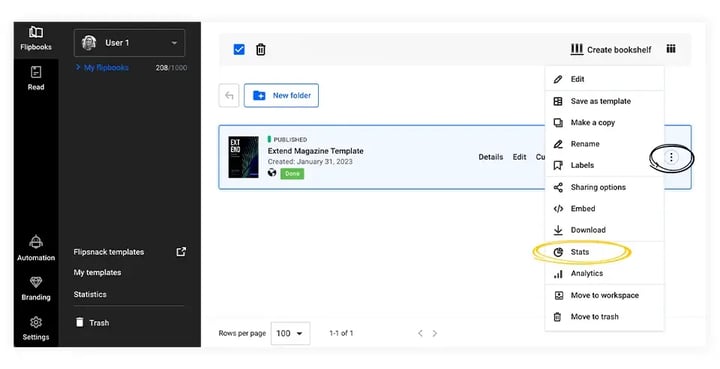
Once on the statistics page, you can download each section individually by clicking on the Download CSV button.
Note: In Flipsnack Analytics, the Download button for one flipbook saves a .zip file named All Stats - flipbook name - date range. It holds five CSV files: flipbook-pages.csv, heatmap.csv, locations.csv, overview.csv and sources.csv.
- Summary (impressions, views, average time spent, downloads, and shares)
- Flipbook statistics (impressions, views, average time spent, downloads, and shares)
- Page level statistics (statistics for each page of your flipbook: date, page number, views, clicks, average time spent)
- Engagement statistics (id, name, page, details, clicks)
- Devices and sources statistics (desktop, tablet, mobile, Flipsnack, social, embed)
- Global views by top locations statistics (views, country code, country name, state or region as Subdivision 1 and Subdivision 2, and city)
- Lead form statistics (timestamp, book title, page index, email)
Important: The CSV file includes all-time statistics from the day the flipbook was published up until the CSV file is downloaded.
However, you can also choose to view the statistics for a certain period of time, setting the selected interval in the calendar, as opposed to the data listed on the statistics page, which can be filtered to display data from a certain period.
Next steps
Need expert support?
Our team is here to help. Connect with our team experts or message us via the live chat for personalized assistance.