
Overview
Color customization in Flipsnack allows you to create a visually branded experience across your flipbooks. Whether you're designing individual elements in the Design Studio or adjusting the background of the flipbook player, this guide walks you through all the color settings available and shows how to use the color picker, gradient options, and background customization features.
Customizing element colors in the Design Studio
Note: Currently, gradient colors cannot be applied to text elements, table cells, table text, or table borders. If you're customizing any of these elements, only solid colors are supported.
Step 1: Access the Color panel
- Select the shape, background, or other element you want to customize.
- In the toolbar above the page, click the Color swatch. The Colors side panel opens.
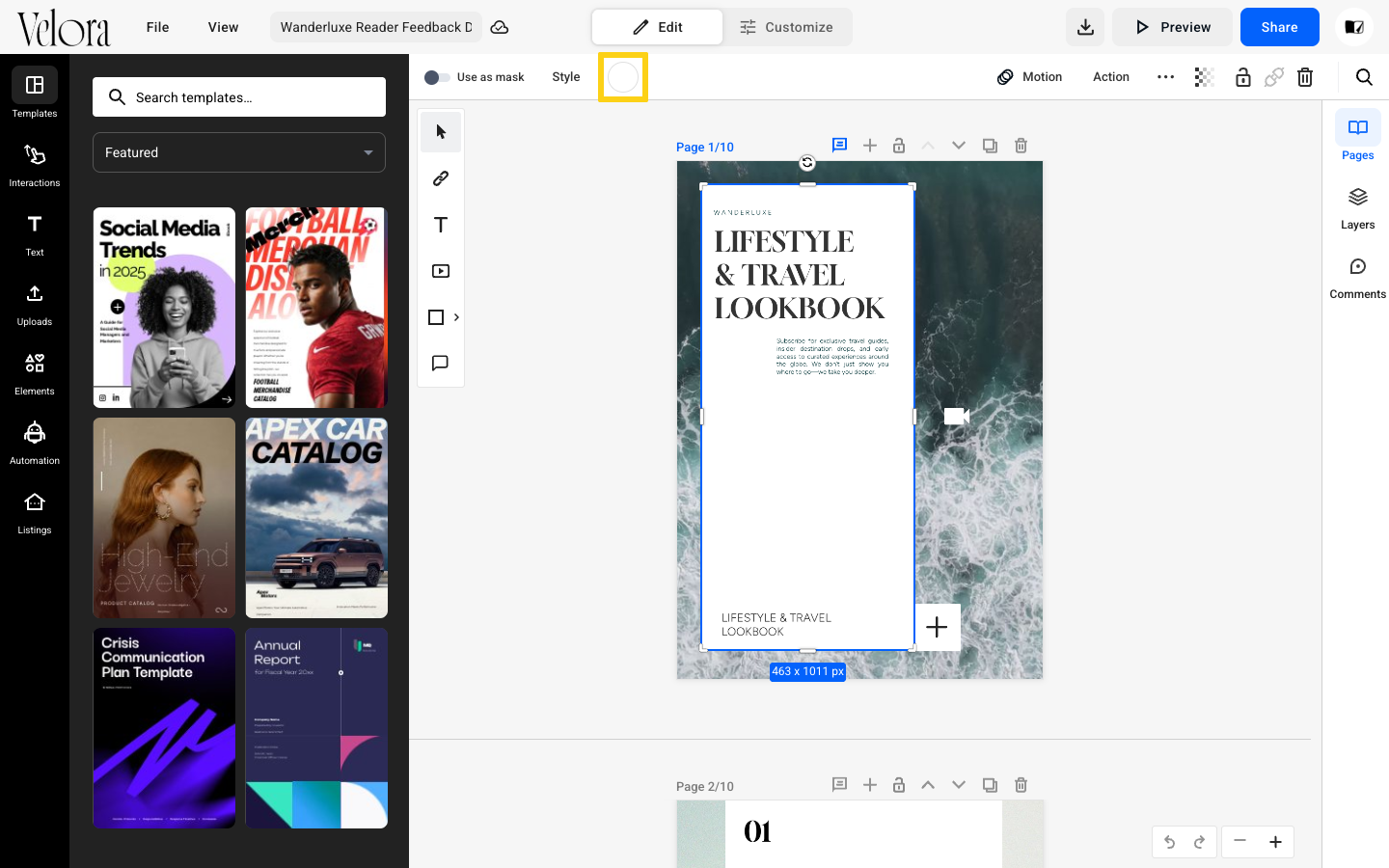
Step 2: Pick your color from the left side panel
- Use your branding colors, default color palette or input a custom HEX code.
- For consistency, use the color picker to select a color already used in your flipbook. To access it, click the + under "Recent colors" to open the color picker and grab any color from your screen.
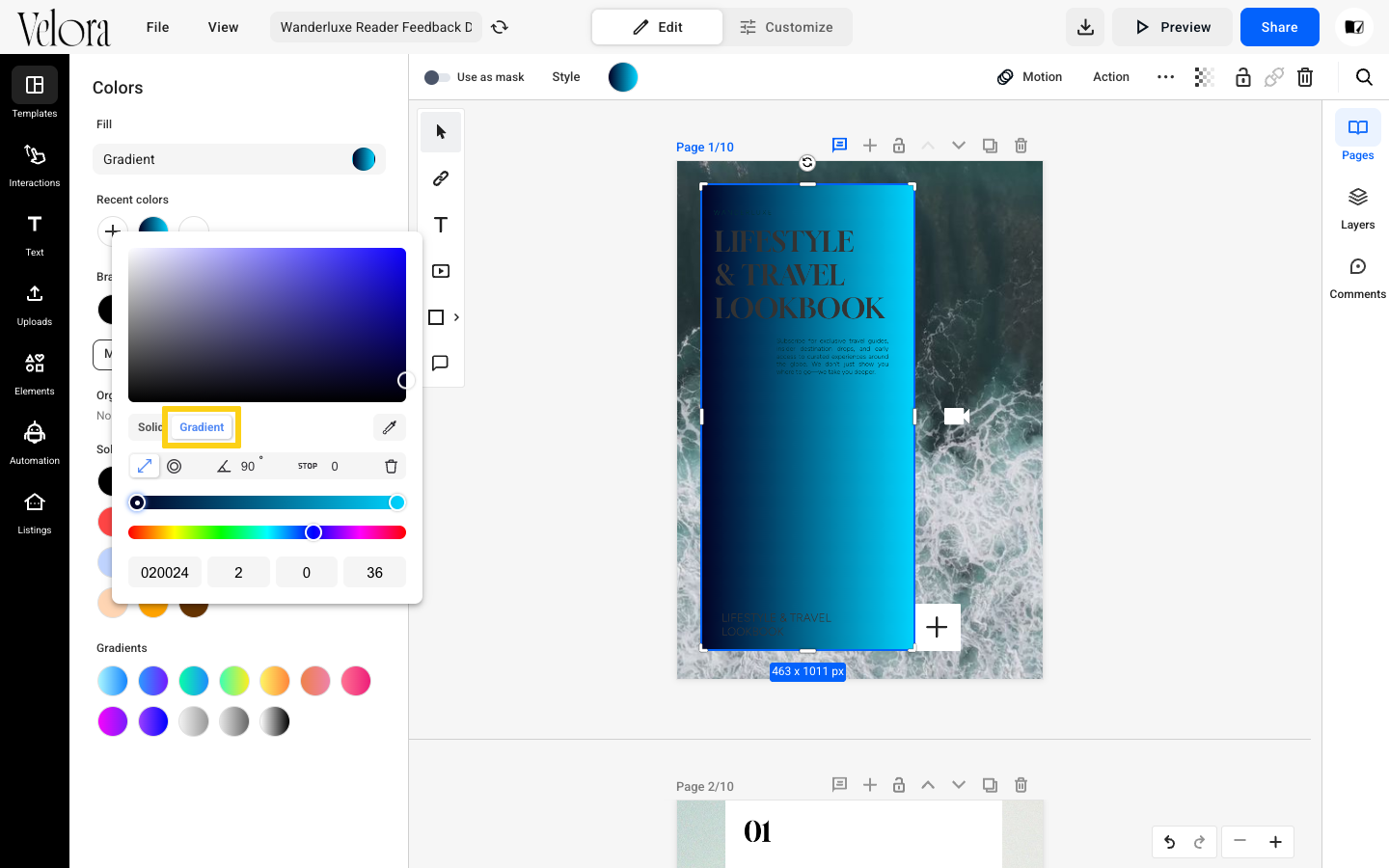
- As shown in the image, after selecting your color, you can choose between Solid or Gradient to further customize the element.
- When creating a gradient, you can choose between two options: linear or radial.
Customizing player colors in the Customize section
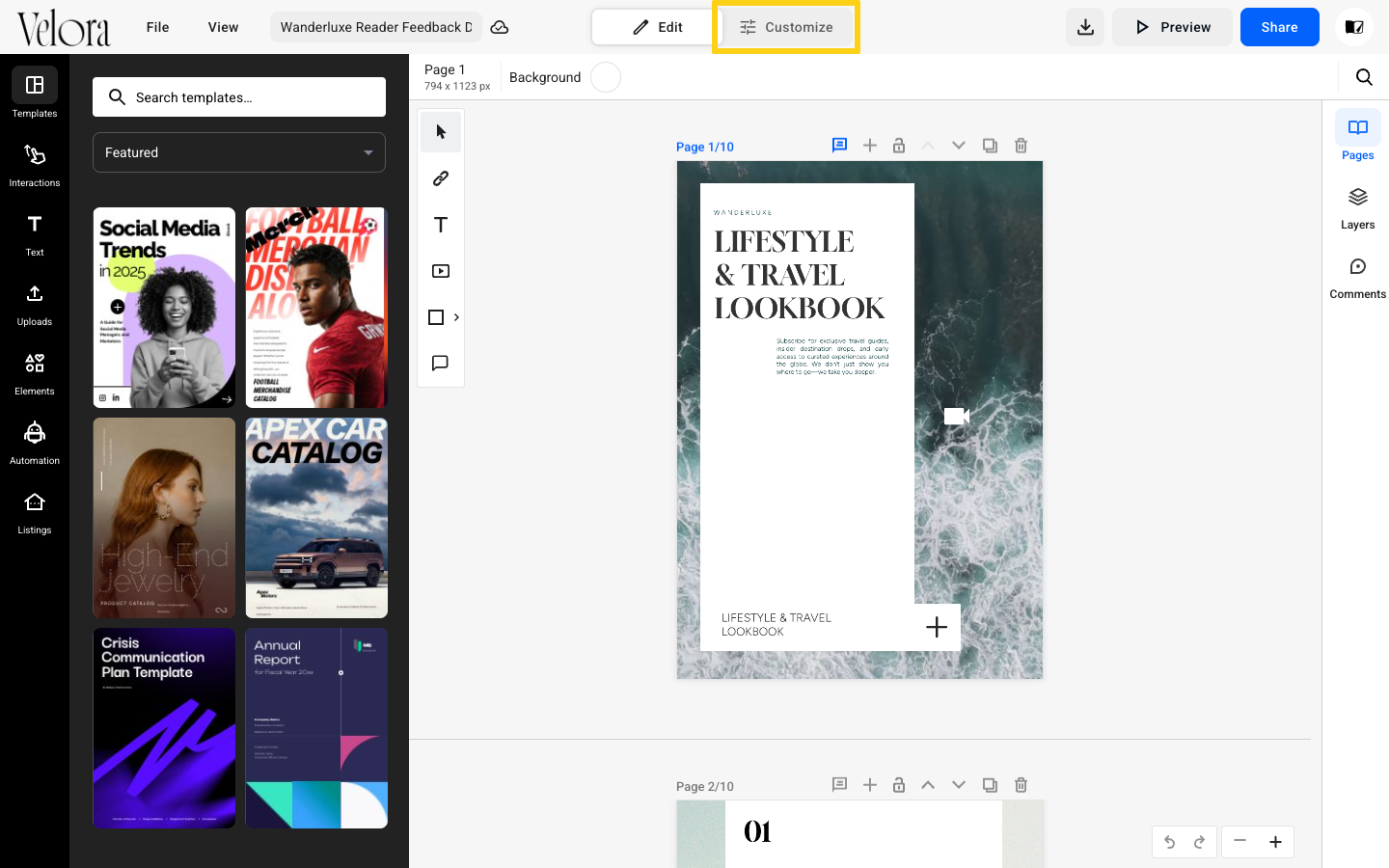
Step 1: Open Customize from the top bar of the Design Studio.
Step 2: Change the background color
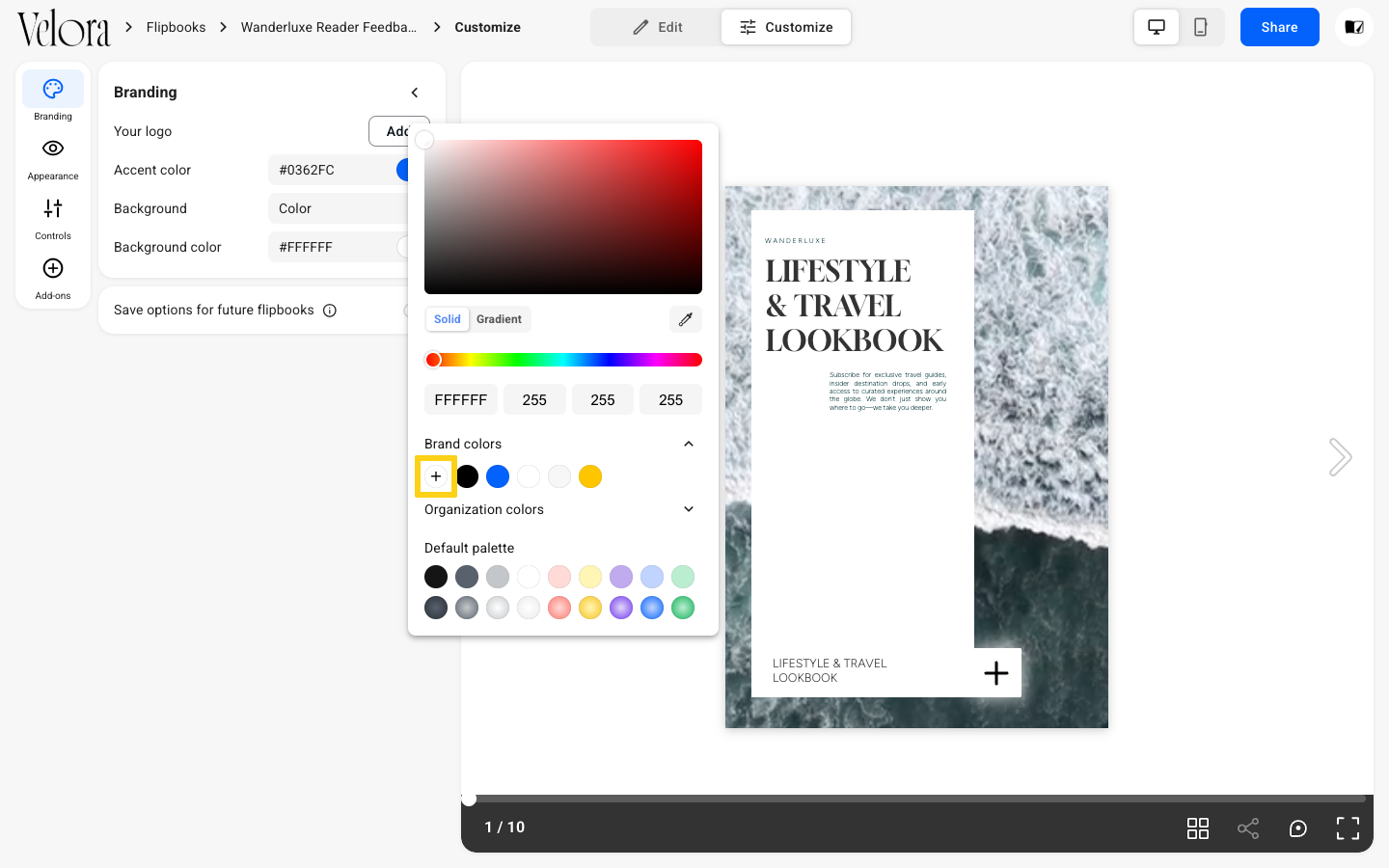
In the Branding panel, set Background to Color. Then click the Background color swatch.
Here you can use your brand colors, add a custom HEX code or select a color with the color picker.
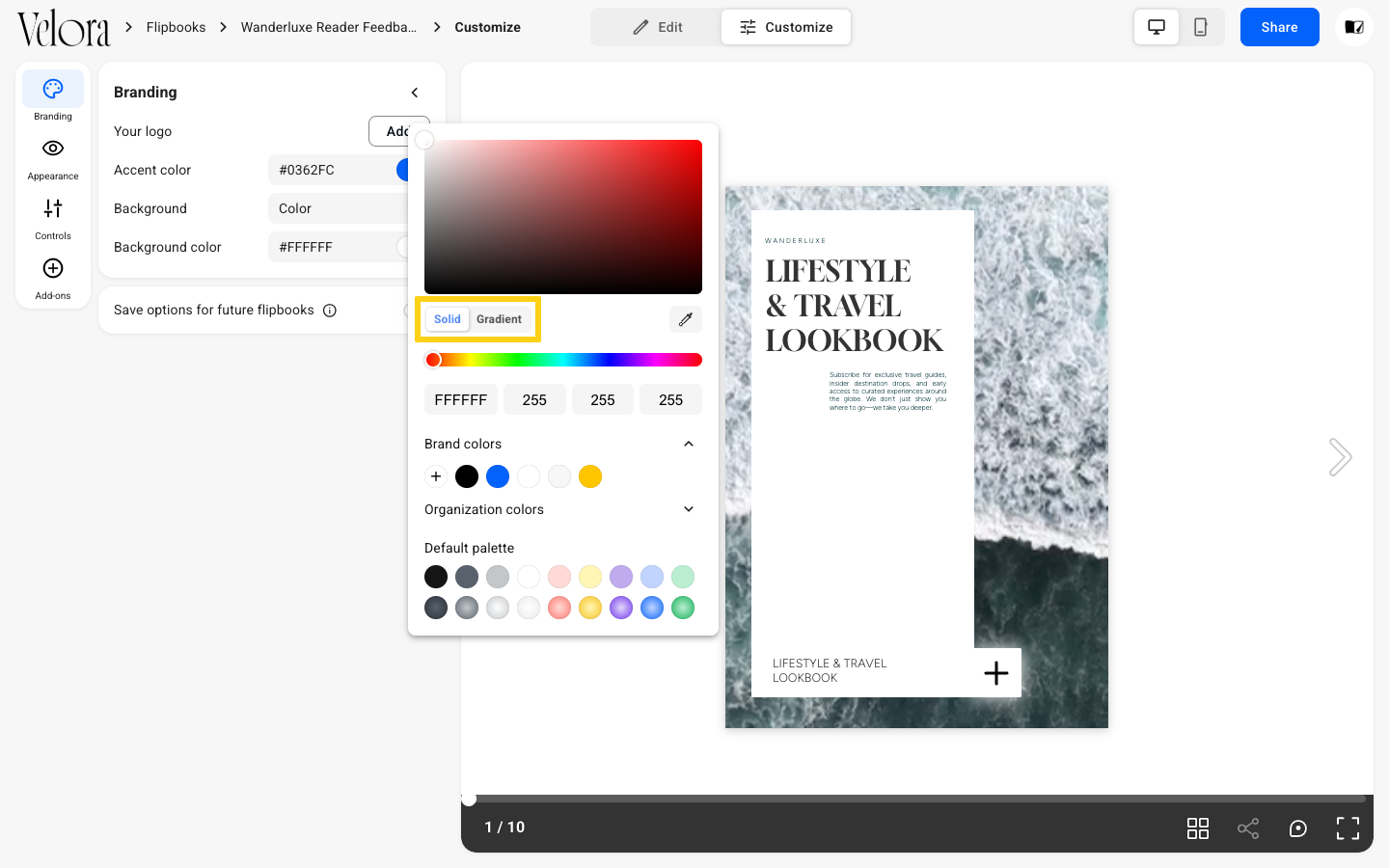
As you can see - just like in the Design Studio - you can choose between Solid or Gradient backgrounds and adjust the settings as needed to customize the flipbook appearance.
Tip: If you're embedding your flipbook, a transparent background is often the best choice.
Use color picker and gradients when setting your brand colors
In the Customize section, open a color picker (for example Background color). Under Brand colors, click + (Add color). The current color is added to your brand colors.
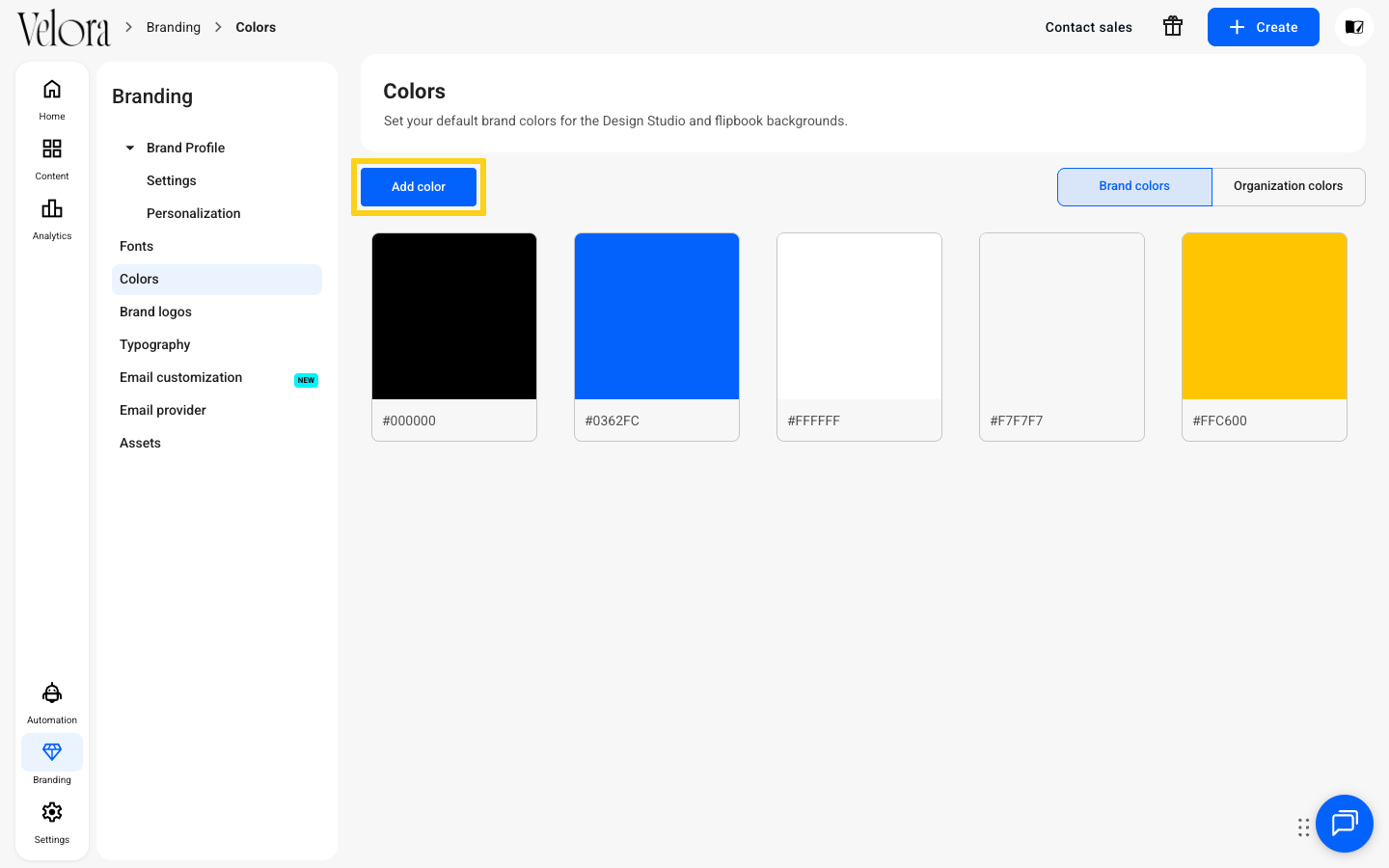
To manage all your brand colors, go to Branding > Colors. Then click Add color.
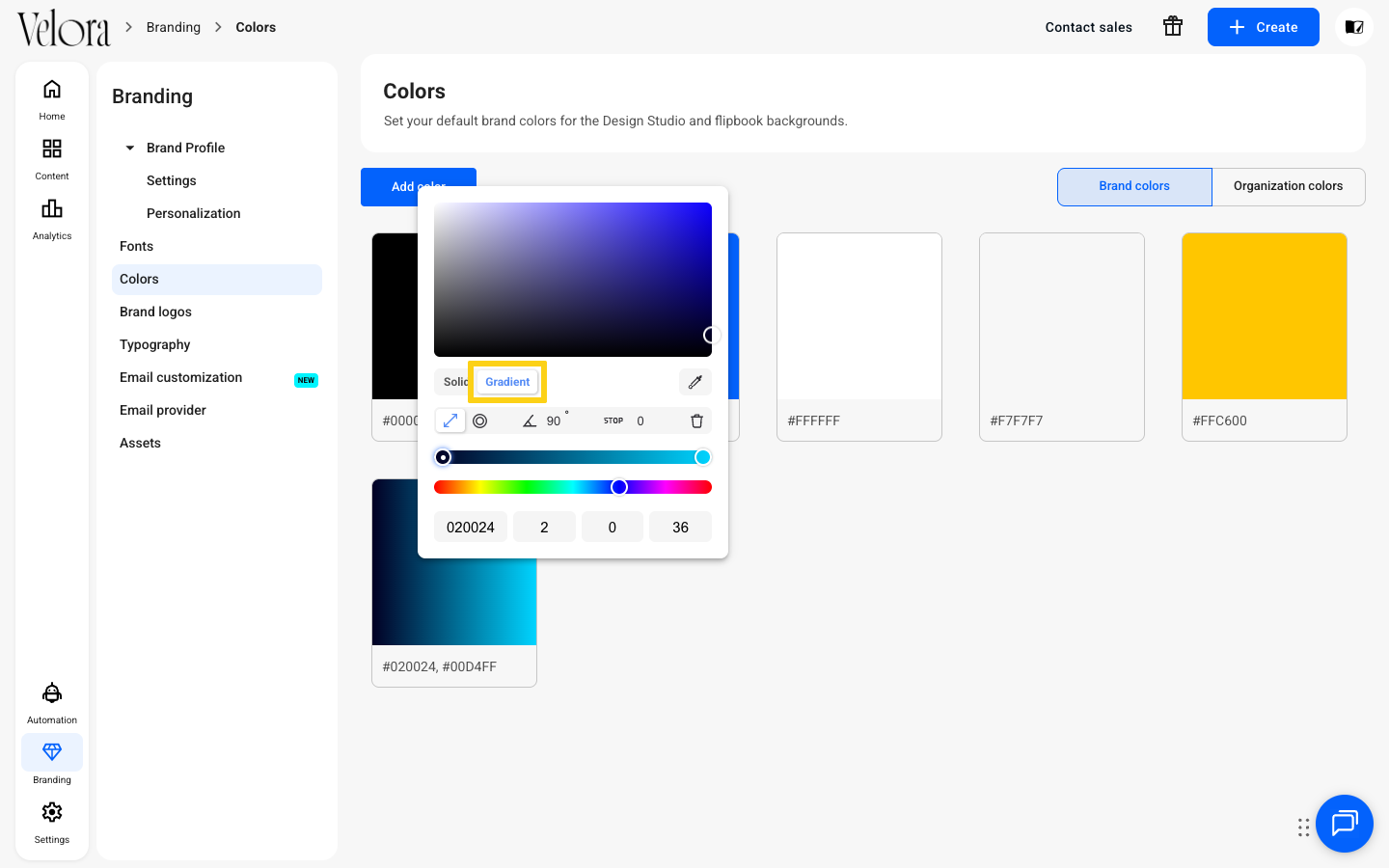
From here, you can use the color picker element to choose solid colors or gradients and set them as your default brand colors. These colors will be available across both the Design Studio and flipbook player for consistent branding.
Next steps
- How to add videos and interactions
- Branding & customization options
- Customize the background color of a flipbook
Need expert support?
Our team is here to help. Connect with our team experts or message us via the live chat for personalized assistance.