
At Flipsnack, we strive to provide you with a seamless reading experience. One key factor in achieving this is ensuring that all pages in your PDF have consistent sizes. Inconsistent page sizes can disrupt the flow of your document and cause various issues when viewed on different devices or within the Flipsnack viewer.
Issues that may arise
- Conversion Issues: When Flipsnack converts your PDF into a digital flipbook, varying page sizes can challenge our conversion algorithm. This may lead to distortions or misalignments, affecting the quality and layout of your flipbook.
- Processing Overhead: Different page sizes require additional processing power to resize and align pages for consistent display. This can lead to longer upload and conversion times, and sometimes errors if the platform can't handle the variations efficiently.
- Blank Pages: Pages with different sizes may sometimes appear as blank or partially blank in digital flipbooks or when printed. This can occur if the platform or printer is unable to handle the size discrepancies effectively.
- Misalignment: When transitioning between pages of different sizes, there may be misalignments or awkward spacing, disrupting the visual flow of the document and making it harder to read or navigate.
Resizing PDF Pages
1. Using Adobe Acrobat Pro DC
a. Crop the page:- Select Edit > Crop page.
b. Set the page size:
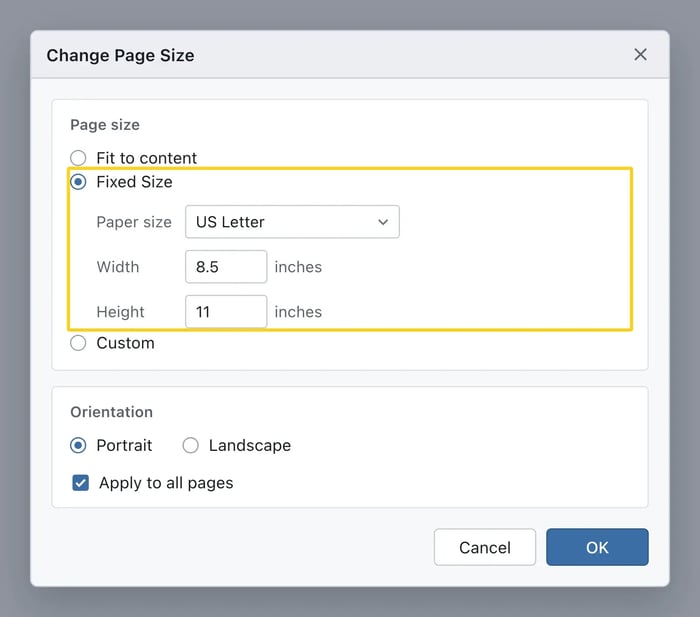
- Drag a rectangle over the page, then double-click inside it. This opens the Set Page Boxes dialog, where you change the page size, page range and margins.
- Enter the desired width and height, then apply the change to all pages if they need to match.
- The dialog's exact name and layout vary by PDF editor. See Adobe's crop pages guide for the current Acrobat specifics.
2. Using Online Tools
a. Go to an Online PDF Resizer:
- Use an online tool such as Sejda.
- Upload your PDF file to the tool.
c. Resize pages
- Resize pages > Preview pages and select Blend - Blend all - Autocrop - Adjust the desired width and length
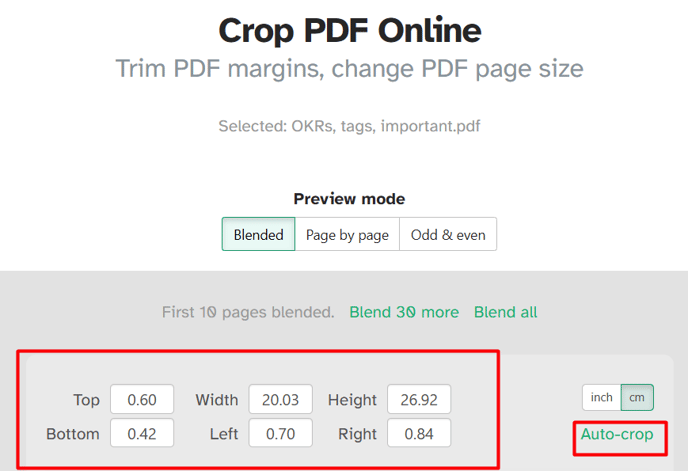
Please keep in mind that this might cause resolution issues resulting in a lower quality PDF.
Consistent PDF page sizes ensure smooth Flipsnack conversions. Avoid issues like blank pages and misalignments by resizing with Adobe Acrobat Pro DC or online tools like Sejda. This guide provides quick steps for maintaining uniform dimensions. If you still encounter issues, message us via live chat.
Next steps
Useful resources:
Need expert support?
Our team is here to help. Connect with our team experts or message us via the live chat for personalized assistance.