
Overview
Advanced Filtering narrows the Flipbooks list in Content by creator, visibility, status, labels, type, date created, or last updated. Open it from the dashed triangle icon next to the search bar; adding more than one filter requires a flipbook to match all of them to appear.
Do you have a lot of flipbooks that you need to filter through? Or perhaps you only remember a few details about a certain flipbook, and you just can’t locate it.
Using Advanced Filtering, you can set detailed parameters for flipbook search within the Flipbooks section of Content.
Using advanced filtering
To start, simply click on the dashed triangle icon in the upper left corner, next to the search bar.
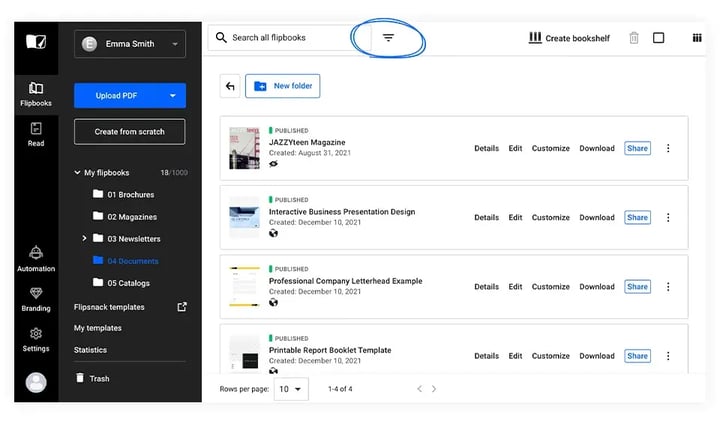
This will open a prompt window to the right, where you will have 7 new filtering options.
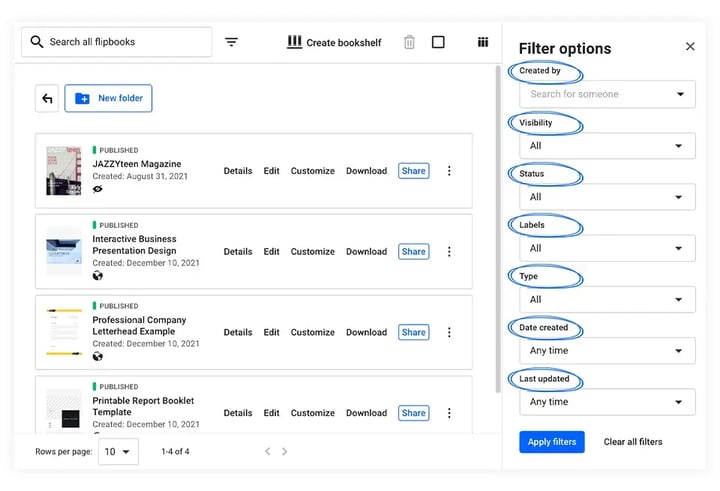
Using the Advanced Filter option you can sort by the following:
Created by - This is the original creator of the flipbook.
Visibility - Sort by visibility options. Public, Unlisted, password protected, and invited people only.
Status - Published, not published, and draft.
Labels - Sort by the labels that you attached to the flipbook.
Type - Single flipbook or a bookshelf.
Date created - Sort by the date that the flipbook was created.
Last updated - Sort by the date that the flipbook was last updated.
If you add more than one filter, the flipbook will have to meet all the criteria in order to show up in the search result. This way, you can be as specific as you need.
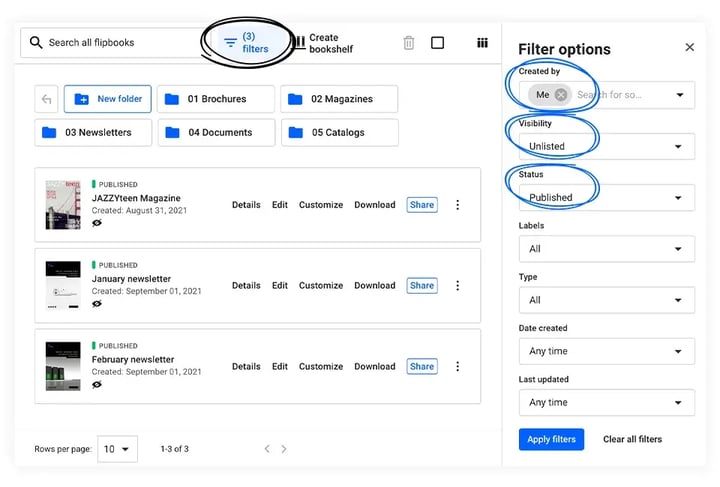
Once you have selected your set of filters, click the blue Apply filters button at the bottom right of the prompted window. Or, if you so choose, clear all the filters entirely by clicking Clear all filters.
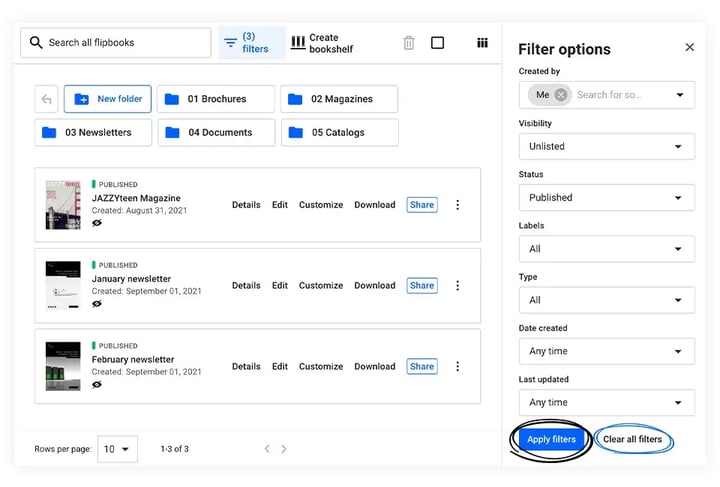
Filtering through these options will make it easier for larger teams to collaborate together, especially if there are many flipbooks being worked on at once.
Important: If you choose to use the Advanced filter option, anything typed into the search bar at the top left will be negated. Similarly, if you decide to use the search bar, any advanced filter will be canceled out.
Search in pages in Design Studio
Do you usually have a lot of pages in your flipbooks? Find words easily with the “search in pages” feature, available for all the plans. In the Design Studio, with a simple Command+F or CTRL+F, you can search for any text within your publication and make the necessary changes. This feature also makes it so much faster to edit information within a branded template of yours.
It’s noteworthy that this search-in-pages feature only highlights the first mention on a page. So, for example, if a word appears multiple times on a page, you’ll only see the highlighted version of the first mention.
Important: This feature only works for created from scratch flipbooks, and not the PDFs you upload in Flipsnack.
Next steps
- Labels in Flipsnack: organize and track your flipbook work
- How to organize flipbooks with folders and subfolders
- Learn about My flipbooks, in the main dashboard area
Need expert support?
Our team is here to help. Connect with our team experts or message us via the live chat for personalized assistance.