
Overview
You edit text in Flipsnack's Design Studio by pasting premade copy or adding a heading, sub-heading, or body text box from the left-hand Text panel. Each box lets you change font, weight, size, letter spacing, and line height, and you can select multiple boxes at once to apply the same edits together, saving time on flipbooks built from scratch.
There are two different ways of adding text to your publications. For a premade text, simply copy and paste the text into our Design Studio by using a keyboard shortcut combination. Use Ctrl + C then Ctrl + V on Windows, or Cmd + C and Cmd + V on Mac.
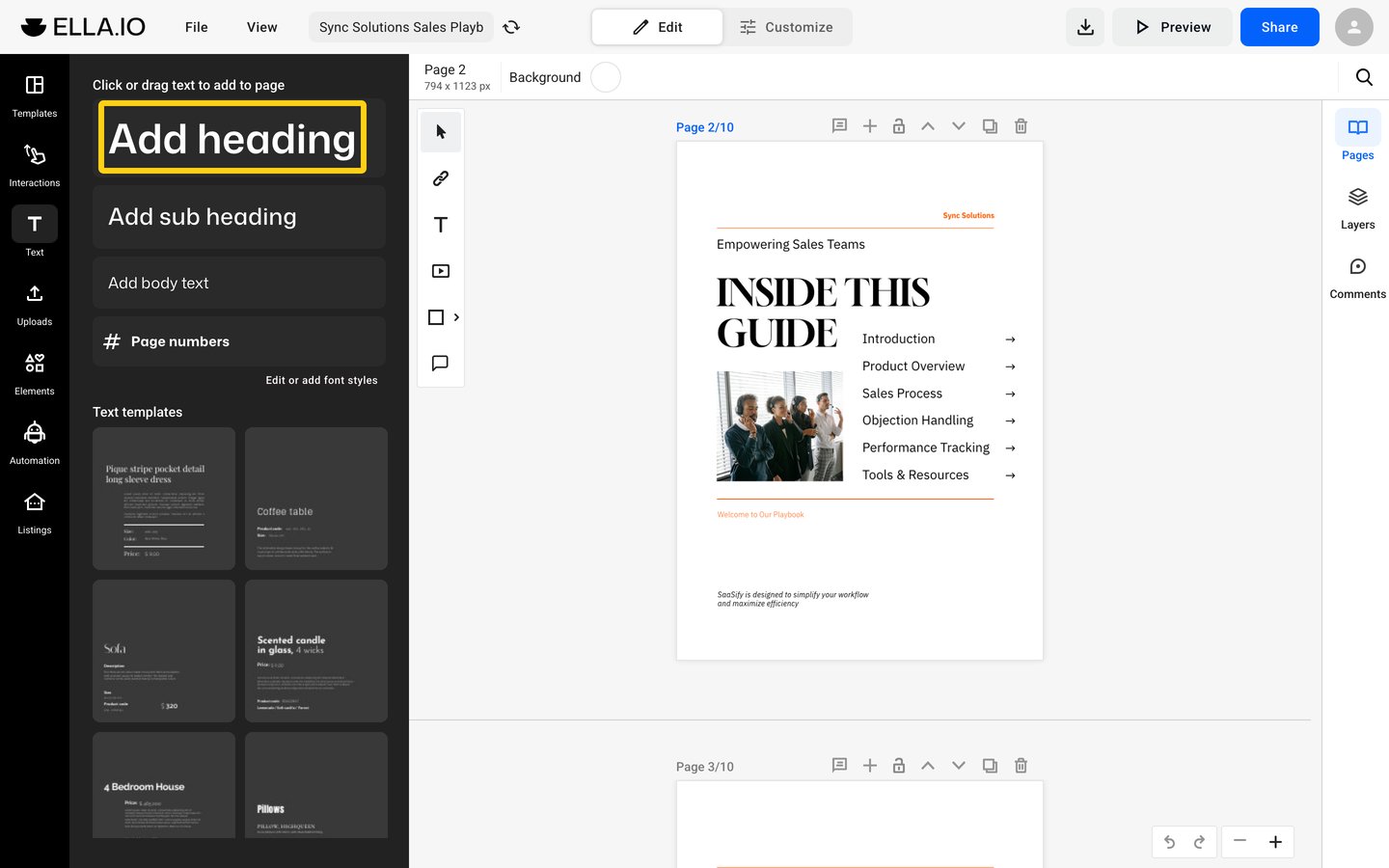
If you want to compose texts for your publications, go to the left-hand side of Design Studio, and click Text. Either click on Add heading, Add sub-heading, or Add body text, or drag and drop them into the page. The three vary in font, font size, letter spacing, and line height, but each one can be adjusted later.
Once the text box is on the page, click on it once to access the various editing options, or twice to add or remove text. To edit several text boxes at once, hold Shift and click each box. The Text panel then shows Mixed for values that differ, and each change applies to all selected boxes.
Here are the different ways you can edit the text in Flipsnack:
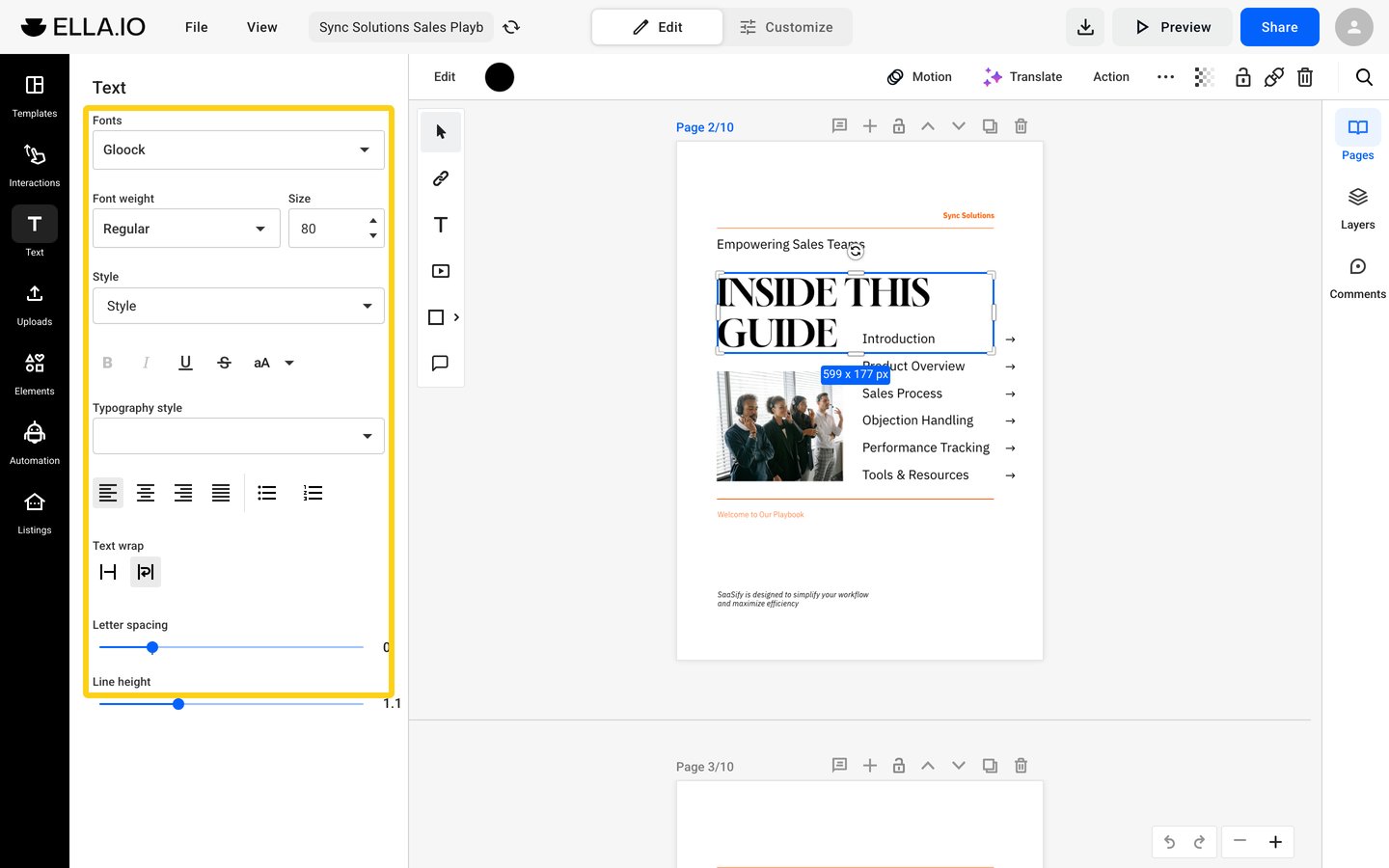
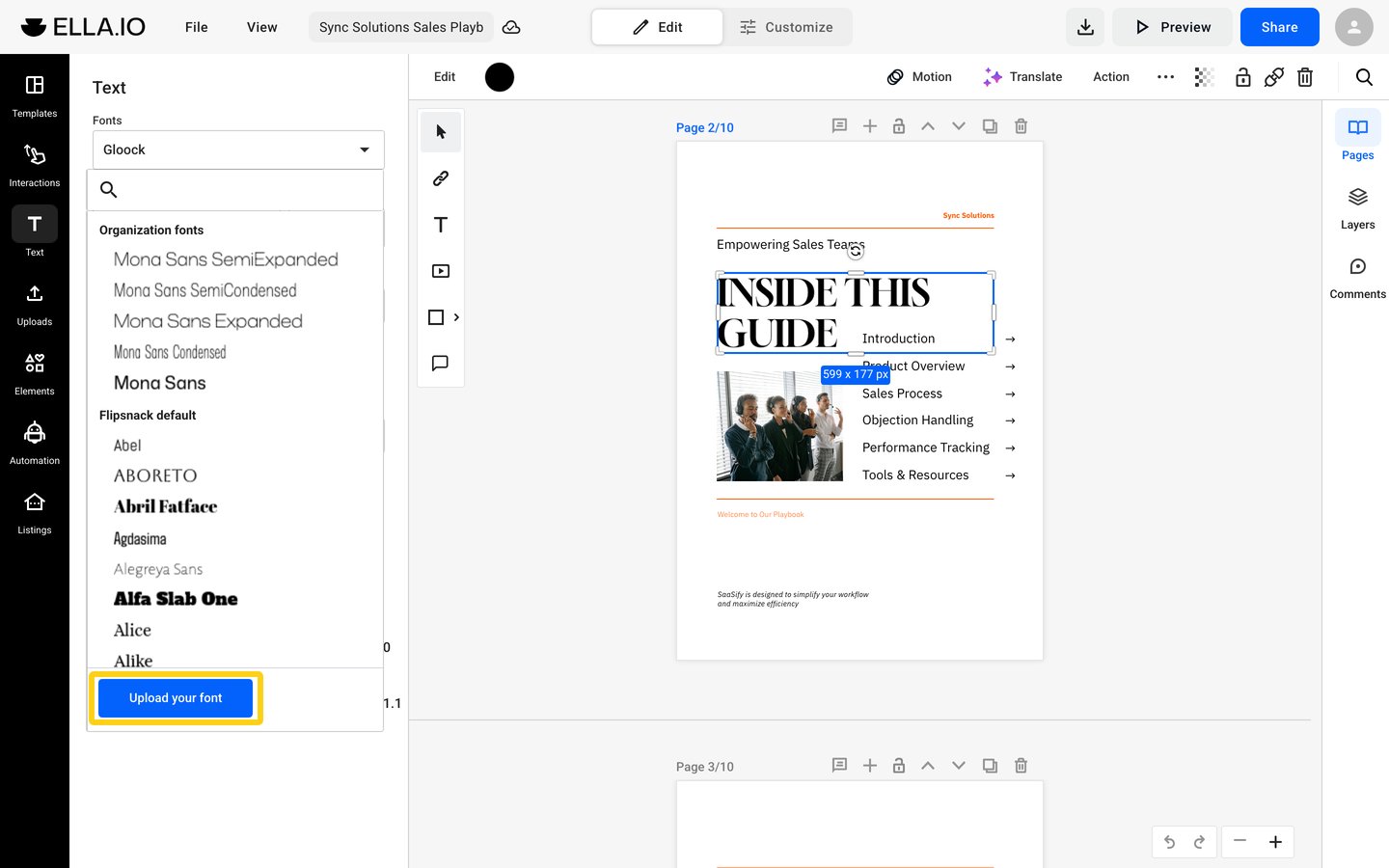
You can change the fonts, font weight, or font size (from 1 to 1,000), from their respective menus. You can choose from a wide range of fonts. On a paid plan, you can also upload and use your own font. At the bottom of the Fonts list, click Upload your font.
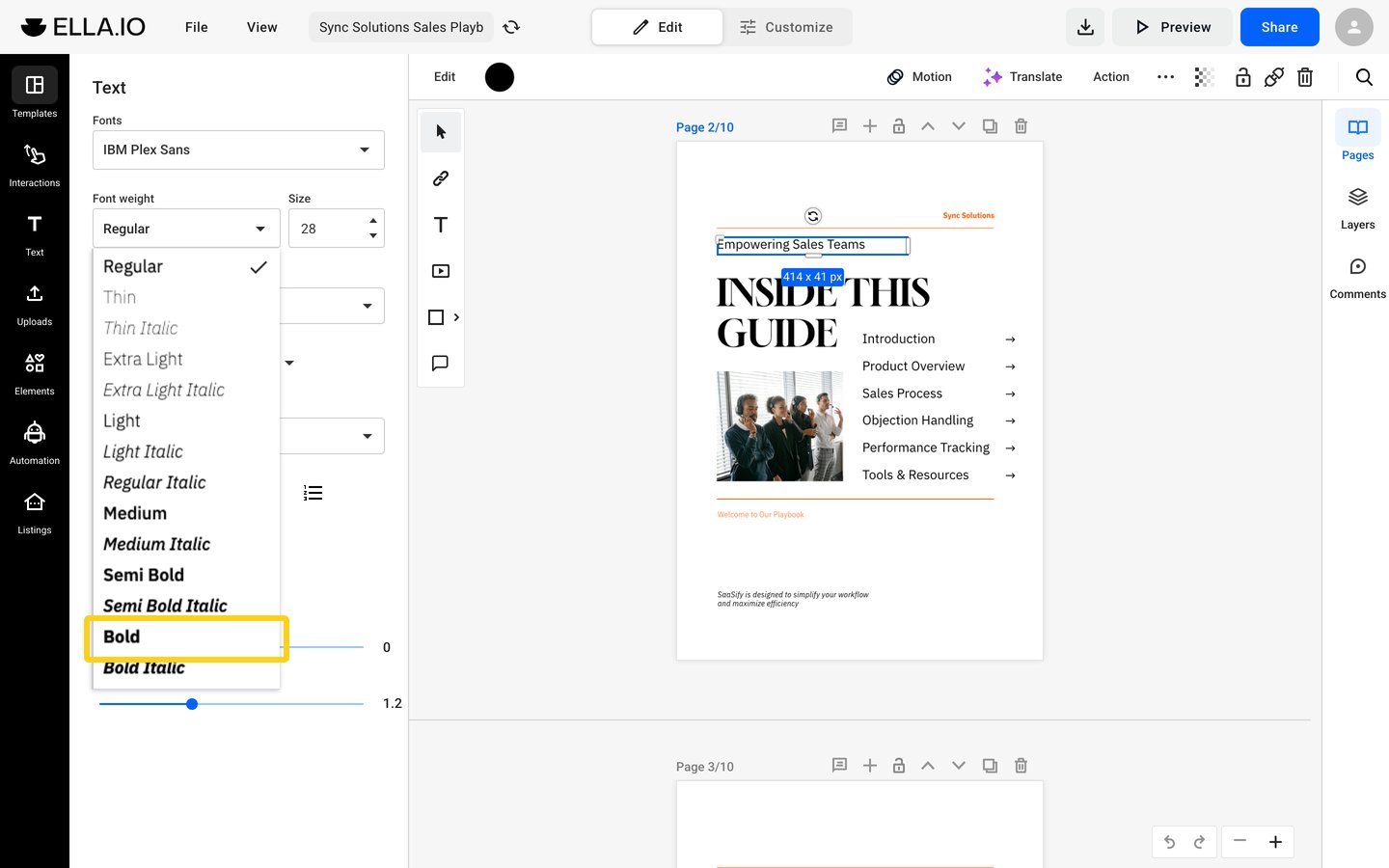
Based on the font you choose, you can adjust the text even more. You can make the text bold, italic, underlined, or strikethrough. You can also choose different font weights.
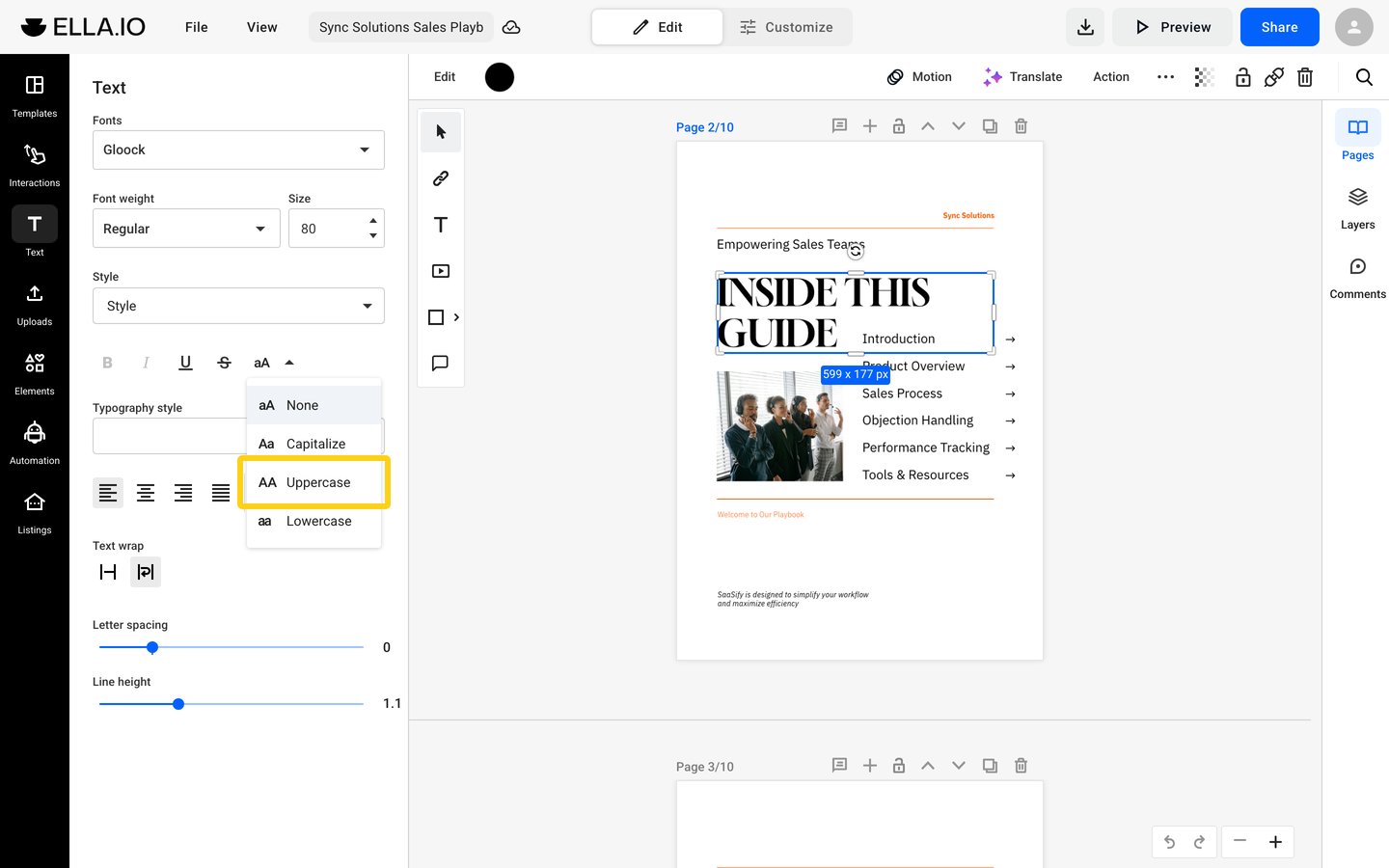
Open the aA menu to capitalize each word, or to set the text in uppercase or lowercase.
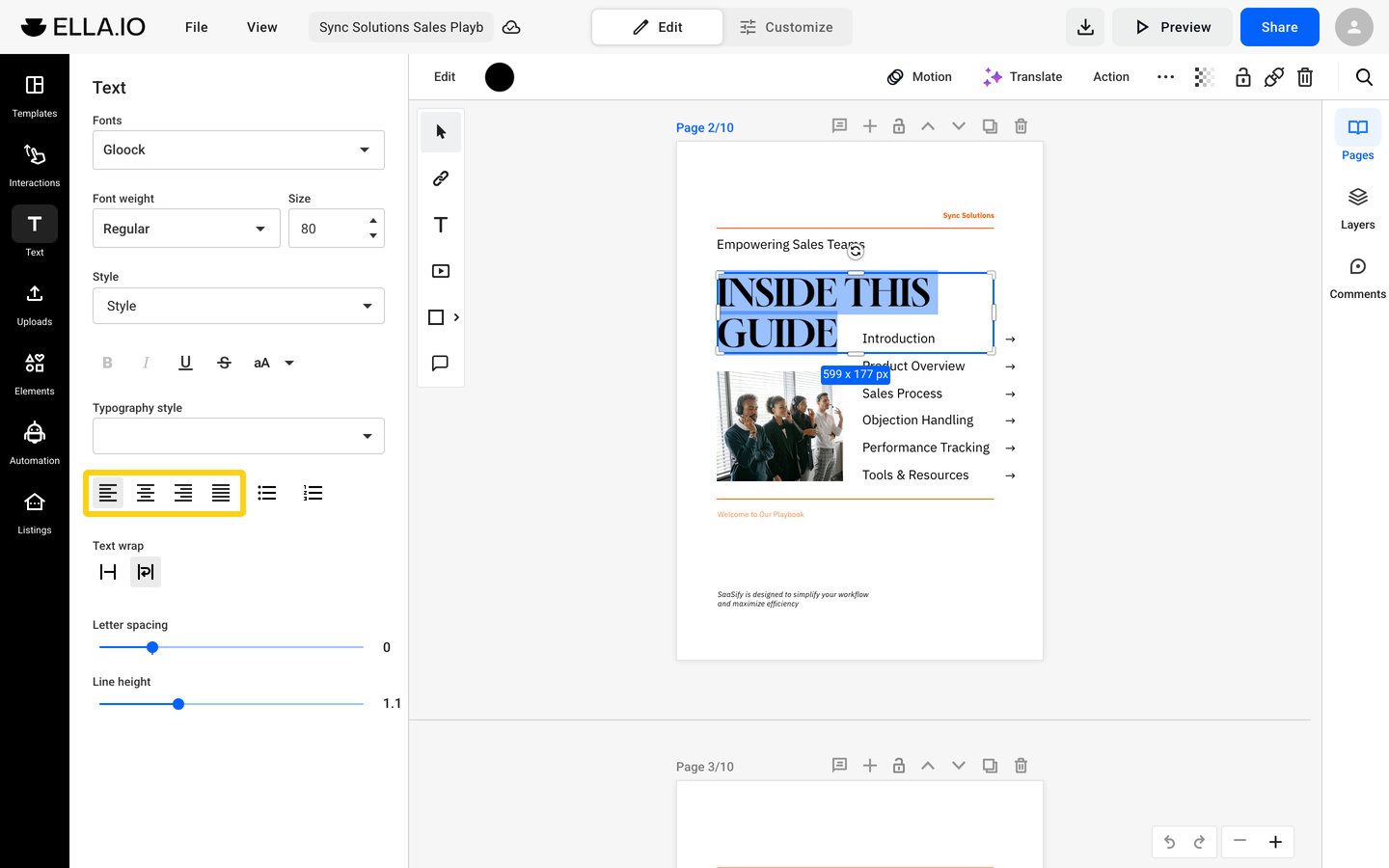
There are options to change the text alignment as well: left, right, center, and justify.
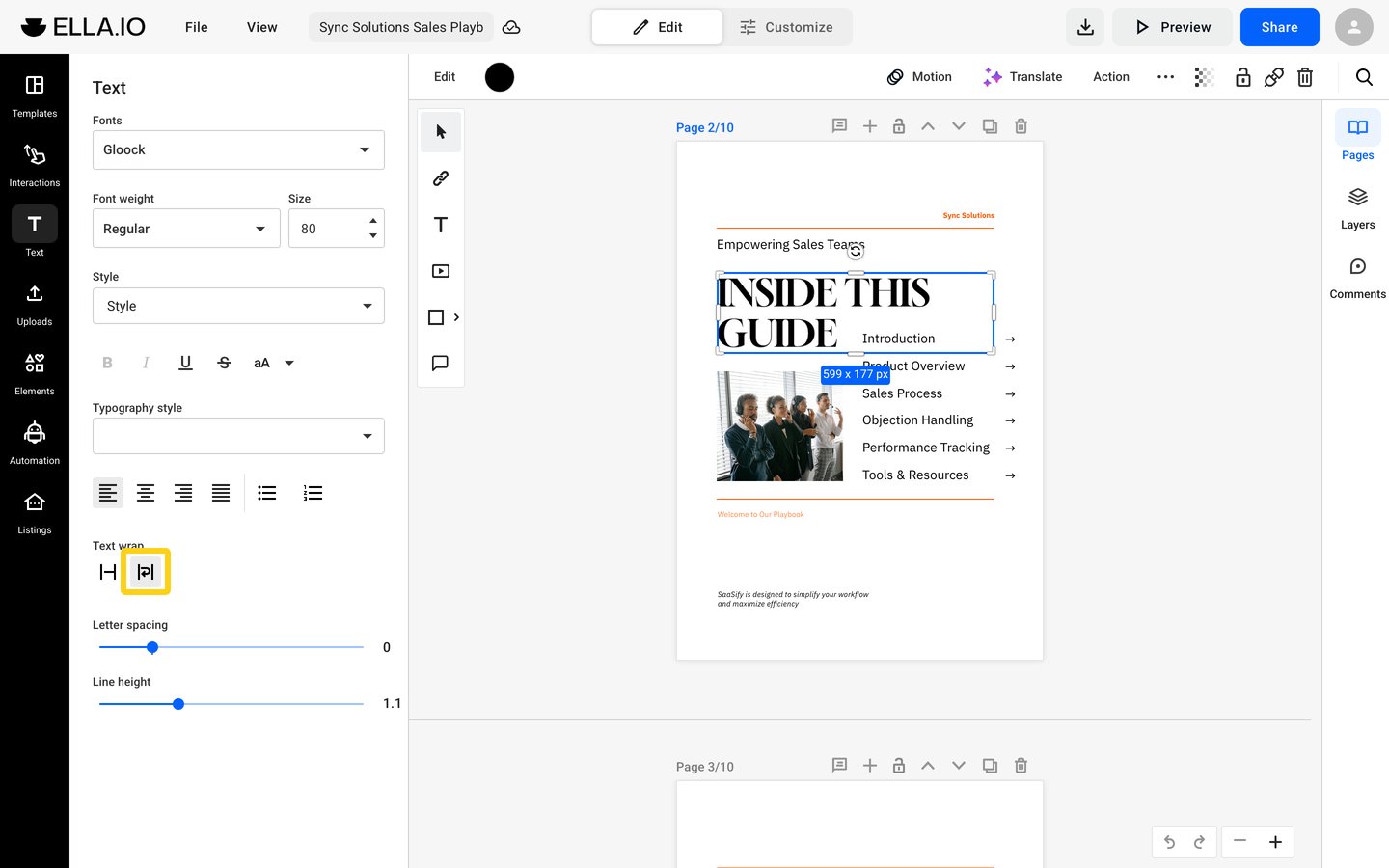
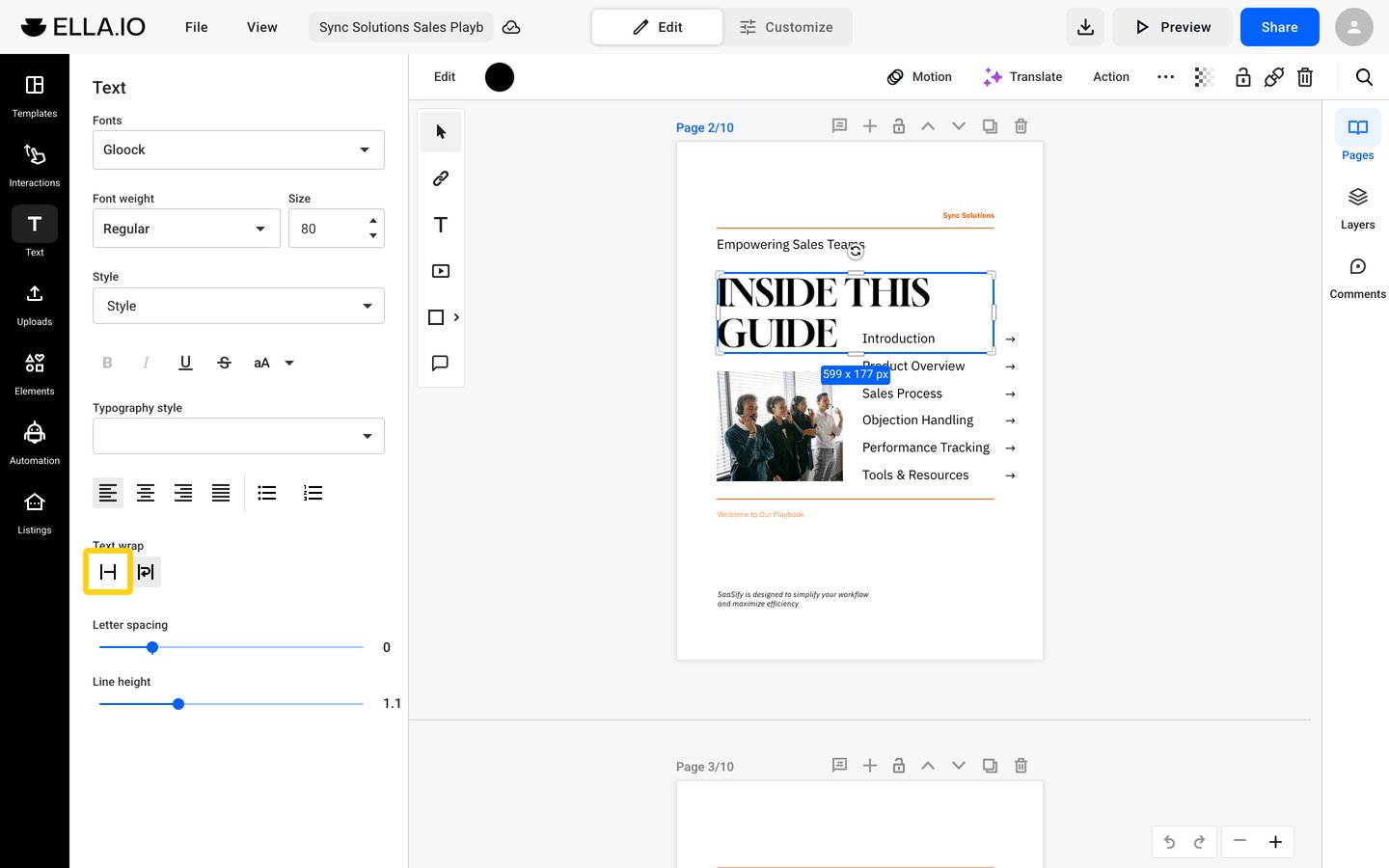
Don't forget to try our text editing features: wrap text & clip text. By using them you can decide which part of the text to be visible.
If you choose the wrap text function the viewer will be able to see the entire text even if it’s outside the text box.
If you use the clip text button then the viewer will only see the text from the selected area.
For a more complex look, change the Opacity of the text box in the toolbar above the page.
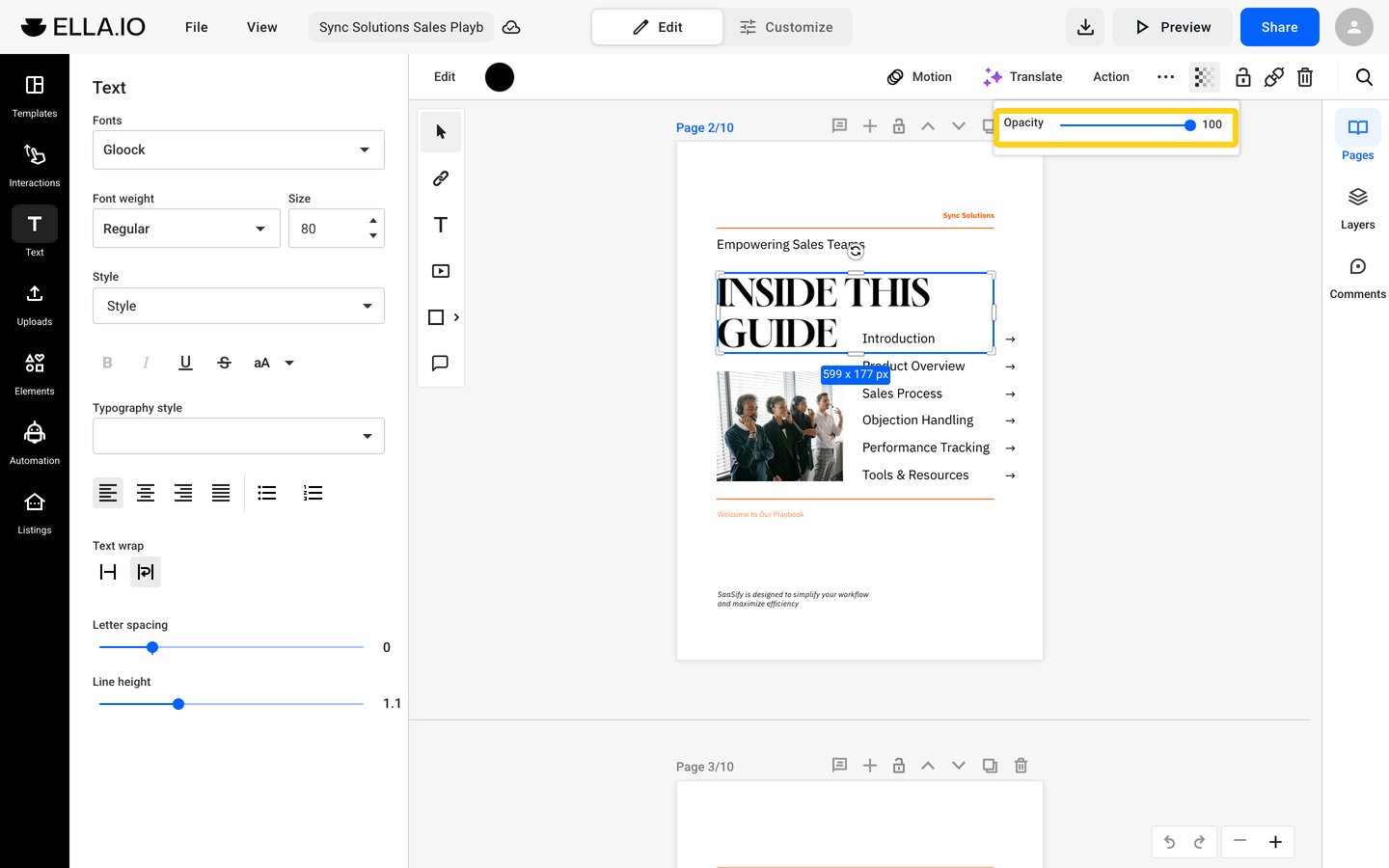
Important: Once you’re done editing the text, click once outside of the text box, and drag your text to your desired location.
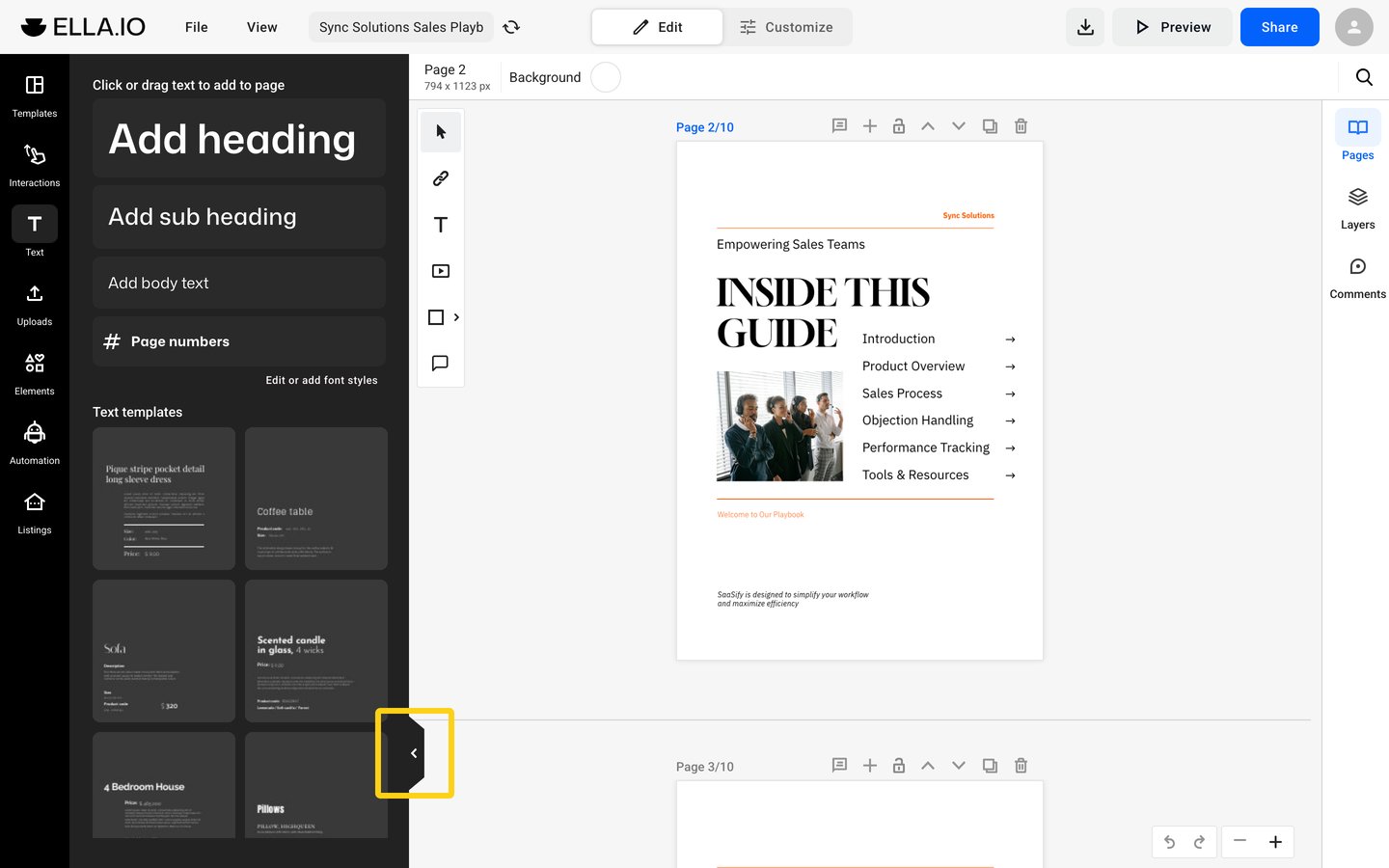
You can collapse the left panel while you work. To open it again, click any icon in the left bar, for example Templates or Interactions. With a text box selected, the Text panel shows again.
Lists, line height and shortcuts
The text box works like a document editor. Lists, line spacing and keyboard shortcuts work while you type.
Lists
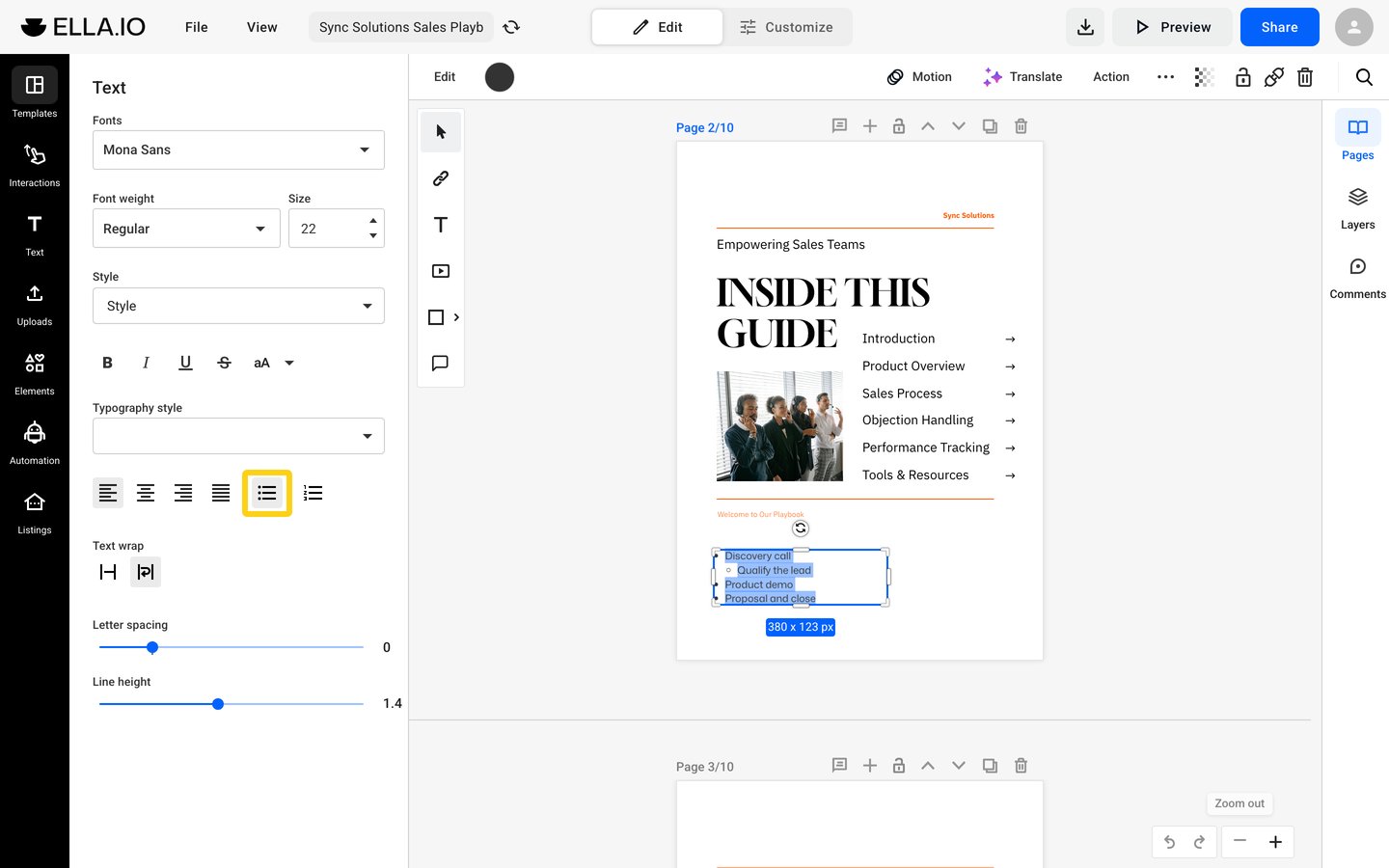
- Type - and a space at the start of a line to start a bullet list.
- Type 1. and a space to start a numbered list.
- Press Tab in a list item to move it one level in, and make a nested list.
- You can also use the bullet list and numbered list buttons in the Text panel.
Line height for one line
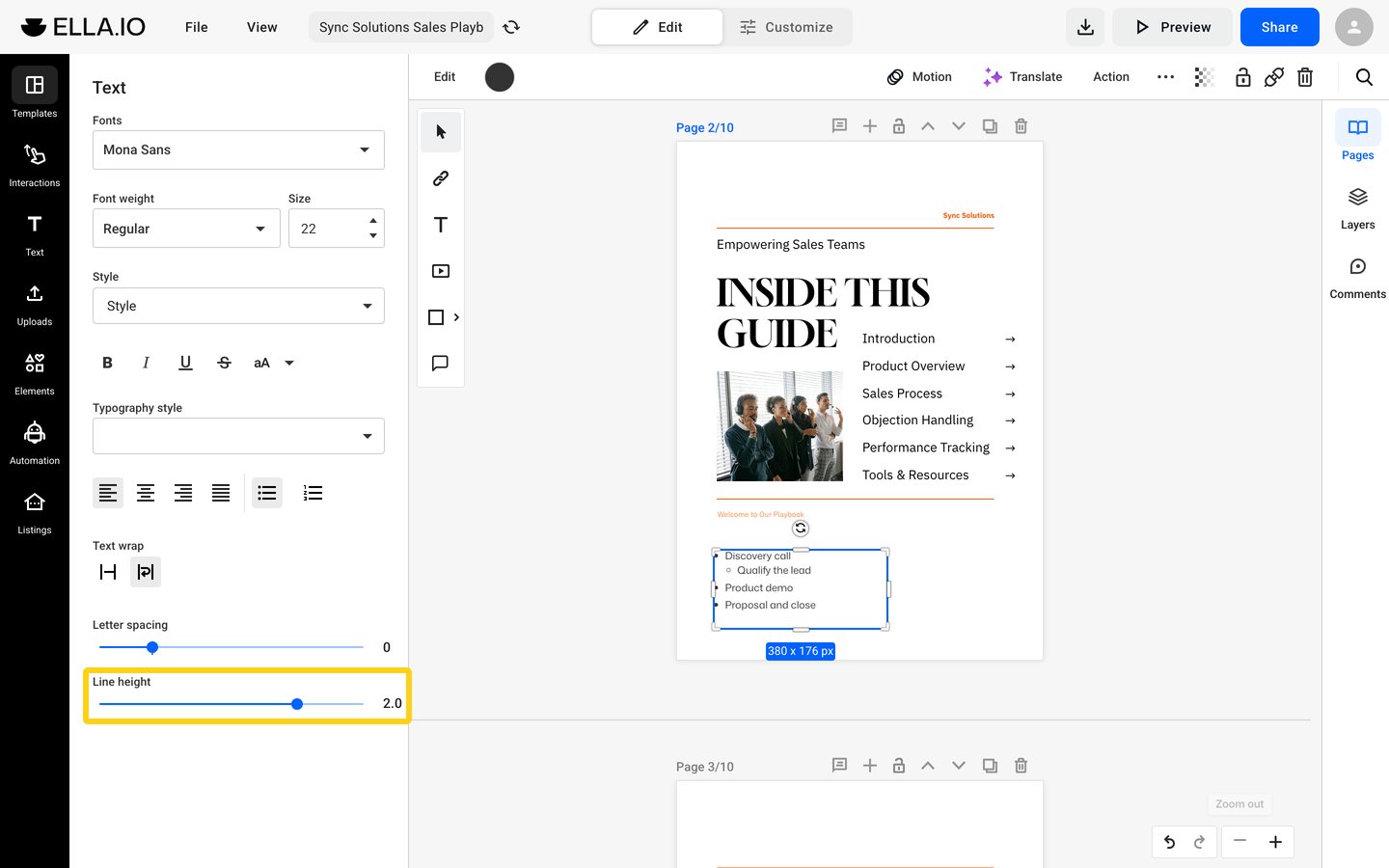
Click in a line, then drag the Line height slider. Only that line changes, so you can add space above a list or between paragraphs.
Resize while you edit
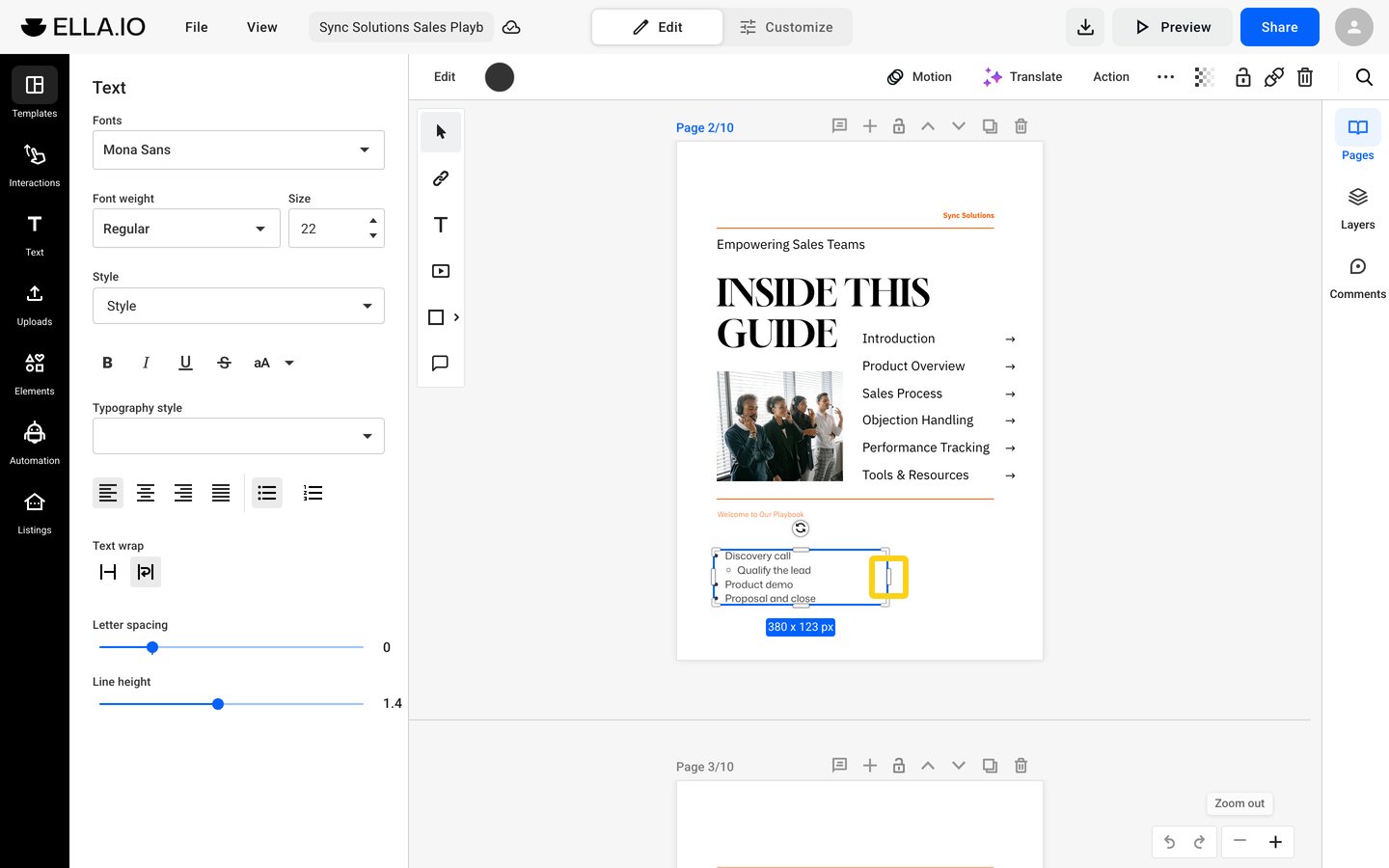
The resize handles stay on the text box while you type. Drag a handle to resize the box without leaving the text.
Keyboard shortcuts
- Cmd/Ctrl + B: bold. Cmd/Ctrl + I: italic. Cmd/Ctrl + U: underline. Bold and italic work only when the font has a bold or italic style.
- Cmd/Ctrl + Z: undo one change at a time.
Next steps
- How to format individual words and letters in a text box
- Text templates: ready-made text blocks for your flipbooks
- How to move, resize, duplicate, and delete page elements
Need expert support?
Our team is here to help. Connect with our team experts or message us via the live chat for personalized assistance.