
Overview
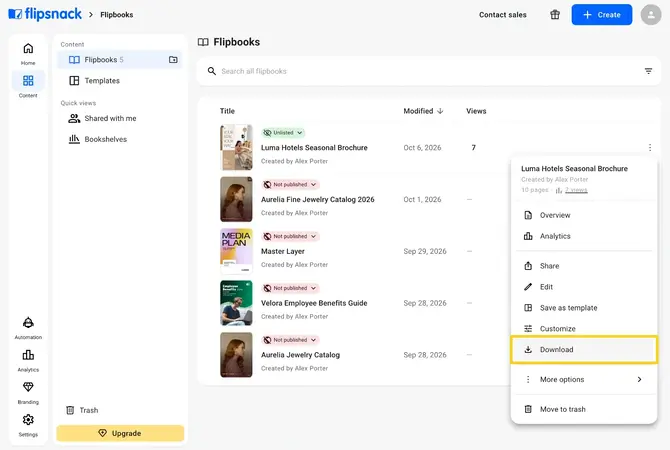
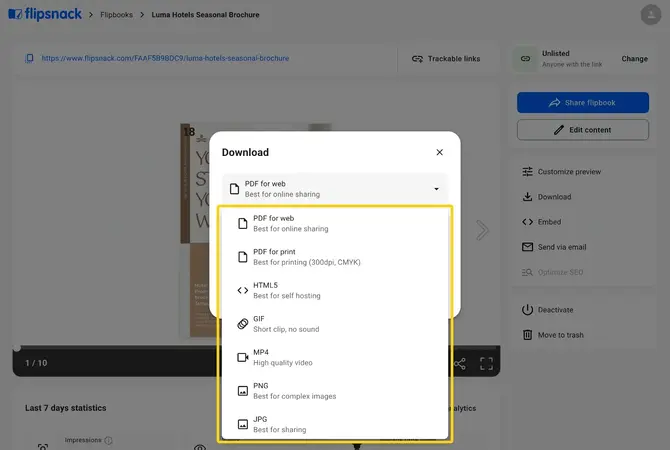
Flipsnack lets you download a flipbook as PDF for web, PDF for print, HTML5, GIF, MP4, PNG or JPG. Click the three dots next to the flipbook in Content, click Download and pick the format that fits where the file is going: print, the web, social media or your own server.
Common use cases
- PDF for print: high-quality brochures for client meetings.
- JPG: quick visuals for newsletters.
- GIF: animated previews for social media.
- MP4: a flipbook showcase in video presentations.
💡 Benefits of choosing one download format over another
- Channel-ready files: prepare the same flipbook for print, web, social media or video.
- Full or partial export: download the whole flipbook or only the pages you select.
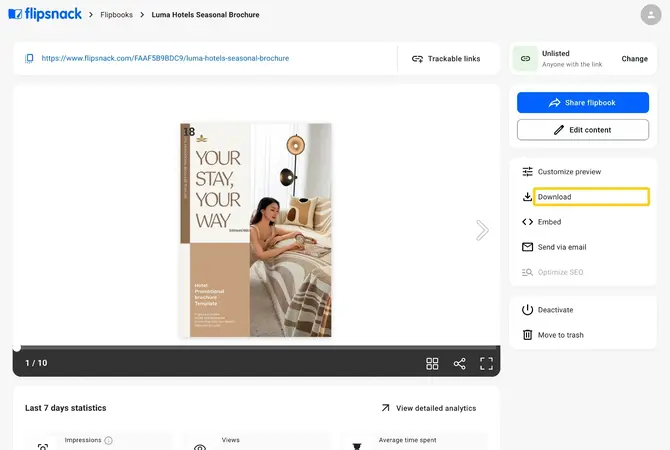
- Instant access: download from your flipbook list or from its Overview page.
Requirements
- Watermark-free downloads: Pro or above; Free downloads carry a Flipsnack watermark: compare plans
- Flipbook: published, so the Download option appears: publish your flipbook
- HTML5: needs the Business plan or above: compare plans
How to access download options
Option 1: from your flipbook list
- Go to Content and find your flipbook.
- Click the three dots on the right of its row, then click Download.
- In the Download window, open the format list. Each format has a short description to help you choose.
Option 2: from the Overview page
- Open the flipbook and click Download in the right panel.
Warning: these downloads are for you as the publisher. For readers to download or print your publication, turn on Download PDF or Print flipbook in your flipbook's controls. See how to let readers download a PDF.
Download PDF for web
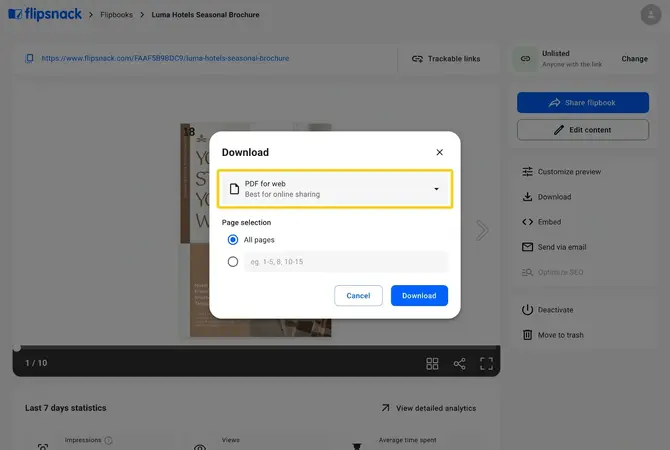
PDF is the most common file type for documents, made for viewing and sharing. The web version is smaller than the print version, so it is optimized for online use. In the window you can download all pages or enter a range such as 1-5, 8, 10-15.
Note: a PDF does not support animations, so you get a regular PDF. To keep interactions and animations, download the flipbook as HTML5.
Download PDF for print
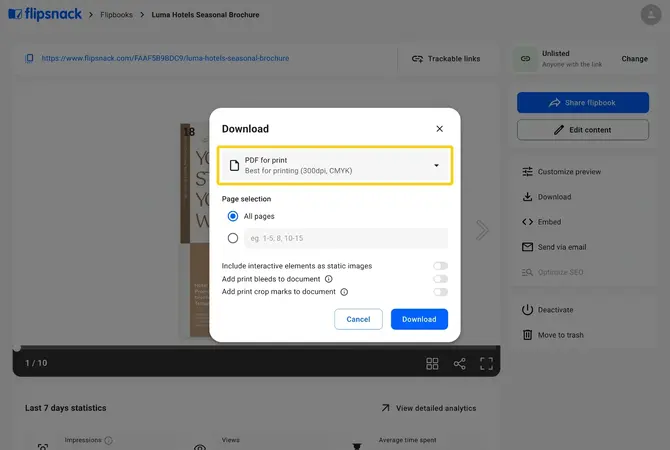
For printing, use PDF for print. The file is bigger than the web version, so it can take longer to download. It gives you 300 DPI image quality and a CMYK color profile, and the window offers three switches, all off by default:
- Include interactive elements as static images: links, buttons and similar elements are left out unless you turn this on.
- Add print bleeds to document.
- Add print crop marks to document, so the design is ready for professional trimming.
Download HTML5
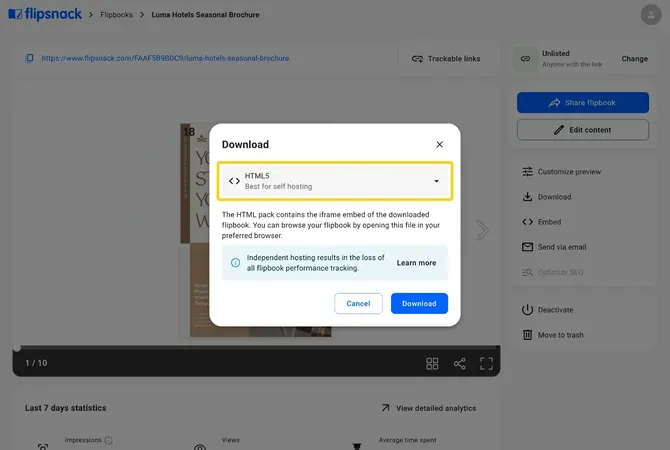
The HTML5 download gives you a responsive flipbook that works in any browser or on a mobile device. It keeps interactions, multimedia and the page-flip effect, so it suits offline use and self-hosting. The format needs the Business plan or above, and Flipsnack no longer tracks a flipbook you host yourself.
Download GIF
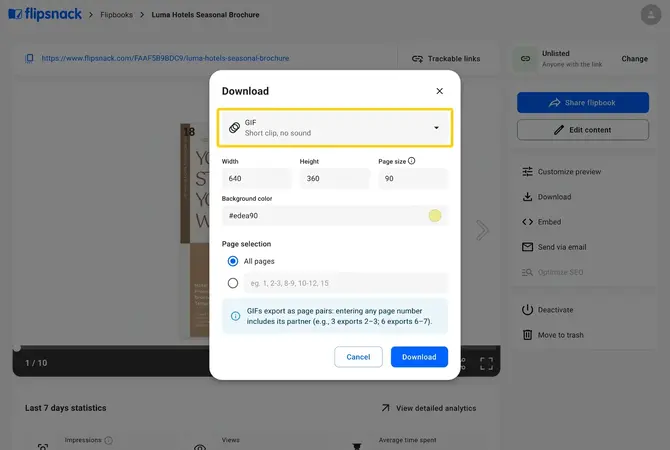
A GIF gives readers a short, fun preview of your work, easy to share on social media or in newsletters. It has no sound. A long flipbook will not fit entirely, so you can set the width and height, choose a background color and select which pages the GIF includes.
Download PNG
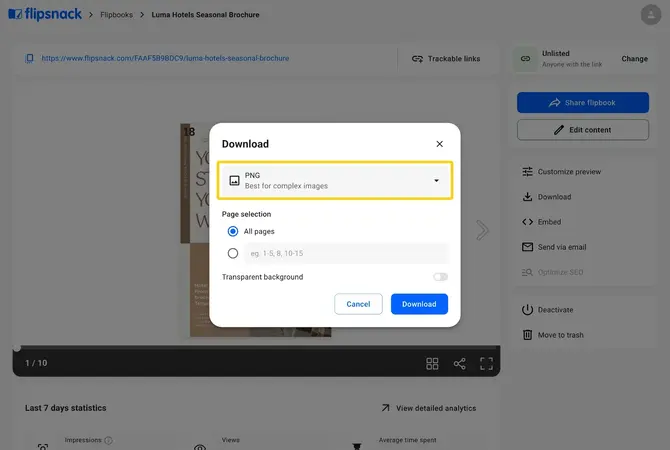
PNG files are a little bigger than JPG files and handle complex images well. The PNG download has a Transparent background switch so you can reuse your pages in other projects. Each page of your flipbook becomes a PNG file. We recommend it for one-page designs. The PNG download is available at a resolution of 794 x 1123 pixels.
Download JPEG
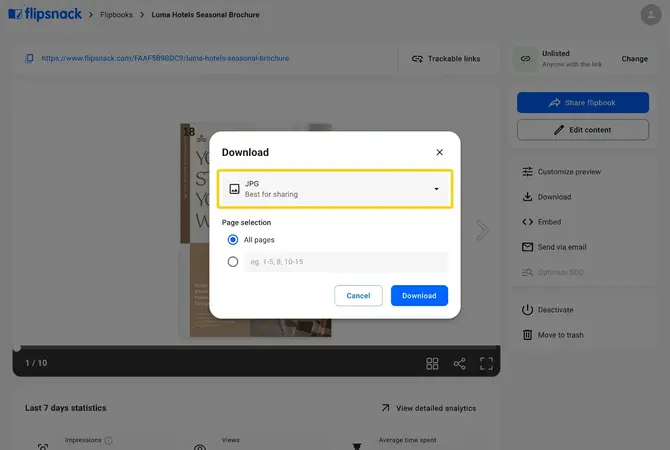
The JPG download gives you a compressed copy that is best for sharing. Each page of your flipbook becomes a separate JPG file. We recommend it for one-page designs. For a higher-resolution file, download a PDF instead. The JPG download is available at a resolution of 794 x 1123 pixels.
Download MP4
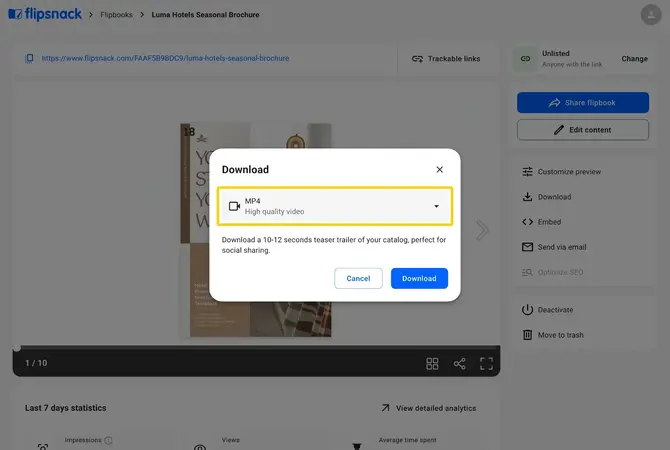
A video attracts attention on social channels that cannot display an interactive flipbook. The MP4 download is a 10 to 12 second teaser trailer of your flipbook, as the Download window states. Read the MP4 download article for the details. It does not show every page, so add your flipbook's link to the post and invite people to read the whole thing.
Warning: videos set to autoplay and GIFs inside your flipbook do not show properly in the MP4. Avoid them if you plan to download an MP4.
Troubleshooting
- The Download option is missing: the flipbook must be published first.
- A page you did not pick is in the GIF: GIFs export as page pairs. Entering any page number includes its partner, so 3 exports pages 2-3 and 6 exports pages 6-7.
- Links and buttons are missing from the PDF for print: turn on Include interactive elements as static images before you download. They appear as static images and do not click.
Additional tips / FAQs
- Which format for a printer? PDF for print, with bleeds and crop marks if your printer asks for them.
- Which format keeps interactions? HTML5 keeps them live. PDF for print can include them only as static images, and the other formats are static or video copies.
- Can I download only some pages? Yes. PDF, GIF, PNG and JPG have a page selection field.
Next steps
- How to share your flipbook
- How to download your flipbook as PDF
- How to download your flipbook in HTML5 format
- How to download your flipbook as a video
- Understanding Flipsnack's "Download PDF for print" option
- Customization options explained
- Publishing visibility options
Need expert support?
Our team is here to help. Connect with our team experts or message us via the live chat for personalized assistance.