
Overview
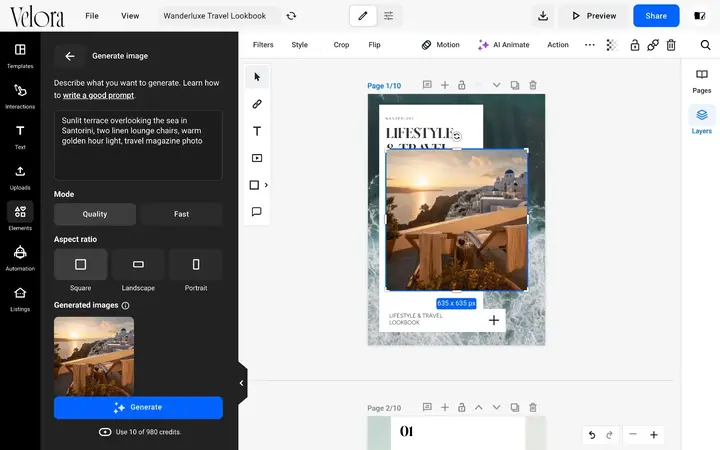
You can generate an image from a text prompt inside the Design Studio. Open Elements, click Generate image, describe what you need, choose a mode and an aspect ratio, and click Generate. The image appears under Generated images; click it to add it to the page. Each image uses 10 AI credits.
Check your plan and credits before you start.
Requirements
- AI credits: 10 credits for each image: how AI credits work
Generate an image
- Open your flipbook in the Design Studio and click Elements in the left menu.
- Click Generate image.
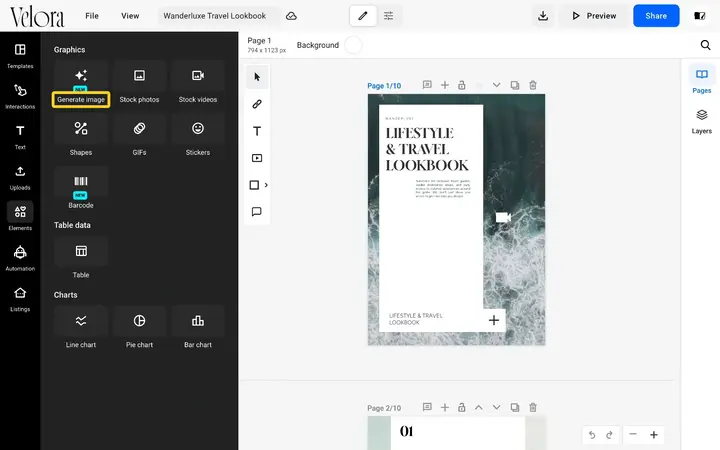
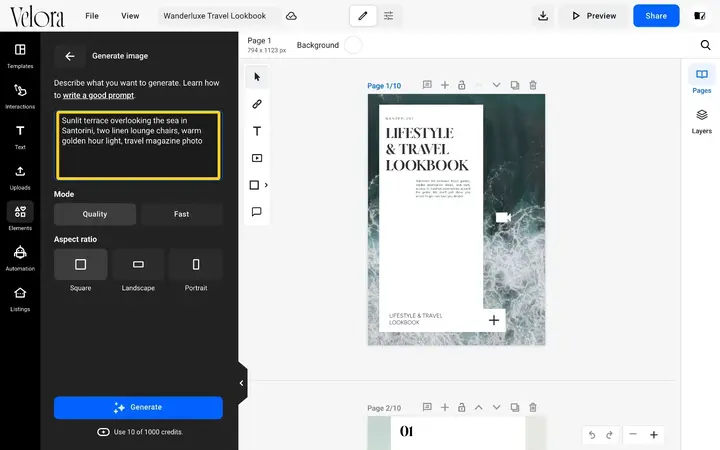
- Describe the image in the text box. Name the subject, the setting, the style and the light, for example: Sunlit terrace overlooking the sea in Santorini, two linen lounge chairs, warm golden hour light, travel magazine photo.
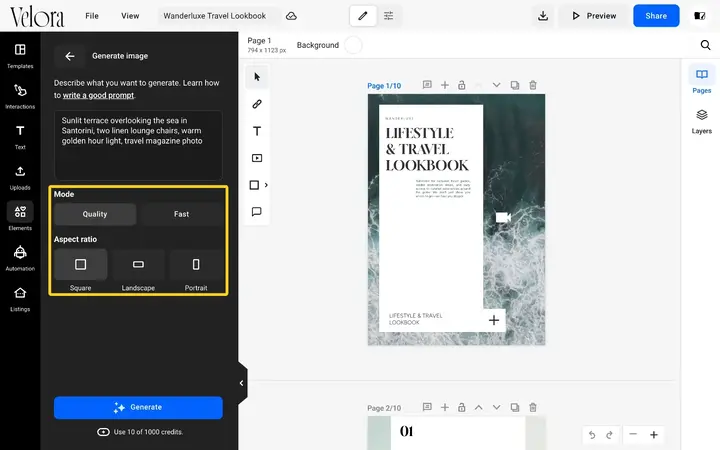
- Under Mode, choose Quality or Fast. Both use 10 credits.
- Under Aspect ratio, choose Square, Landscape or Portrait, to match the space on your page.
- Click Generate. The button shows how many credits you have left.
After a few seconds the image appears under Generated images.
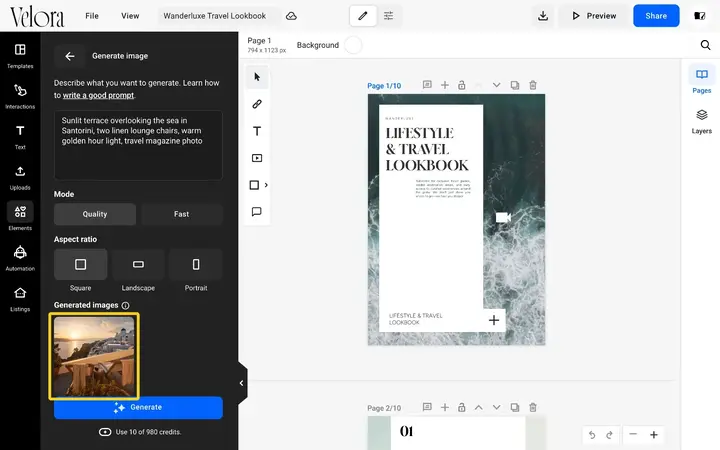
- Click the image to add it to the page. Then move, resize or crop it like any other image.
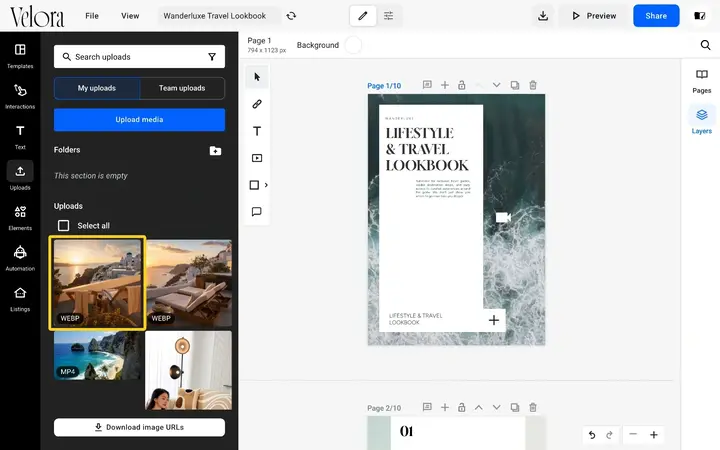
Every generated image is also saved in Uploads, so you can use it again in other flipbooks or download it.
💡 Benefits of generating images instead of using stock photos
- No other tools: write the prompt and place the image without leaving the Design Studio.
- The picture you need: describe the subject, setting and light instead of searching for a close match.
- Fits the layout: generate square, landscape or portrait images.
- Works like any image: resize, crop, replace or animate it with AI Animate.
Content and usage guidelines
- Do not generate copyrighted or trademarked imagery unless you have the rights to it.
- Do not imitate real people without their consent.
- Do not generate misleading, harmful or illegal content.
- You are responsible for making sure what you generate complies with the law and with usage rights.
Write a better prompt
The generator takes one prompt, not a conversation, so put every detail in it. Write it the way you would brief an illustrator.
- Use the formula: subject, setting, style, then light and detail. Instead of "An office", write "A modern corporate office with large glass windows over a city, realistic photography, natural sunlight, sharp focus".
- Use keywords, not requests: skip "Can you please draw me". Descriptive words separated by commas work best.
- Name the style: candid photograph for people and offices, product photography for catalog shots, 3D render for tech brochures, flat vector illustration for training material.
- Pick the mode: use Quality for realistic faces, complex scenes and fine detail. Use Fast for quick variations, abstract backgrounds and illustrations.
Prompts you can adapt:
- Product catalog: Product photography of a leather briefcase on a minimal marble podium, soft studio lighting, clean white background, sharp focus.
- Internal newsletter: Candid photograph of colleagues collaborating around a modern meeting table, bright natural daylight.
- Real estate: Interior photography of a modern apartment living room, minimalist furniture, large windows, natural sunlight.
- Tech brochure: Abstract 3D network lines glowing blue and silver on a dark background, high contrast.
Generated images help most where stock photos are generic or hard to find.
👥 Where AI image generation is helpful
- Marketing teams: a hero image for a seasonal brochure or a campaign page.
- Catalog designers: lifestyle backgrounds around product shots.
- Internal communications: illustrations for newsletters and training material.
Troubleshooting
- Generate image is greyed out: you need at least 10 AI credits. Check your balance in your monthly AI credits; they refresh on the first of the month.
- The image is not what I expected: add detail to the prompt (light, colors, composition), switch between Quality and Fast, and generate again.
- The image does not appear on the page: wait until it shows under Generated images, then click it. If it still does not appear, reload the Design Studio.
Additional tips / FAQs
- Where do my generated images go? They stay under Generated images and are saved to Uploads, where you can reuse or download them.
- Do Quality and Fast cost different amounts? No. Each image uses 10 AI credits in either mode.
- Can I animate a generated image? Yes. Select it and use AI Animate.
Next steps
- Turn a static image into a Living Visual with AI Animate
- How AI credits work in Flipsnack
- Uploads in the Design Studio
- Publish your flipbook
Need expert support?
Our team is here to help. Connect with our team experts or message us via the live chat for personalized assistance.