
Overview
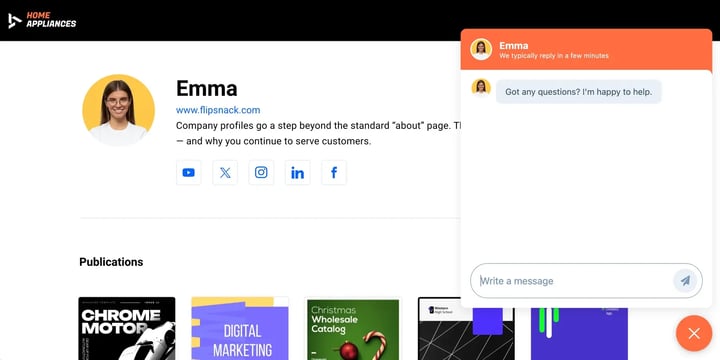
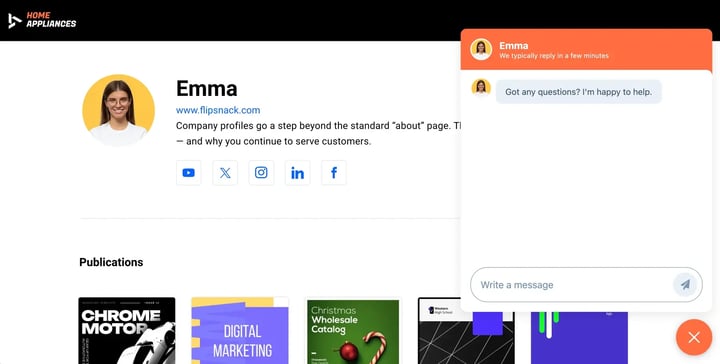
A chat widget is a valuable tool for engaging your audience in real-time conversations about your products and services. By using HubSpot’s built-in CRM solution, you can install a chat widget on both your Flipsnack profile and flipbooks.
Requirements
- Before starting, ensure you have:
- The HubSpot tracking code installed on your Flipsnack profile using Google Tag Manager.
- At least a free HubSpot account.
How to Add a HubSpot Chat Widget
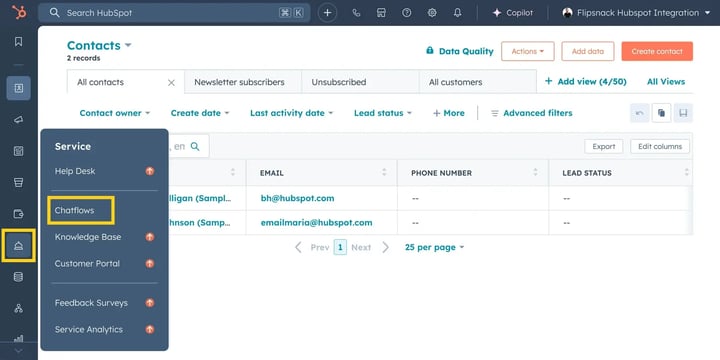
- Log in to your HubSpot account and navigate to Conversations > Chatflows.
- In the upper right, click Create Chatflow.
- Select Website.
-
In the left sidebar, choose a live chat option:
- Live Agent: Best for businesses that want real-time human engagement. Visitors chat with live agents who can provide personalized responses and support.
- Customer Agent (+ AI): Uses AI-powered automation to scale support, freeing up live agents for more complex conversations.
- Rules-Based Chatbot: Creates automated chat flows for specific tasks, such as booking meetings or directing visitors to sales.
- If you have multiple inboxes set up, click Select an inbox and choose the appropriate one.
- To change the chatflow language, click Select a language and choose a different language.
- Click Next.
Configuring Your Chatflow
-
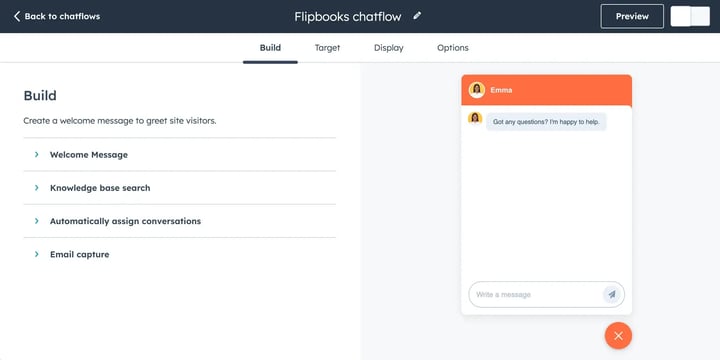
Customize your chat widget settings:
-
Create a welcome message to greet visitors.
- Set up email capture to collect visitor emails.
- Assign specific users or teams to respond to chats.
-
-
Set availability settings:
-
Define when your team is available for live chat.
- Configure automated responses for out-of-office hours.
-
- Click Next.
Setting Up Targeting Parameters
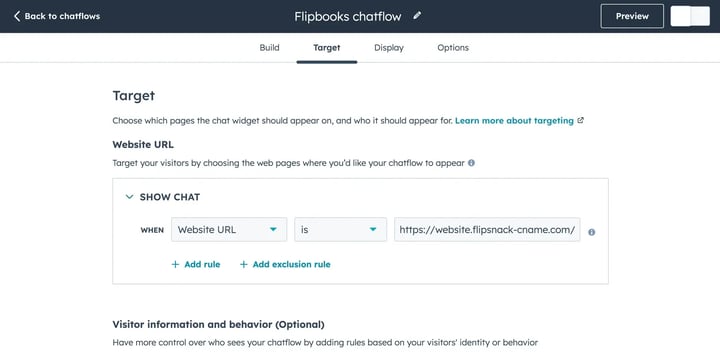
- Navigate to the Targeting tab.
-
Define the conditions for when the chat widget appears, such as:
-
Page URL: Show the chat widget only on specific pages.
- Visitor Behavior: Trigger the chat widget based on time on page or scroll percentage.
- User Characteristics: Show the widget based on visitor location or device type.
-
- Activate the chatflow toggle to enable the widget.
Once activated, your HubSpot chat widget will now be visible on your Flipsnack profile.
Next steps
- HubSpot guide for creating a live chat
- Integrate HubSpot with your Flipsnack Account
- Create a custom cookie banner using HubSpot
- Embedding flipbooks in the HubSpot landing page builder
- Using HubSpot with Flipsnack: All integration features explained
Need expert support?
Our team is here to help. Connect with our team experts or message us via the live chat for personalized assistance.