
Table of contents
Overview
You can automate the way you collect and process product orders from your Flipsnack catalogs using webhooks. A webhook allows your internal system to receive real-time order information as soon as a customer submits a purchase form inside one of your interactive flipbooks.
By connecting a webhook URL, every new order is instantly sent to your system in JSON format. This is a powerful feature for backend operations, managing inventory, and triggering actions in external tools like CRMs, ERPs, or custom dashboards.
This article explains how to configure an order webhook, what data is sent, and what technical requirements apply.
Key benefits
-
Instant order processing: Receive order data in real time as soon as a form is submitted
-
Automation-friendly: Trigger actions in your internal systems, like CRM updates or stock adjustments
-
Data-rich payloads: Access all submitted order details including item SKUs, prices, quantities, and custom fields
-
Centralized monitoring: View any webhook failures directly in your Flipsnack Integrations section
Requirements:
- Enterprise plan
Step-by-step guide
Step 1: Set up your webhook endpoint
-
Your developer should create an HTTPS endpoint capable of receiving and parsing JSON payloads.
-
No authentication headers should be required for incoming requests.
-
Ensure the server responds quickly (under 10 seconds) and with a 2xx status code to confirm success.
Step 2: Add your webhook URL in Flipsnack
-
Go to your workspace Settings.
-
Click the Integrations tab.
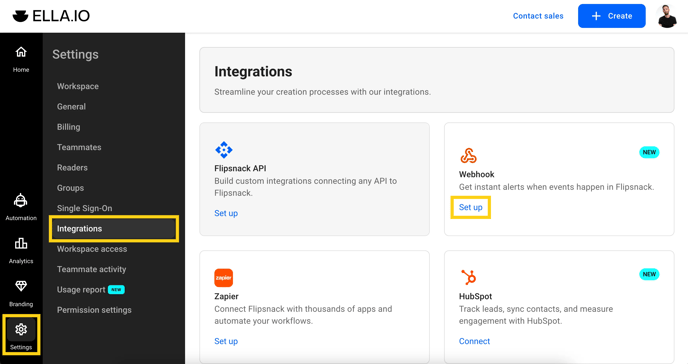
- In the Webhooks section, paste your endpoint URL.
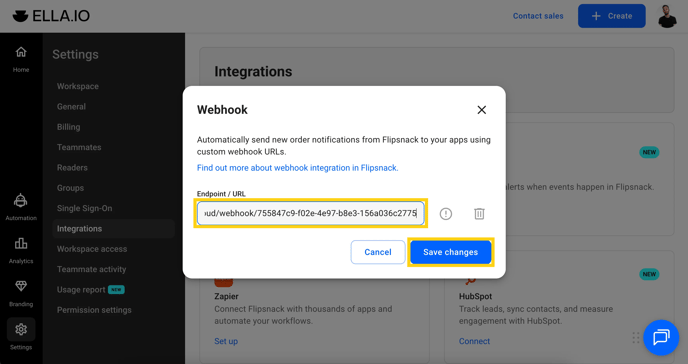
- Save changes.
Step 3: Receive order data
-
When a user submits an order form in any of your catalogs, Flipsnack will send a JSON payload to your webhook.
-
The payload includes:
-
General order info:
order_id,timestamp,datetime -
Catalog details:
flipbook_title,flipbook_hash -
Customer inputs:
custom_fields -
Items:
sku,name,quantity,price,discounted_price,total,image -
Summary:
total_price,currency
-
Example output:
{
  "type": "order",
  "order_id": "9471318",
  "timestamp": 1764766581,
  "datetime": "2025-12-03 12:56:21",
  "flipbook_hash": "vui2mj9xu3",
  "flipbook_title": "Apex car catalog",
  "custom_fields": [
    {
      "field_name": "Email address",
      "field_value": "test@flipsnack.com"
    }
  ],
  "items": [
    {
      "sku": "5678999b",
      "name": "Apex, Stratos R",
      "quantity": 1,
      "price": 68500,
      "total": 68500,
      "image": "https://cdn.flipsnack.com/collections/uploads/15fca6068a83a63e98a6e1ff49487350"
    }
  ],
  "total": 68500,
  "currency": "USD"
}
Step 4: Monitor webhook activity
-
If your webhook returns a non-2xx response, the attempt will be marked as failed.
-
Flipsnack retries failed requests up to 5 times with exponential backoff.
-
After 5 failed attempts, the request will fail overall and no other requests will be made for that order.
-
You can view error logs in the Integrations > Webhooks section.
.png?width=688&height=364&name=Screenshot%202025-12-03%20at%2014.24.03-mh%20(1).png)
Additional tips / FAQs
-
Can I test the webhook before going live?
Use a tool like Webhook.site to inspect payloads before deploying your real endpoint. -
What happens if an order has no price?
Theprice,discounted_price,total, andcurrencyfields may be omitted or null. -
Can I have multiple webhook URLs?
No—each workspace supports only one active webhook for orders.
Common use-cases
-
Retail: Send order details directly to your order management system
-
CRM sync: Automatically add buyer details to your CRM database
-
Inventory tracking: Adjust stock levels based on submitted orders
-
Analytics: Feed order data into custom dashboards or Google Sheets
- Automation and integration: Use tools like Zapier, N8n or Make, to handle post order automation, and connect with other platforms.
Troubleshooting
-
Webhook not triggering:
-
Make sure the order form is submitted inside an interactive catalog.
-
Verify the endpoint uses HTTPS and is live.
-
-
Payload not received:
-
Check for server errors or timeouts (responses over 10 seconds will fail).
-
Review failure logs in Flipsnack’s Integrations panel.
-
Next steps
Useful resources
Continue optimizing your catalog ordering workflow:
Need expert support?
Our team is here to help. Connect with our team experts or message us via the in-app chat for personalized assistance.