
Table of contents:
- Overview
- Embed a Salesforce form directly on the page
- Embed a Salesforce form in a popup window
- Additional tips / FAQs
- Common use-cases
- Troubleshooting
- Next steps
Overview
If you're using Salesforce for lead generation or customer data collection, you can now embed your Salesforce forms directly into Flipsnack flipbooks. Choose between placing them inline on a page or inside a popup window to suit your design and engagement strategy.
This guide walks you through both options using the Salesforce form embed and Salesforce form pop-up interactions.
Key benefits
- Seamless Salesforce integration: Use existing forms without redirecting traffic
- Higher conversion rates: Capture leads in a distraction-free reading experience
- Design flexibility: Display forms inline or in popup frames
- Custom experience: Match form behavior to your flipbook’s layout and purpose
Requirements:
Tip: To get your Salesforce form embed code, follow this Salesforce guide on how to deploy forms using Marketing Cloud (formerly Pardot). You'll need to copy the iFrame embed code from your form's settings.
Plan: Enterprise only
Salesforce account: You’ll need a valid embed code from a Salesforce form
Embed a Salesforce form directly on the page
To embed your form using the Salesforce form embed interaction:
-
Open your flipbook in Design Studio.
-
Click on the Interactions tab on the left-side panel.
-
Scroll to the Engagement section.
-
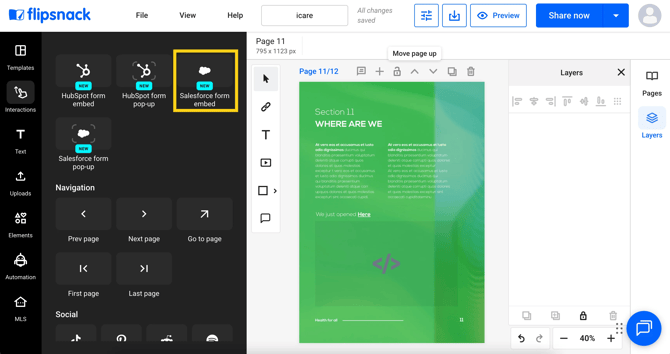
Drag the Salesforce form embed interaction onto your desired page location.
-
In the left panel, paste your Salesforce embed code. If you haven't generated one yet, follow this Salesforce guide to retrieve the iFrame code from your form's settings.
Embed a Salesforce form in a popup window
To display your form in a popup that opens on click:
-
In the Interactions tab, find and select Salesforce form pop-up.
-
Place the popup frame over a button, image, shape, or any clickable element.
-
Resize and reposition the frame to match your layout.
-
In the popup settings panel:
-
Paste your Salesforce embed code. Need help finding it? Follow this Salesforce guide to get the correct iFrame code.
-
Add a Tooltip message (e.g., “Open form” or “Click to fill out”)
-
-
Adjust the frame’s color and transparency as needed.
-
Preview the flipbook to test the popup interaction.
-png.png?width=670&height=355&name=Screenshot%202025-12-04%20at%2014-58-48-mh%20(1)-png.png)
Additional tips / FAQs
- Where do I get the embed code? You can generate the embed code from Salesforce's form settings. Refer to Salesforce's official form deployment guide for instructions.
- Can I use any Salesforce form? Yes, as long as it provides an embeddable iFrame code.
- What type of code works best? iFrame code is recommended for compatibility.
- Can I customize the Salesforce form inside Flipsnack? No, customization must be done in Salesforce before copying the embed code.
Common use-cases
- Sales outreach: Add forms to request demos in product presentations
- Lead capture: Collect info during real estate or business brochure viewing
- Client intake: Embed onboarding forms in digital handbooks
Troubleshooting
Form not displaying?
-
Ensure the code is complete and not modified
Popup not triggering?
-
Check that the popup frame overlaps a clickable object and is on top of it.
Next steps
Useful resources
Explore more interactivity and form options in Flipsnack:
Need expert support?
Our team is here to help. Connect with our team experts or message us via the in-app chat for a personalized demo.