
A great way to make your flipbook interactive is by using embed codes. These codes let you add different multimedia content directly into your flipbooks to create an engaging user experience. From maps of physical stores to videos detailing products to virtual property tours, the possibilities are endless.
Note: This option is available for the Enterprise plan users.
How to embed content in your flipbook
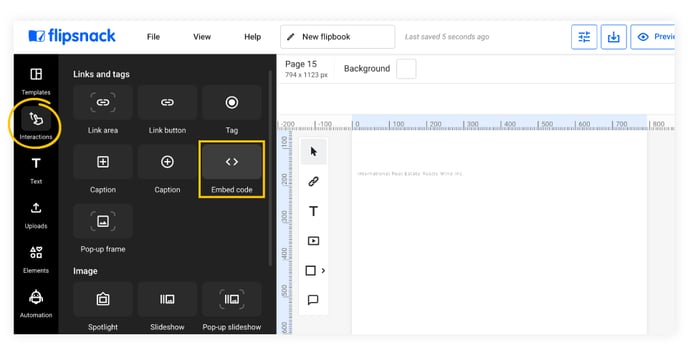
1. While in the Design Studio, click on the Interactions tab and then on Embed code.
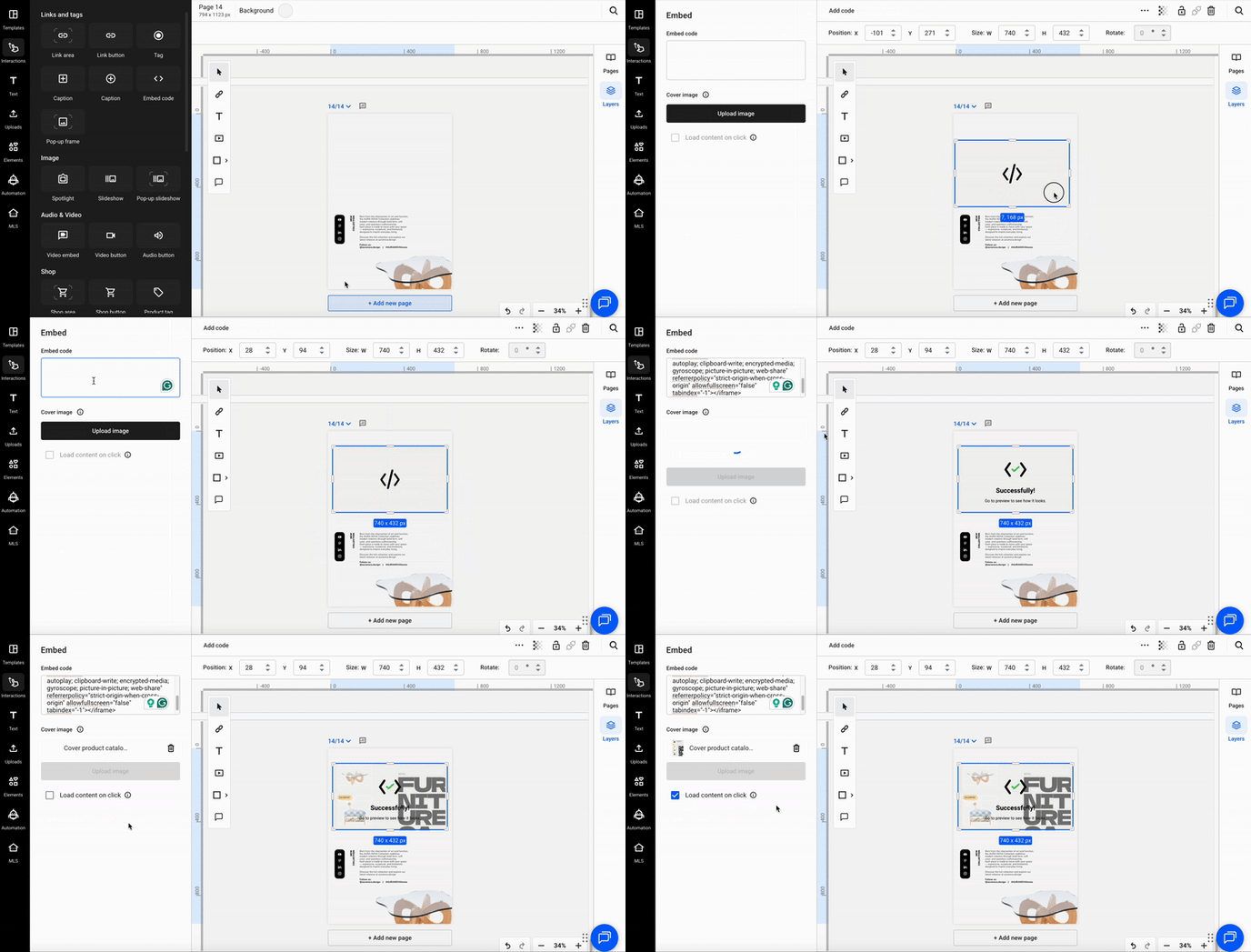
2. Click on the element on the page and paste the embed code in the textbox, on the left side panel.
3. You also have the option to include a cover image, which will act as a placeholder when the flipbook is downloaded in a PDF, JPG, or PNG format. And then you will have the option to click on the Load content on click.
Note: The option to load content on click, which will basically allow users to only load the embed code once they have once they click on the play button. This also helps for faster loading times for the flipbook, but also to make sure that the embed codes are not all starting at once together, to maybe confuse the reader.
Need expert support?
Our team is here to help. Connect with our team experts or message us via the in-app chat for personalized assistance.