
Your Flipsnack profile is a public-facing page that displays all the public flipbooks published within your workspace. Each Flipsnack account automatically gets a public profile. It serves as a shareable hub for your content and can be customized to reflect your brand. You can also include a profile description, logo, website link, and social media handles.
Table of contents:
Search publications on profiles
Hide flipbooks from public profile
Next steps for the account and branding
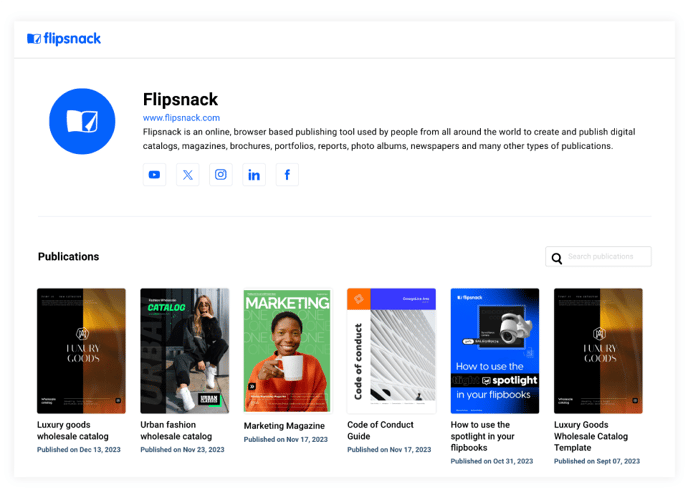
Header customization options by plan:
-
Free, Starter, Professional: Default Flipsnack-branded header (not editable)
-
Business & Enterprise: Full header customization available (logo, colors, navigation links, custom domain)
If you prefer not to display a public profile, you can deactivate it entirely—this is available to Business and Enterprise users only.
Examples:
-
Default profile with standard Flipsnack branding
-
Fully customized Enterprise profile with personalized header and URL
How to access your Flipsnack profile
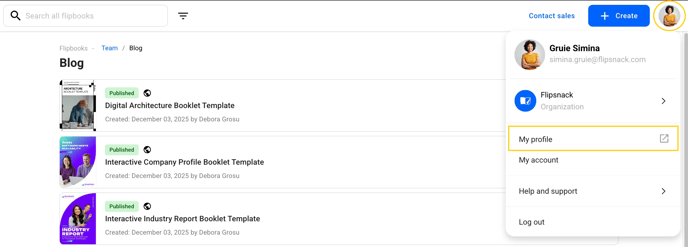
First, log in to your Flipsnack account. Click on your profile image in the upper right corner.
Select My profile, and you will be redirected to your public profile page, where all your public flipbooks are displayed
Note: Learn more about the essentials in the Flipsnack platform.
How to customize your public profile
Go to the right-side panel and click on Branding. You can make changes that are reflected on your profile in the following tabs:
-
Settings (for deactivating your public profile, workspace profile URL, profile tracking IDs, cookie policy link, and custom domain settings);
-
Personalization
.jpg?width=605&height=455&name=image-mh%20(3).jpg)
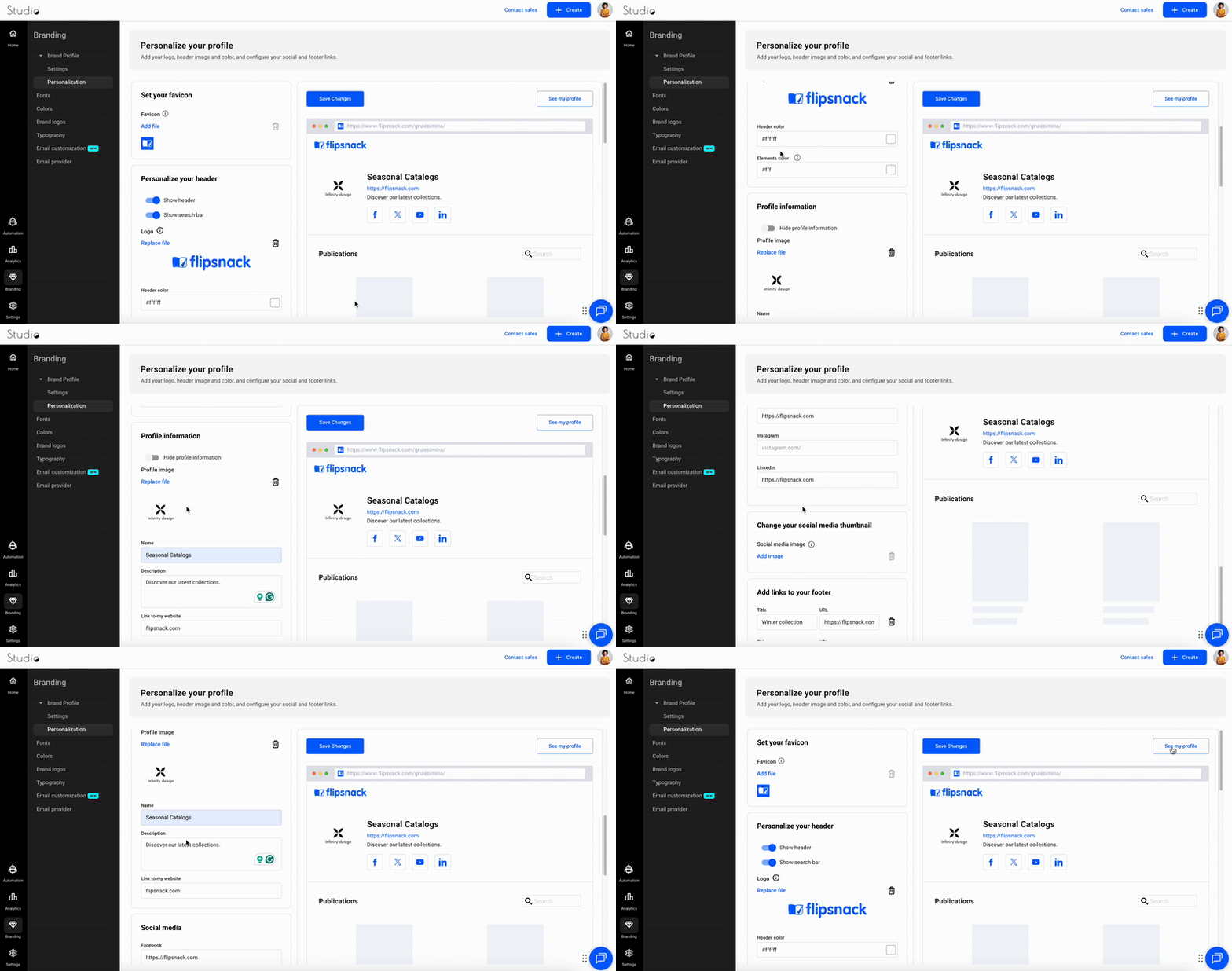
In the Personalization tab, you have the following options:
If you decide to change the name of the workspace, simply enter the new name in the Profile information box.
You can also:
-
Set your own favicon by uploading a new image. You can do this by clicking the Replace file button;
-
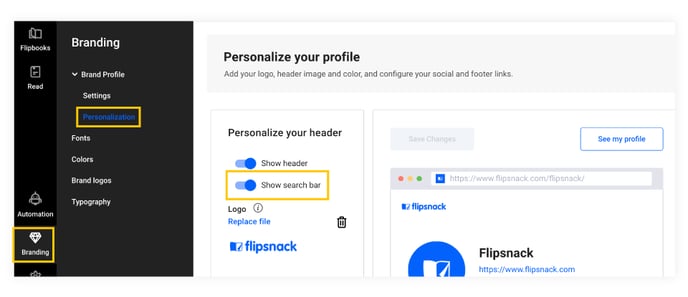
Personalize your header with a new logo by clicking on the Replace file button under the logo section. You have the option to change the Header color on your profile. You can also change the Elements color(it is applied to text and icons, and it is visible to readers who only have view access from Team flipbooks in your workspace). If you don't want to show the header or a Search bar on your profile, you have the option to switch them off.
-
In the Profile information section, you can upload a Profile image (recommended size for profile image: 300x300px), you can change the Profile name, and you can add a short Description about you or your company, and set a link to your website.
-
In the social media section, you can add links to your social media accounts: Facebook, X(formerly Twitter), YouTube, Instagram, and LinkedIn.
-
Right under the Social media section, you can change the social media thumbnail that will appear when someone shares your public profile on social media channels.
-
And in the last section, Add links in the footer area.
Once you are happy with how your profile looks, simply select Save Changes to save your settings. You can see the changes you make to your profile in real time by clicking on the See my profile button.
Search publications on profiles
Having the Search bar enabled on your Flipsnack public profile will allow users to easily search through your published flipbooks by a certain keyword. This is really beneficial for users that have lots of publications, as readers will find what they are looking for faster.
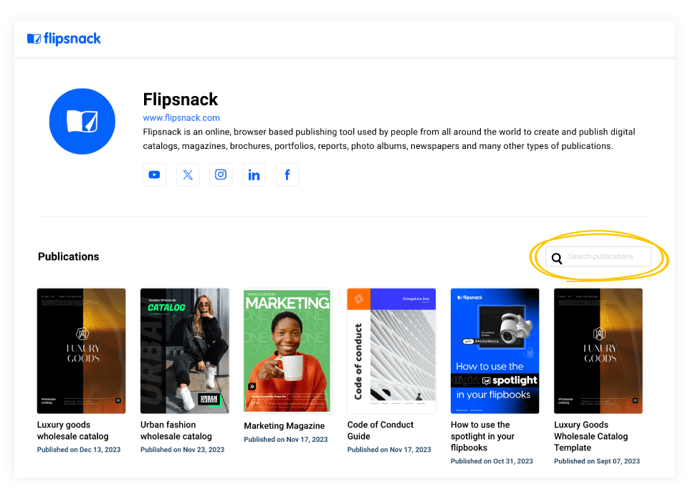
When searching on a public profile, by default, the search is done only in the title and description of the publications. In order to activate the search in the content of the publications as well, you will have to request this feature from our support team.
Keep in mind that if you don’t want users to be able to search on your Flipsnack profile, just go to Branding, choose the Personalization section, and uncheck the Show search bar option.
Another great use case to keep in mind is if you have the same publications in more languages by searching for the keyword "English," then you can easily filter to find all the publications only in the English language. You’ll also be able to easily share the specific link with people who read only in English.
Or if you’re a real estate agency and have publications for all your real estate agents, and someone is interested only in a certain real estate agent, then again, you can search their name, and only their publications will appear. Searching and sharing the specific link is now easier!
How to hide flipbooks from your public profile
Free users will have all their flipbooks shown on their profile, while premium users can choose not to display them.
This is how premium users can keep their flipbooks private:
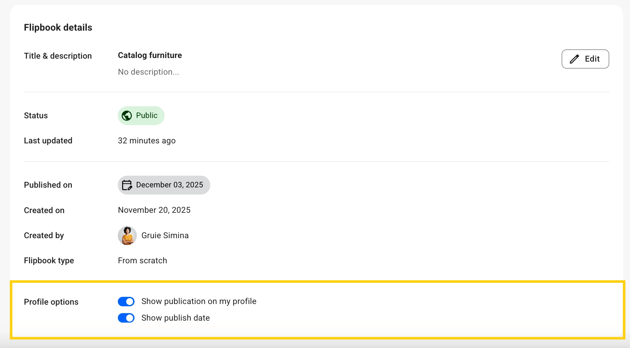
1. Go to Flipbooks, in the main dashboard, locate the desired flipbook, and click on Overview.

2. Scroll down to the Overview section until Flipbook details, where you can toggle whether the publication appears on your public profile and whether the publish date is displayed.
Next steps
Useful resources
Customize your branding settings to make your profile reflect your style:
Need expert support?
Our team is here to help. Connect with our team experts or message us via the in-app chat for a personalized demo.