
Overview
If you create product catalogs in Adobe InDesign and want to turn them into interactive, shoppable experiences in Flipsnack, you can prepare your PDF so products are automatically detected and linked using SKU values.
💡 Benefits of letting Flipsnack detect SKUs from InDesign
- Automatic SKU matching for precise product links
- Flexible SKU placement anywhere on the product
- Faster creation of interactive catalogs, shoppable brochures, and clickable digital lookbooks
This setup allows Flipsnack to display product pop-ups when readers click on items in your catalog. These pop-ups can show product details, pricing, and buying options, helping you turn static PDFs into clickable, sales-ready catalogs.
The workflow works by placing SKU text on top of each product in InDesign and making that text invisible. While readers won’t see the SKU, Flipsnack can still detect it after upload and match each product with your CSV feed.
Requirements
- Plan: Enterprise: contact sales
- PDF content: Product SKUs included in your CSV feed
Step-by-step guide
Step 1: Add the SKU as text in InDesign
Open your catalog file in Adobe InDesign.
- Select the Text tool (T).
- Create a text box over the product area
- Paste the exact SKU value from your CSV file into the text box.
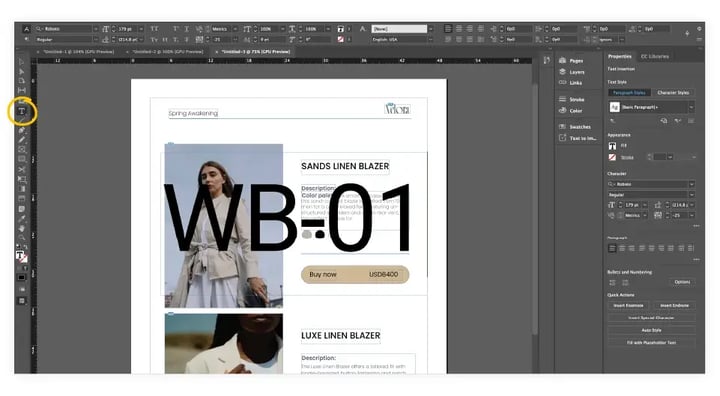
After adding the SKU inside a text box, you may want the clickable area to match the full size of the product (for example, the entire image or product card).
- Start by adjusting the font size of the SKU text to match your product.
- Use Tracking to change the spacing between letters, increasing or decreasing these values will stretch or compress the text, which also changes the size of the text box
- You can use larger or even negative values (for example,
-230) to expand the text box so it covers the entire product area
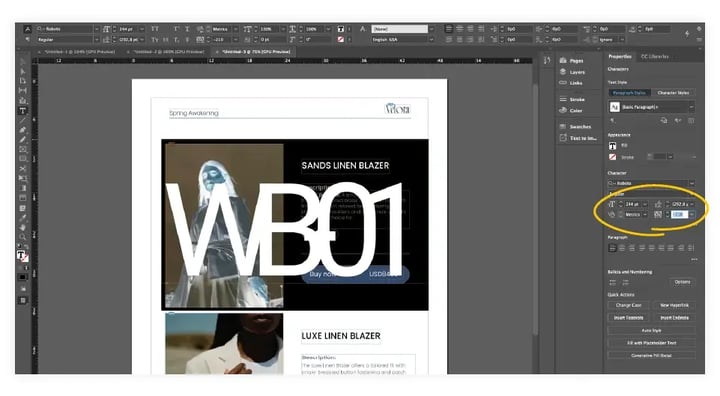
Note: When you select the SKU text box in InDesign, you’ll see its bounding box (black margins). This bounding box shows how large the clickable product area will be in Flipsnack after upload.
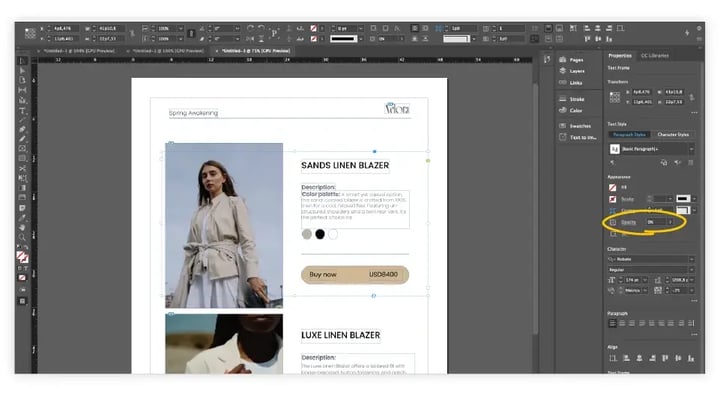
Step 3: Set the text opacity to 0%
With the SKU text selected:
- Open the Properties panel.
- Go to Appearance.
- Set Opacity to 0%.
The text becomes invisible in the design, but it will still be included in the exported PDF.
Step 5: Export the PDF from InDesign
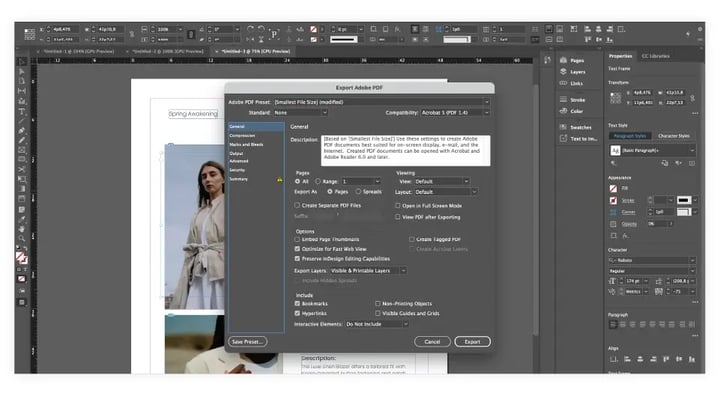
Export your file as a PDF using standard settings.
- Go to File → Export
- Choose Adobe PDF (Print) or Adobe PDF (Interactive)
Step 6: Link your product CSV feed in Flipsnack
First, upload your PDF to Flipsnack. After the upload is complete, you’ll be redirected to the Customize page.
Scroll down to Product detection and click Link feed. 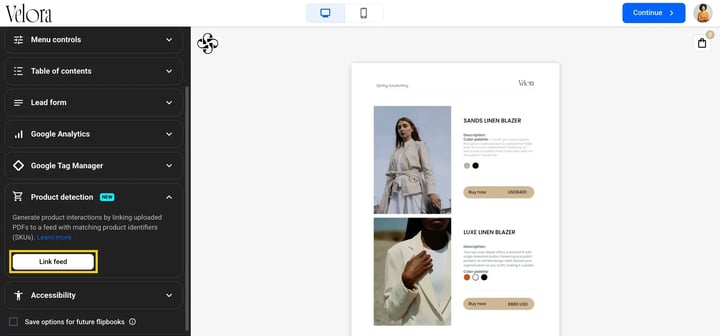
A pop-up will appear where you can import a new feed or use one of the existing feeds, either upload your CSV file from your device or connect it via Google Drive. Then after mapping, Flipsnack will then automatically detect the SKU values and link products from your CSV feed.
This is how it will look for your readers:
Troubleshooting
Products are not detected
Make sure the SKU text matches the CSV value exactly and is not outlined or flattened.
The clickable area is too small
Resize the invisible text box to cover the full product area.
The SKU text appears after upload
Check that opacity is set to 0%, not text color transparency.
Next steps
- Linking a product CSV feed to your flipbook for SKU product detection
- Automated catalog production
- Public sharing options
- Private sharing options
- Why are the products from my CSV file not updating automatically in my flipbook?
Need expert support?
Our team is here to help. Connect with our team experts or message us via the live chat for personalized assistance.