
Overview
If you want to display third‑party content (chatbots, forms, banners) over your Flipsnack flipbooks, use Google Tag Manager (GTM) to inject a lightweight overlay. You’ll manage everything from GTM without editing the flipbook itself.
View example
Important: Overlays appear on top of the flipbook player, not inside the flipbook pages.
Common use-cases
- Customer support chat: Add an Intercom, Drift, or Zendesk widget to assist readers while they browse your catalog.
- Lead capture forms: Embed a Typeform or Google Form to collect emails and grow your subscriber list.
- Feedback & surveys: Launch a survey after readers finish the flipbook to measure engagement or satisfaction.
- Marketing campaigns: Display a promotional banner or pop-up with discount codes, new product launches, or event invites.
- Educational content: Insert quiz forms, extra reading resources, or sign-up sheets for webinars and courses.
- Publishing & media: Show a “Subscribe to newsletter” overlay for magazines or newsletters embedded via Flipsnack.
- Internal communications: Use an overlay to link to company resources, policy acknowledgments, or HR forms inside corporate flipbooks.
Requirements
- Plan: Enterprise: contact sales
- Google Tag Manager enabled on your Flipsnack profile or custom domain: set up Google Tag Manager
How to create a Custom HTML tag in GTM
Before pasting any of the code examples, you’ll need to create a Custom HTML tag inside your Google Tag Manager container.
- Log in to Google Tag Manager and select the container used for your flipbooks.
- In the left-hand menu, click Tags.
- Click New → name your tag (for example, Flipbook iframe overlay).
- Click Tag Configuration → choose Custom HTML.
- Paste the code snippet provided in this guide.
-
Scroll down to Triggering → click + to add a new trigger.
-
Choose Page View.
- Select DOM Ready (recommended).
- (Optional) Add a filter so it only fires on your flipbook URLs (e.g., Page URL contains flipsnack.com).
-
- Click Save.
- When you’re ready, click Submit and Publish in GTM to apply your changes.
Tip: Always preview your container changes with GTM’s Preview mode before publishing. This lets you confirm the overlay works correctly on your flipbook link.
Step-by-step instructions
Quick start (2 minutes): Paste‑and‑go overlay
Simplest path: Copy this into a Custom HTML tag in GTM, set the trigger to DOM Ready, and change only YOUR_FORM_URL.
<script>
(function(){
  var HTML = '' +
  '<div id="fs-quick-overlay" style="position:fixed;<strong>bottom</strong>:12px;right:12px;width:300px;height:400px;background:#fff;box-shadow:0 0 10px rgba(0,0,0,.3);z-index:2147483647;">' +
    '<iframe style="margin-top: 15px; margin-bottom: 15px;" src="<strong>YOUR_FORM_URL</strong>" title="Embedded form" style="width:100%;height:100%;border:none;"></iframe>' +
    '<button type="button" aria-label="Close" style="position:absolute;top:6px;right:6px;background:#000;color:#fff;border:none;cursor:pointer;padding:4px 8px;font-size:14px;line-height:1;">×</button>' +
  '</div>';
function onBody(fn){ if (document.body) fn(); else requestAnimationFrame(function(){ onBody(fn); }); }
onBody(function(){
    if (!document.getElementById('fs-quick-overlay')) {
      var tmp = document.createElement('div');
      tmp.innerHTML = HTML;
      (document.body || document.documentElement).appendChild(tmp.firstChild);
    }
  });
})();
</script>
That’s it. No other edits needed. To move the box, change bottom/right values; to resize, change width/height.
Overlay with simple settings
Paste this one-file overlay script in GTM (Custom HTML, trigger: DOM Ready)
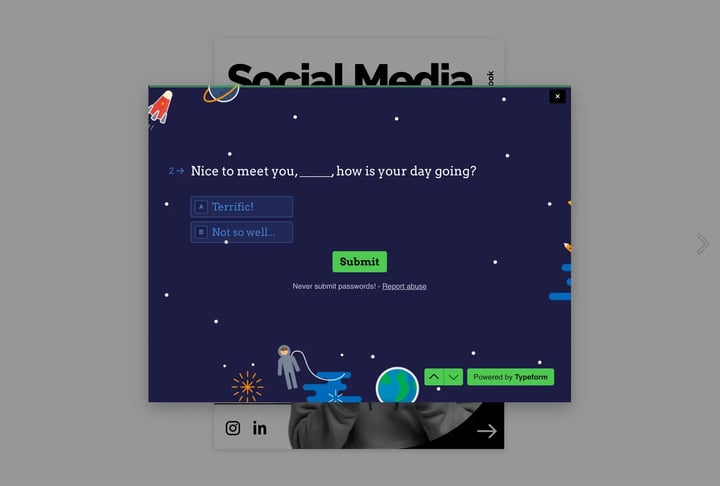
Why this is easy: All the settings you might change live in the CONFIG block at the top.
<script>
(function(){
  // ES5-compatible (no template literals / let / const)
  var FORM_URL = 'https://example.typeform.com/to/M6DYwFd0'; //<- CHANGE THIS WITH YOUR URL
  var USE_BACKDROP = true;
// Cleanup helper
  function rm(id){ var el = document.getElementById(id); if (el) el.parentNode.removeChild(el); }
  rm('fs-overlay'); rm('fs-overlay-backdrop'); rm('fs-overlay-style');
// CSS string (no template literals)
  var cssText = ''+
    '#fs-overlay-backdrop{position:fixed;inset:0;background:rgba(0,0,0,.45);z-index:9998;}'+
    '#fs-overlay{position:fixed;top:50%;left:50%;transform:translate(-50%,-50%);width:90vw;max-width:800px;aspect-ratio:4/3;max-height:90vh;background:#fff;box-shadow:0 10px 30px rgba(0,0,0,.3);z-index:9999;display:flex;flex-direction:column;}'+
    '#fs-close{align-self:flex-end;margin:6px;background:#000;color:#fff;border:none;padding:4px 10px;font-size:18px;cursor:pointer;}'+
    '#fs-iframe{flex:1;border:none;width:100%;}'+
    '@media(max-width:480px){#fs-overlay{width:100vw;height:100vh;max-width:none;max-height:none;aspect-ratio:auto;border-radius:0;}}';
var css = document.createElement('style');
  css.id = 'fs-overlay-style';
  if (css.styleSheet){ css.styleSheet.cssText = cssText; } else { css.appendChild(document.createTextNode(cssText)); }
  document.getElementsByTagName('head')[0].appendChild(css);
// Backdrop
  if (USE_BACKDROP){
    var bd = document.createElement('div');
    bd.id = 'fs-overlay-backdrop';
    bd.onclick = close;
    document.body.appendChild(bd);
  }
// Overlay
  var box = document.createElement('div');
  box.id = 'fs-overlay';
var btn = document.createElement('button');
  btn.id = 'fs-close';
  btn.setAttribute('aria-label','Close');
  btn.appendChild(document.createTextNode('\u00D7'));
  btn.onclick = close;
var frame = document.createElement('iframe');
  frame.id = 'fs-iframe';
  frame.src = FORM_URL;
  frame.title = 'Embedded form';
box.appendChild(btn);
  box.appendChild(frame);
  document.body.appendChild(box);
// ESC to close
  document.addEventListener('keydown', function(e){ if ((e || window.event).key === 'Escape') close(); }, false);
function close(){
    rm('fs-overlay'); rm('fs-overlay-backdrop'); rm('fs-overlay-style');
  }
})();
</script>
GTM settings
- Tag type: Custom HTML
- Trigger: Page View → DOM Ready (fallback: Window Loaded)
- Filter: Limit to your flipbook URLs (e.g., Page URL contains your flipbook path)
- Firing options: Once per page
Modal placement options
Here are several ways you can display the modal depending on your use case:
1. Center modal (classic popup)
Best for: forms or surveys that need full attention.
<script>
(function(){
  var modal = document.createElement('div');
  modal.id = 'fs-modal';
  modal.style.cssText = 'position:fixed;top:0;left:0;width:100%;height:100%;display:flex;justify-content:center;align-items:center;background:rgba(0,0,0,.5);z-index:2147483647;';
  modal.innerHTML =
    '<div style="position:relative;width:420px;height:560px;background:#fff;padding:10px;">' +
      '<iframe src="https://yourform.typeform.com/to/abc123" title="Embedded form" style="width:100%; height:100%; border:none; margin-top: 15px; margin-bottom: 15px;"></iframe>' +
      '<button aria-label="Close" style="position:absolute;top:10px;right:10px;background:#000;color:#fff;border:none;cursor:pointer;padding:4px 8px;font-size:16px;">×</button>' +
    '</div>';
  document.body.appendChild(modal);
})();
</script>
2. Bottom-right floating modal (shows immediately)
Best for: chat widgets or feedback tools that should stay visible while browsing.
<script>
(function(){
  var box = document.createElement('div');
  box.id = 'fs-modal-br';
  box.style.cssText = 'position:fixed;bottom:12px;right:12px;width:360px;height:520px;background:#fff;box-shadow:0 10px 30px rgba(0,0,0,.3);z-index:2147483647;';
  box.innerHTML =
    '<iframe src="https://yourform.typeform.com/to/abc123" title="Embedded form" style="width:100%; height:100%; border:none; margin-top: 15px; margin-bottom: 15px;"></iframe>' +
    '<button aria-label="Close" style="position:absolute;top:8px;right:10px;background:#000;color:#fff;border:none;cursor:pointer;padding:4px 10px;font-size:16px;line-height:1;">×</button>';
  document.body.appendChild(box);
})();
</script>
3) Top banner that opens a modal
Best for: announcements or promotions. The banner stays pinned at the top with a button that opens a modal.
<script>
(function(){
  // Banner
  var banner = document.createElement('div');
  banner.id = 'fs-top-banner';
  banner.style.cssText = 'position:fixed;left:0;right:0;top:0;height:64px;display:flex;align-items:center;justify-content:space-between;padding:0 16px;background:#111;color:#fff;font:600 15px/1.4 system-ui,sans-serif;z-index:2147483647;';
banner.innerHTML =
    '<span>💬 Need help? Fill out our form</span>' +
    '<div>' +
      '<button style="padding:8px 14px;margin-right:10px;border:none;border-radius:6px;background:#00AEEF;color:#fff;cursor:pointer;font:600 14px system-ui,sans-serif;">Open form</button>' +
      '<button aria-label="Dismiss banner" style="background:transparent;color:#fff;border:none;cursor:pointer;font-size:20px;line-height:1;">×</button>' +
    '</div>';
document.body.appendChild(banner);
// Modal
  var modal = document.createElement('div');
  modal.id = 'fs-modal';
  modal.style.cssText = 'display:none;position:fixed;top:0;left:0;width:100%;height:100%;justify-content:center;align-items:center;background:rgba(0,0,0,.5);z-index:2147483647;';
modal.innerHTML =
    '<div style="position:relative;width:420px;height:560px;background:#fff;padding:10px;border-radius:6px;box-shadow:0 8px 24px rgba(0,0,0,.3);">' +
      '<iframe src="https://yourform.typeform.com/to/abc123" title="Embedded form" style="width:100%; height:100%; border:none; border-radius:4px; margin-top: 15px; margin-bottom: 15px;"></iframe>' +
      '<button aria-label="Close" style="position:absolute;top:10px;right:10px;background:#000;color:#fff;border:none;border-radius:4px;cursor:pointer;padding:4px 8px;font-size:16px;">×</button>' +
    '</div>';
document.body.appendChild(modal);
})();
</script>
What you can change
- Iframe URL: change the
src="https://yourform.typeform.com/to/abc123"in each snippet. - Modal size: edit
width:420px;height:560px(or the bottom-right variantwidth:360px;height:520px). - Banner labels: replace
Open formwith your text. - Colors: change
background:#111,#00AEEF, orcolor:#fff. - Position: adjust
top/bottom/left/rightvalues (e.g., move the floating modal further from edges).
Additional tips / FAQs
- Can I target different flipbooks with different forms? Yes. In GTM, use URL-based triggers and duplicate the tag with different
CONFIG.formUrlvalues. - Can I delay the overlay? Yes. Wrap the
inject()/create()call insetTimeout(function(){ ... }, 8000)(for 8s). - Can I track interactions inside the iframe? Only if you control the iframe source and add tracking code there.
Common use-cases
- Chat widgets (Intercom, Zendesk)
- Feedback or survey forms (Typeform, Google Forms)
- Campaign banners and offers
- Lead capture and conversions
Troubleshooting
Overlay/modals don’t show
- GTM publish and trigger: Confirm GTM publishes and the trigger = DOM Ready.
- Tag firing scope: Check that the tag fires only on your flipbook URLs.
- Check node in DevTools: Open DevTools → Elements to see whether the node exists.
It loads twice
- Top-window guard and flags: Keep the top-window guard and global flags included above (
window.self===window.top,__fsOverlayInjected,__fsPopupInjected). - Optional in GTM: create a JS – IsInIframe variable and add it as a Trigger Exception.
Overlay covers player controls
- Adjust size and position: Tweak size/position in
CONFIG(e.g., bigger bottom/right values).
Iframe refused to connect
- Embedding blocked by source: The source may set
X-Frame-Options/CSPto block embedding. Try another provider or host your own page.
Next steps
- Customize the flipbook player
- Set up Google Tag Manager in your flipbooks
- Set up Google Tag Manager in Flipsnack
Need expert support?
Our team is here to help. Connect with our team experts or message us via the live chat for personalized assistance.