
Clipping masks allow you to crop images to a specific shape in your Flipsnack design, adding a creative and professional touch to your flipbooks. You can insert images inside shapes like circles, stars, or rectangles with just a few clicks. You can also control how the image fits inside the shape by choosing between the Fit or Fill options.
Step-by-step guide
1. Select a shape
- Open the Design Studio in Flipsnack
- Go to the Shapes tab in the left panel
- Choose a shape (e.g., circle, star, polygon) and drag it onto your canvas
2. Use the shape as a mask
- Position the shape on your page
- Select the shape, then click Use as mask from the top bar
3. Add your image
- Open the Upload tab
- Drag and drop any image from your uploads or image library (Unsplash, Pexels, Pixabay) onto the masked shape
Note: You can also upload an image directly from your computer by clicking the Upload image button in the Image mask panel.
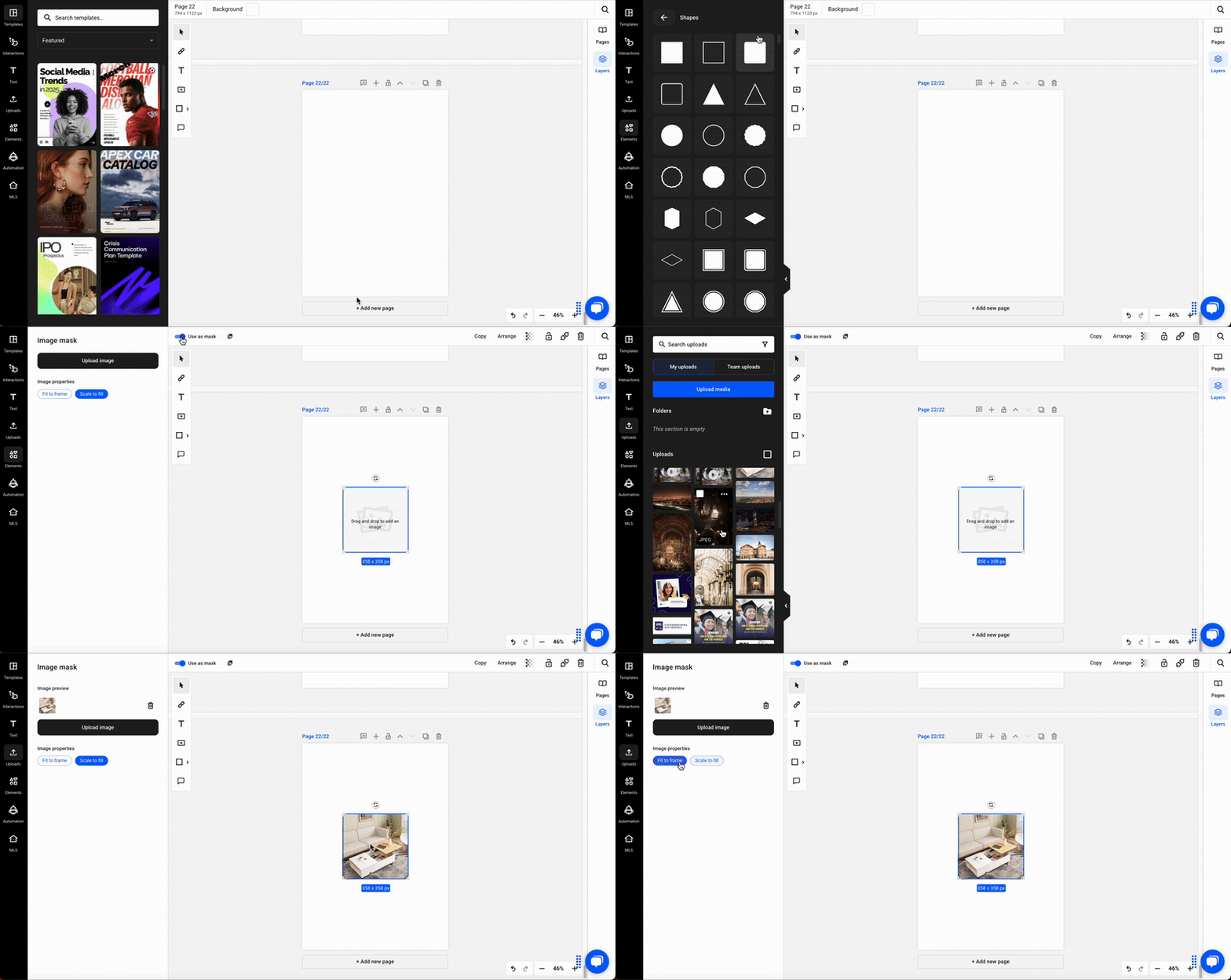
4. Choose Fit or Fill
- After placing the image, click on the shape, and you will see two options: Click on Fit or Fill.
- Fit: Displays the entire image inside the shape (may add padding)
- Fill: Crops the image to fill the shape area
For any questions, don’t hesitate to contact us via live chat, and we’ll be more than happy to help.
Next steps
- How to crop images in your flipbooks using the Design Studio
- How to use the spotlight effect for images in your flipbook
- Free stock photos and videos from Pexels and Pixabay media
Need expert support?
Our team is here to help. Connect with our team experts or message us via the live chat for personalized assistance.